Modify Selection
Select or deselect subtitle lines based on rules — text content, hearing-impaired text, duration, characters per second, gaps, line count, bookmarks, styles, actors, and more.
- Menu: Edit → Modify selection…
- Shortcut: Configurable (no default)
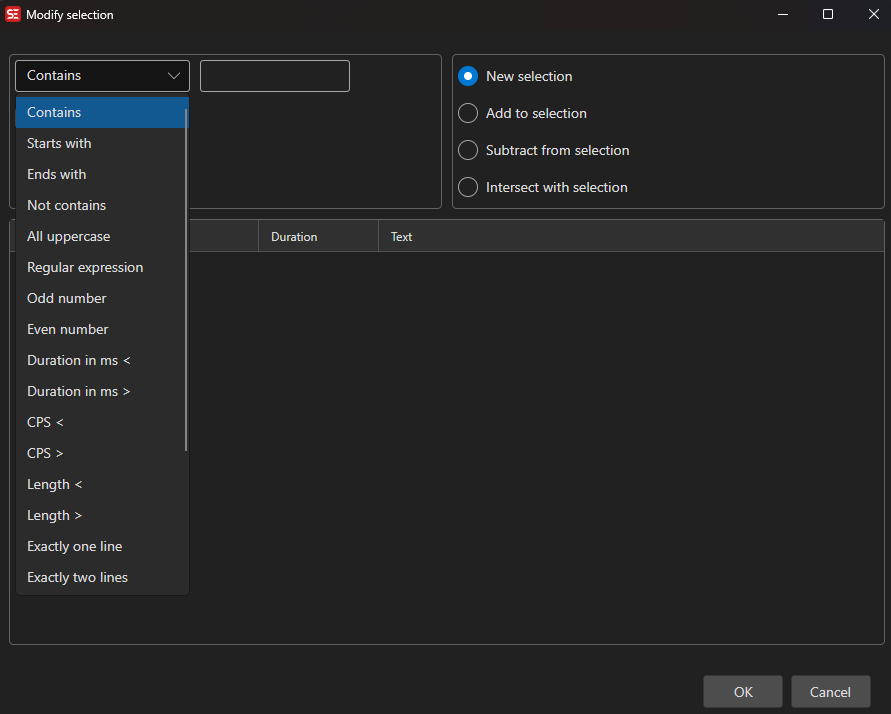
How It Works
- Pick a rule and, where relevant, enter a text or number to match against.
- Choose how the matches should affect the current selection (new/add/subtract/intersect).
- The preview list updates automatically and shows every matching line. All matches start checked — uncheck Apply on a row to leave that line out.
- Click OK to apply the selection in the subtitle grid.
Rules
Text rules:
- Contains — Text contains the entered string
- Starts with — Text starts with the entered string
- Ends with — Text ends with the entered string
- Not contains — Text does not contain the entered string
- Regular expression — Text matches the entered regex (case-insensitive; an invalid pattern matches nothing, and one that has not finished with a line after five seconds is given up on for that line)
- All uppercase — Text has letters and none of them are lowercase
- Blank lines — Text is empty or whitespace only
For Contains, Starts with, Ends with, Not contains, and Bookmark contains, a Case sensitive checkbox is shown. Text rules with an empty text box match nothing.
Timing and length rules (the number box sets the threshold):
- Duration in ms < / Duration in ms > — Display duration below/above the threshold
- CPS < / CPS > — Characters per second below/above the threshold
- Single line max length < / Single line max length > — Longest line in the subtitle below/above the threshold (defaults to the max-length setting)
- Pixel length > — Rendered width in pixels above the threshold
- Gap in ms < / Gap in ms > — Gap to the next subtitle below/above the threshold
Structure rules:
- Odd number / Even number — Line number is odd/even
- Exactly one line / Exactly two lines / More than two lines — Number of text lines in the subtitle
Metadata rules:
- Bookmarked — Line has a bookmark
- Bookmark contains — Bookmark text contains the entered string
- Style — Line uses one of the checked styles (list built from the styles present in the file; ASSA subtitles)
- Actor — Line has one of the checked actors
Hearing impaired:
- Hearing impaired (SDH) — Line contains hearing-impaired text, i.e. anything Remove text for hearing impaired would remove or change
Hearing Impaired (SDH)
This rule runs the Remove text for hearing impaired engine over every line and matches the ones it would change — sound descriptions in brackets, SPEAKER: labels, uppercase-only lines, interjections, and so on. Plain dialogue is left alone.
Use it to get the SDH out of a file as a separate subtitle: pick the rule, click OK, then cut the selected lines (Ctrl+X) and paste them into a new window to save as .srt. This is handy before aligning a subtitle, so the SDH can be merged back in afterwards.
Click Settings to choose what counts as hearing-impaired text:
- Remove text between — Brackets […], Curly brackets {…}, Parentheses (…), Custom (the delimiters set in Remove text for hearing impaired are shown next to the box)
- Text before colon — Speaker labels like
SPEAKER: - Uppercase line — Lines that are entirely uppercase
- Line contains — Lines containing one of the configured substrings
- Only music symbols — Lines that consist only of music symbols
- Interjections — Common interjections such as “hmm” and “uh”
The boxes start out matching what Remove text for hearing impaired is currently set to remove, so by default the selection is exactly what that tool would delete. Changes made here are not written back to that tool — they last until the Modify selection window is closed.
Everything else the engine needs — the custom delimiters, the if line contains list, the uppercase whitelist, and the per-language interjections — is taken from Tools → Remove text for hearing impaired. Change it there if the rule matches too much or too little.
Selection Actions
- New selection — Select only the matching lines
- Add to selection — Keep the current selection and add the matches
- Subtract from selection — Remove the matches from the current selection
- Intersect with selection — Keep only currently selected lines that also match
The rule, text, number, and selection mode are remembered between sessions.