Re-encode Video
Re-encode a video file with a different frame rate or container format using FFmpeg.
- Menu: Video → Re-encode video…
- Shortcut: Configurable
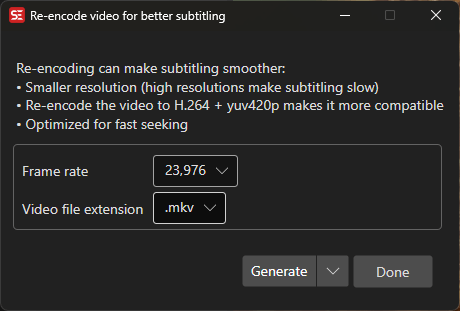
How to Use
- Open Video → Re-encode video…
- Select the output frame rate
- Select the output container format (
.mkv,.mp4,.webm) - Click Generate to start re-encoding (or use the Generate split-button menu to prompt for FFmpeg parameters before encoding)
Options
- Frame rate — Output frame rate
- Video extension — Output container format
- Prompt for FFmpeg parameters and generate — Edit the FFmpeg command line before encoding (available from the Generate split-button menu)
Keyboard Shortcuts
| Key | Action |
|---|---|
| Escape | Close / Cancel |
| F1 | Open help |