Shortcuts
View, assign, and manage keyboard shortcuts for all commands in Subtitle Edit.
- Menu: Options → Shortcuts…
- Shortcut: Configurable
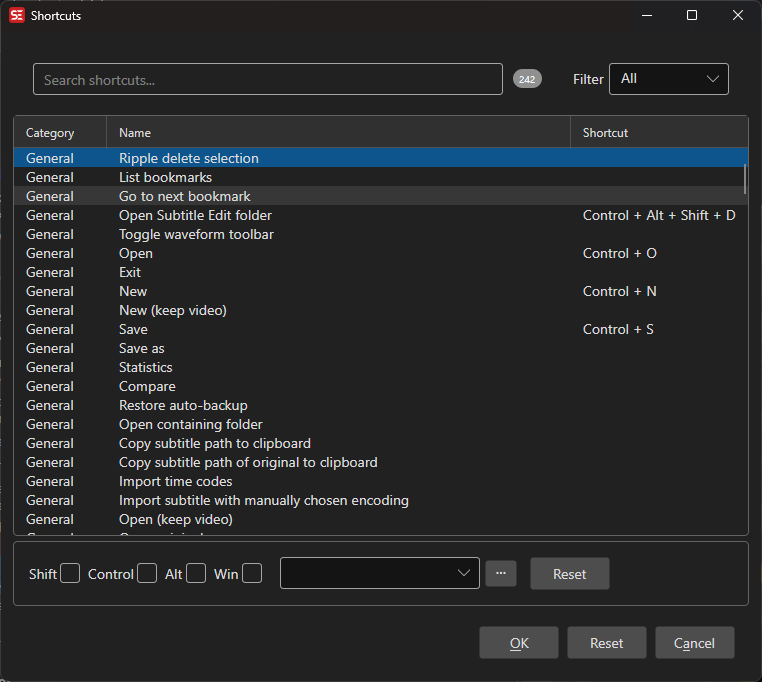
How to Use
- Open Options → Shortcuts…
- Pick a category tile, or search for the command you want to configure
- Select the command in the list
- Assign a shortcut by selecting modifier keys (Ctrl, Alt, Shift, Win) and a key
- Click OK to save all changes
Browsing by Category
A row of category tiles above the list groups the commands thematically. Each tile has an icon, a color, and the number of commands in the group — click one to filter the list:
All, General, File, Video, Waveform, Subtitle list view, Text box, Subtitle list view & text box, Synchronization, Translate, Search, Tools, and AI.
In the list, each command shows its group with the matching icon and color, and assigned key combinations are rendered as keycap-style chips.
Where a Shortcut Is Active
Independent of the thematic category, each command has a scope shown in the Active in column:
- Everywhere — global shortcuts, available in the whole main window (conflicts with all other scopes)
- Subtitle list view — active while the subtitle list view is focused
- Text box — active while the subtitle text box is focused
- Subtitle list view & text box — active in both
- Waveform — active while the audio visualizer is focused
Assigning a Shortcut
- Select a command from the list
- Check the desired modifier keys: Ctrl, Alt, Shift, Win
- Select the key from the dropdown
- The shortcut is applied immediately in the list
- Alternatively, double-click a command in the list to open the key capture dialog, then press the desired key combination directly
Configurable Commands
Some commands have additional configuration beyond the shortcut key:
- Set color 1–8 — Choose a color for each color shortcut
- Surround with 1–3 — Define the left/right text to surround selected text with (this replaces the Shortcut toggle custom start/end setting from Subtitle Edit 4)
- Video move custom 1–4 back/forward — Set the number of milliseconds to skip
- Set actor 1–10 — Define the actor name assigned by each actor shortcut
Select a configurable command and click the gear icon to adjust its settings. The gear sits in the shortcut assignment row below the list, between the key detection button and Reset — it is only shown while a configurable command is selected, so if you cannot see it, the selected command has no extra settings.
Resetting Shortcuts
- Reset (next to the assignment controls) — Clear the shortcut for the selected command
- Reset (button bar) — Restore all shortcuts to their default values (requires confirmation)
Filtering
Use the filter dropdown to narrow the list:
- All — Show all commands
- Assigned — Show only commands with a shortcut assigned
- Unassigned — Show only commands without a shortcut
Use the search box to filter commands by name.
Sorting
Click a column header to sort the list by that column — Active in, Category, Name, and Shortcut are all sortable. Click again to reverse the order. Sorting stays active while filtering by category tile or search text, so you can e.g. sort a single category by shortcut key.
Duplicate Detection
When saving, Subtitle Edit checks for duplicate shortcut assignments. If duplicates are found within the same scope (or if an “Everywhere” shortcut conflicts with any other scope), you will be warned and can choose to save anyway or go back and fix them.
Import / Export
Right-click the shortcut list to open the context menu:
- Import… — Load shortcuts from a
.shortcutsfile (JSON format) - Export… — Save all configured shortcuts to a
.shortcutsfile - Import from SE 4… — Import shortcuts from a Subtitle Edit 4
Settings.xml(also available as a button in the window)
This is useful for sharing shortcut configurations between machines or team members, or for keeping muscle memory when moving from Subtitle Edit 4.
Keyboard Shortcuts
| Key | Action |
|---|---|
| Escape | Close shortcuts window |
| F1 | Open help |