Speech to Text
Subtitle Edit can automatically transcribe audio to text using Whisper-based and other modern speech recognition engines.
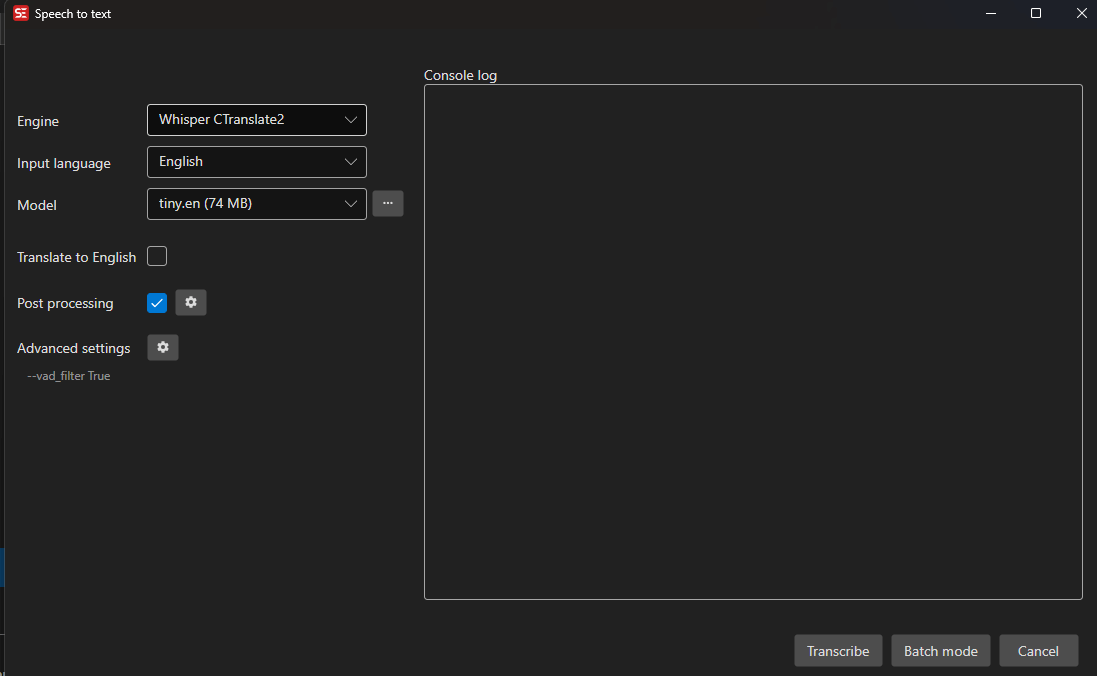
- Menu: Video → Speech to text…
Supported Engines
| Engine | Platform | Notes |
|---|---|---|
| Whisper CPP | Windows, Linux, macOS | Local CPU engine. On Windows the cuBLAS (NVIDIA CUDA) and Vulkan GPU backends can also be selected from the Whisper CPP backend dropdown. |
| Purfview Faster Whisper XXL | Windows, Linux | Fast local engine, often used with NVIDIA CUDA |
| Whisper CTranslate2 | Windows, Linux (x64), macOS (Apple Silicon) | CPU / NVIDIA CUDA depending on installation; CUDA requires CUDA 12.x |
| MLX Whisper | macOS (Apple Silicon) | Runs Whisper on the Apple GPU / Neural Engine via Apple’s MLX. Not downloaded by Subtitle Edit — install the mlx-whisper Python package yourself (see notes below) |
| Whisper Const-me | Windows | DirectX-based engine |
| Whisper OpenAI | All | Python-based OpenAI Whisper workflow |
| OpenAI Compatible Server | All | Connect to any OpenAI-compatible speech-to-text endpoint |
| OpenRouter | All | Online. One API key routes to Whisper, gpt-4o-transcribe, Groq and Google Chirp |
| Alibaba Qwen3-ASR | All | Online Qwen3-ASR via Alibaba Model Studio (DashScope) |
| Qwen3 ASR CPP | Windows, Linux | Local Qwen3 ASR engine with downloadable GGUF models |
| Crisp ASR | Windows, Linux, macOS | Single engine with selectable backends: Parakeet, Canary, Cohere, Fire Red, Fun-ASR Nano, Fun-ASR MLT Nano, GigaAM, GLM, Granite, Qwen3, Mega, MOSS Diarize, Omni, Kyutai, SenseVoice, ARK, Voxtral |
Engines and models are downloaded automatically on first use.
SE5 Engine Notes
- Whisper CPP is shown as a single entry; the CPU / cuBLAS / Vulkan backends are selected from a secondary dropdown when Whisper CPP is selected.
- Qwen3 ASR CPP includes 0.6B and 1.7B model options, plus a forced-aligner model used for timing workflows.
- Crisp ASR is exposed as one engine that wraps multiple backends (Parakeet, Canary, Cohere, Fire Red, Fun-ASR Nano, Fun-ASR MLT Nano, GigaAM, GLM, Granite, Qwen3, Mega, MOSS Diarize, Omni, Kyutai, SenseVoice, ARK, Voxtral). Pick the backend from the Crisp ASR backend dropdown - see Crisp ASR backends for what each one is good at.
- MLX Whisper (Apple Silicon Macs) is not bundled or auto-downloaded — it drives Apple’s
mlx-whisperPython package. Install it once withpip3 install mlx-whisper(orpipx install mlx-whisper); models download from Hugging Face on first use. Subtitle Edit detects the install by finding a Python that canimport mlx_whisper— it probes Homebrew, python.org, pyenv and system interpreters, and (for pipx / virtual-env / conda installs, which isolate the package) reads themlx_whispercommand found on your PATH or at~/.local/bin/mlx_whisperto locate the matching interpreter. If it reports “not found” after a pipx/venv install, make surewhich mlx_whisperresolves. - A Forced aligner option is shown for Crisp ASR backends and exposes the built-in aligner, Canary CTC, Qwen3, and the wav2vec2 zoo (12 language-specific CTC aligners that run on top of any Crisp ASR backend).
- Several newer engines support automatic language selection.
- Each engine can have separate advanced command-line parameters.
Crisp ASR backends
Crisp ASR is one engine wrapping many backends. Set Engine to Crisp ASR, then pick the backend from the Crisp ASR backend dropdown - the model list updates to that backend’s models.
The languages column counts what the backend dropdown offers (an auto entry is not counted as a language).
Output is what you actually get back. Native timings means the backend times its own lines and can use the built-in aligner; needs aligner means the text arrives untimed and a forced aligner (Canary CTC, Qwen3, or a wav2vec2 aligner) places it in time. Anything else a backend adds - speaker labels, punctuation and casing - is called out there too.
| Backend | Languages | Output | Model size range | Good for |
|---|---|---|---|---|
| Parakeet | 13 (European + zh, ja, ko) | Native timings | 75 MB - 2.14 GB | The fast default. NVIDIA Parakeet TDT/RNN-T in 0.6B, 1.1B and a 110M tdt_ctc model - the smallest Crisp ASR model of all. Has a Japanese fine-tune |
| Canary | 25 (European) | Native timings | 705 MB - 1.97 GB | NVIDIA Canary 1B v2. Broad European coverage with its own timings; also usable as a CTC forced aligner for other backends |
| Cohere | 14 | Native timings | 1.51 - 4.14 GB | Cohere Transcribe. Separate Arabic and Japanese fine-tunes. VAD is on by default (see the VAD section below) |
| GigaAM | 1 (Russian) | Native timings; punctuation + casing on e2e only |
151 - 452 MB | Russian only, and very small. Use an e2e revision - those emit punctuation and capitalisation, the plain ctc / rnnt heads return bare lowercase text |
| MOSS Diarize | 2 (en, zh) | Native timings + speaker labels | 1.41 - 1.82 GB | Labels who is speaking. This is the backend preselected by the text-to-speech speaker-separation workflow |
| Qwen3 | 30 | Needs aligner | 631 MB - 4.7 GB | Strong all-rounder in 0.6B and 1.7B, with an anime / visual-novel Japanese fine-tune. Also supplies the Qwen3 forced-aligner model |
| Omni | 149 | Needs aligner | 1.08 - 3.26 GB | By far the widest language coverage - the place to start for a language no other backend lists. Languages use NLLB-style codes (eng_Latn, cmn_Hans) |
| Fire Red | 49 | Needs aligner | 1 - 2.4 GB | FireRedASR2. Chinese-first, and the only backend covering Chinese regional languages: Cantonese, Shanghainese, Minnan, Gan, Hakka and Xiang |
| GLM | 17 | Needs aligner | 1.3 - 4.5 GB | GLM-ASR Nano, Chinese-first with a wide second tier of languages |
| SenseVoice | 5 (zh, yue, en, ja, ko) | Needs aligner | 136 - 469 MB | Tiny and quick for CJK audio - useful on machines where the larger backends are too slow |
| Fun-ASR Nano | 5 (en, zh, yue, ja, ko) | Needs aligner | 0.90 - 1.98 GB | CJK-focused Fun-ASR |
| Fun-ASR MLT Nano | 31 | Needs aligner | 0.90 - 1.98 GB | The multilingual sibling of Fun-ASR Nano at the same size |
| Mega | 2 (en, zh) | Needs aligner | 1.3 - 4.4 GB | Mega-ASR 1.7B. VAD is on by default (see the VAD section below) |
| Granite | 6 (en, fr, de, es, pt, ja) | Needs aligner | 1.54 - 5.58 GB | IBM Granite Speech 4.1 2B. The plus models are the newer revision; mini and f16enc trade encoder precision for size |
| ARK | 19 (European + zh, ja, ko) | Needs aligner | 3.52 - 7.51 GB | A 3B model - the heaviest backend here, so only worth it when the smaller ones fall short |
| Kyutai | 2 (en, fr) | Needs aligner | 0.67 - 5.01 GB | Kyutai STT in 1B and 2.6B |
| Voxtral | 8 | Needs aligner | 2.65 - 4.99 GB | Mistral Voxtral Mini 3B. The backend has no built-in aligner entry at all, so a CTC aligner is always used |
Picking a quantization
Most backends list the same model several times with a quantization suffix. The suffix only changes file size, memory use and speed - the model is the same:
q4_k- smallest and fastest, with the most accuracy lost. A good first downloadq5_0/q5_1/q6_k- middle ground where offeredq8_0- close to full precision at roughly half the size. The best default when disk space allows- no suffix /
f16/unquantized- full precision, largest and slowest, and rarely worth it overq8_0
A model name with a language in it (-ja, -arabic) is a fine-tune for that language and usually beats the general model on it - see below.
Language-specific models
Some backends offer models fine-tuned for one language, which usually beat the general model on that language.
These models live under the Crisp ASR engine, not under the standalone Qwen3 ASR CPP engine. To reach them, set Engine to Crisp ASR, then pick the backend from the Crisp ASR backend dropdown - the model list updates to that backend’s models. For Japanese:
| Backend | Model | Notes |
|---|---|---|
| Crisp ASR Qwen3 | qwen3-asr-1.7b-ja-anime-q8_0.gguf (or -q4_k.gguf) |
Fine-tuned on anime / visual novel speech - the best starting point for anime audio |
| Crisp ASR Cohere | cohere-asr-ja-q8_0.gguf (also q4_k / q6_k / f16) |
Japanese fine-tune covering general and anime domains |
| Crisp ASR Parakeet | parakeet-tdt-0.6b-ja-q8_0.gguf (also q4_k / unquantized) |
Fast Japanese model |
The general qwen3-asr-1.7b and Whisper large-v3-turbo models are also strong on Japanese if you prefer a single model for mixed content.
How to Use
- Open a video file in Subtitle Edit
- Go to Video → Speech to text…
- Select an Engine from the dropdown
- Select a Model (larger models usually improve accuracy but take more time and disk space)
- Select the Language of the audio, or use auto-language when the selected engine supports it
- Optionally enable:
- Translate to English — Translate non-English audio to English
- Adjust timings — Post-process timing using waveform data
- Post-processing — Fix casing, merge lines, add periods, etc.
- Click Transcribe
Models
Each engine has its own set of models. Common model sizes:
- tiny — Fastest, least accurate
- base — Good balance for quick work
- small — Better accuracy
- medium — High accuracy
- large / large-v2 / large-v3 — Best accuracy, slowest
Models ending in .en are English-only and perform better for English audio.
Batch Mode
Transcribe multiple video files at once:
- Click Batch mode
- Add video files
- Click Transcribe
- Results are saved as
.srtfiles next to the video files
Advanced Settings
Click the Advanced button to configure custom command-line arguments for the Whisper engine:
- Use VAD (voice activity detection) for better timing
- Highlight spoken words in the transcript
- Adjust temperature or other model parameters
Advanced settings are stored per engine, so you can keep separate parameters for Whisper CPP, Qwen3 ASR, Crisp ASR, and other engines.
Voice activity detection with Crisp ASR Cohere and Mega
For the Cohere and Mega backends, Subtitle Edit adds --vad and the bundled Silero VAD model to the command line by default. Crisp ASR turns VAD on for these models by itself on longer audio, so passing the bundled model mainly keeps Crisp ASR from downloading its own copy in the middle of a transcription.
VAD usually gives tighter timings, but on some material it drops quiet speech and clips the first word of a line. Crisp ASR has no --no-vad switch, so VAD is turned off by asking for fixed chunking instead: add --chunk-seconds 30 (or -ck 30) to the advanced parameters, and Subtitle Edit leaves --vad out of the command line entirely. Expect the trade-off that comes with it - with VAD off, long stretches of silence or music can produce invented lines.
To keep VAD and only change how it behaves, put --vad in the advanced parameters yourself (the Enable VAD button fills in the flag and the model path). An explicit --vad wins over --chunk-seconds, so the two can be combined.
Post-Processing Settings
Click the Post-processing button to configure:
- Adjust timings (using waveform peak data)
- Fix short durations
- Fix casing
- Add periods
- Merge short lines
- Split long lines
- Change underline to color (useful for highlight spoken words)
Console Log
The console log at the bottom shows real-time output from the Whisper process, useful for debugging issues.
Tips
- For NVIDIA GPU users, use the Whisper CPP cuBLAS backend or Purfview Faster Whisper XXL for fastest transcription
- If you get “CUDA out of memory” errors, try a smaller model
- The
--standardparameter is automatically added for Purfview Faster Whisper XXL - You can re-download an engine by right-clicking the engine area
- If an engine executable has gone missing (typically quarantined by antivirus software), Subtitle Edit detects it when transcription starts, names the missing file, and offers to re-download the engine
- If a new engine has no model installed yet, let Subtitle Edit download both the engine and the selected model before starting transcription