Edit Menu
The Edit menu provides tools for finding, replacing, and modifying subtitle text and selections.
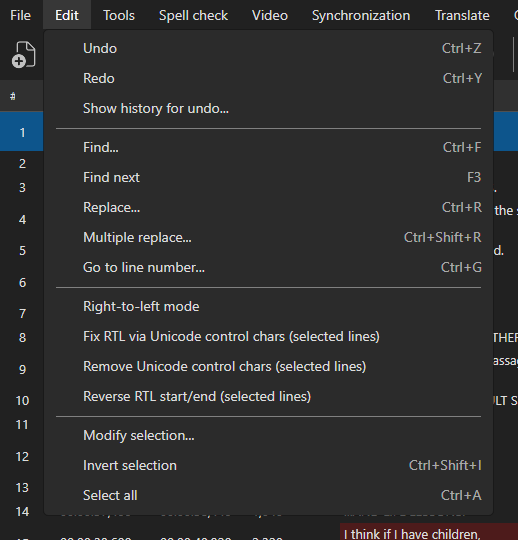
Undo / Redo
Undo or redo the last editing action.
- Undo:
Ctrl+Z - Redo:
Ctrl+Y(Cmd+Shift+Zon macOS)
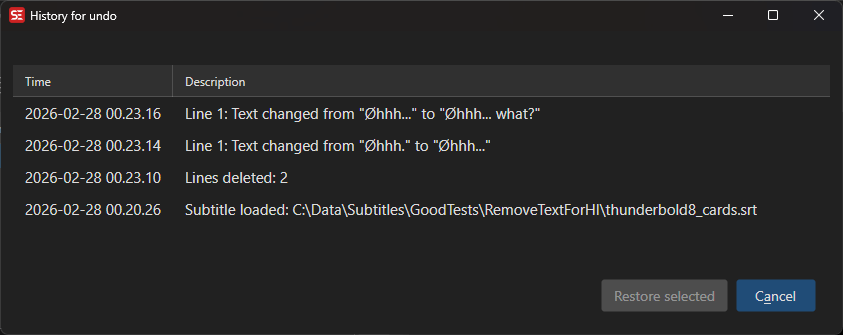
Show History
View the complete history of changes made to the subtitle file and restore any previous state.
Find
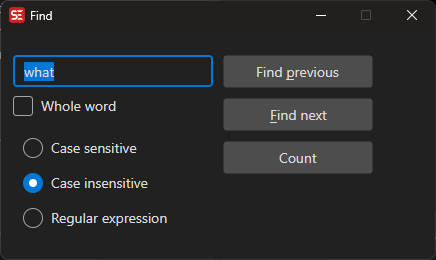
Search for text in the subtitle.
- Menu: Edit → Find
- Shortcut:
Ctrl+F - Find next:
F3(Cmd+Gon macOS) - Find previous:
Shift+F3(Cmd+Shift+Gon macOS)
Options:
- Whole word (checkbox)
- Search type (radio buttons): Case sensitive, Case insensitive, or Regular expression
With Regular expression selected, right-click the search box for a helper flyout that inserts common regex building blocks.
Matching a line break with a regular expression: use
\nbetween the words on the two lines (for exampleear\ntwice).\r\nand\rare accepted too and are treated the same as\n, so a rule works regardless of how it was written or which platform created it.
^and$in Find and Replace match the start and the end of the whole subtitle text, so in a two-line subtitle^-only finds the dash on the first line. Write(?m)in front of the pattern -(?m)^-- to make them match at every line break instead. (Multiple replace is the other way around, see below.)
Slow patterns: a pattern that has not finished with a single subtitle after five seconds is given up on and treated as no match for that subtitle, so an expression that backtracks forever -
(a+)+band friends - cannot lock up the program.
Translator mode: with an original subtitle loaded, both the text and the original text are searched. Within a line the text is searched first, then the original text, and the match is selected in the text box of the column it was found in.
Replace
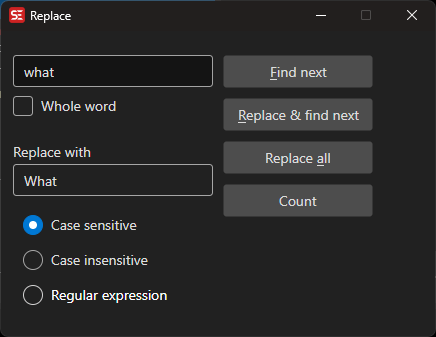
Find and replace text in the subtitle.
- Menu: Edit → Replace
- Shortcut:
Ctrl+H(Cmd+Option+Fon macOS, since Cmd+H hides the app)
The buttons have Alt accelerators, underlined while Alt is held: Alt+F Find next, Alt+R Replace & find next, Alt+A Replace all. As in Subtitle Edit 4, the bare letter (F, R, A) also works once the focus has left the text boxes, e.g. after clicking a button. The Find window has Alt+F Find next and Alt+P Find previous the same way. The history button next to the search box lists recent searches. Each entry has a ✕ to delete it (in the history menu and in the search box’s drop-down; Delete on a highlighted entry does the same), and Clear history at the bottom of the menu removes them all. Ctrl+Delete removes the current search text from the search history.
The line under the buttons reports the outcome: Count shows how many matches there are, Replace all shows how many occurrences were replaced, and Replace & find next keeps a running total of the occurrences replaced with the current search text. Typing a new search text starts the count over.
With an editable original subtitle loaded, a Replace/search in drop-down appears with three choices:
- Text and original text - both columns (the default, and what Find always does)
- Text only - leave the original subtitle alone
- Original text only - only change the original subtitle
The choice is remembered between sessions. It also applies to F3 / Shift+F3 until the Find window is used again, which always searches both columns. The drop-down is hidden when there is no original subtitle, or when the original is opened as a read-only reference - a read-only original is never written to.
Replacement text: group references work -
$1,$&,${name}- and\ninserts a line break. Other backslash escapes are not expanded there:\tand\u00A0are inserted as those literal characters. To insert a special character, paste the character itself into the Replace with box. In the search pattern all .NET escapes work as usual,\u00A0included.
Multiple Replace
Apply multiple find-and-replace rules at once, organized into named categories. Rules are persisted across sessions.
- Menu: Edit → Multiple replace
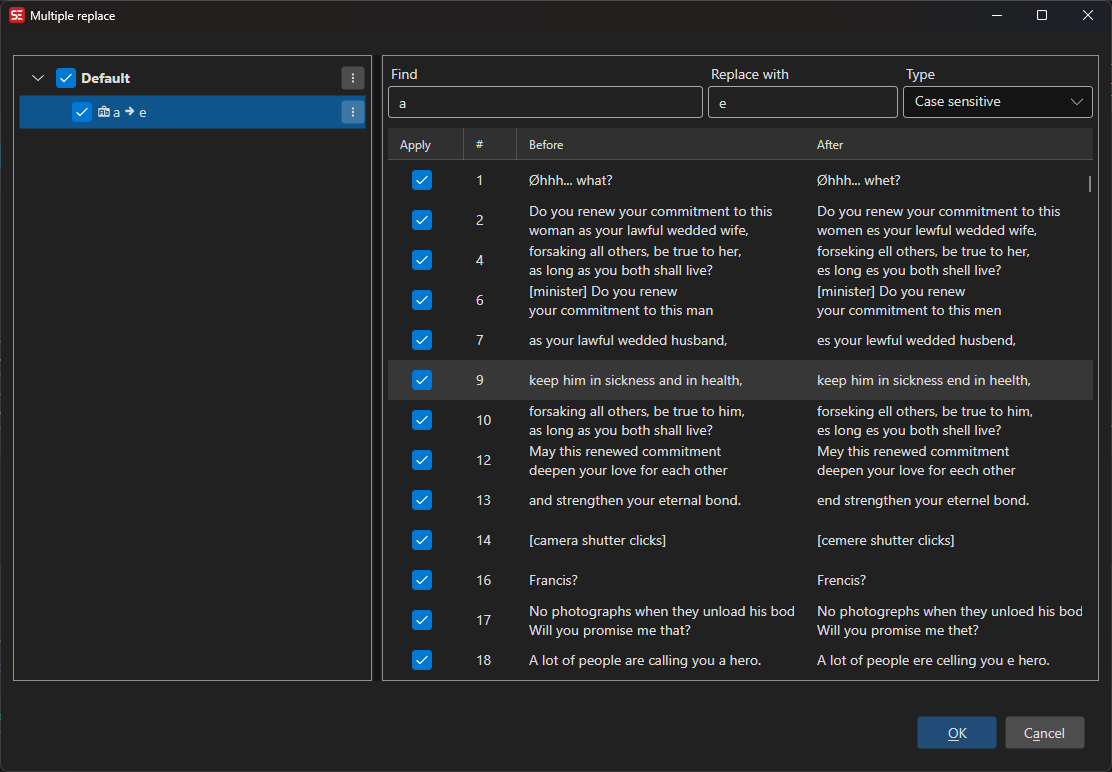
Window layout
The window is split into two resizable panels:
| Panel | Description |
|---|---|
| Left — Rules | Tree of categories and their rules. Each rule shows its type icon, find pattern, replacement, and an optional description. |
| Right — Fixes | Preview of all lines that will be changed. The Before column highlights removed characters in red and the After column highlights added characters in green. Selecting a row reveals an Applied rules detail panel at the bottom listing every rule that matched that line. |
Choosing which fixes to apply
Every line in the preview starts ticked in the Apply column, and only ticked lines are changed by OK or Apply. Untick a line to leave it as it is.
Right-click the preview to tick or untick many rows at once:
- Select all (
Ctrl+A) — tick every row - Select none (
Ctrl+D) — untick every row, so single rows can be picked - Invert selection (
Ctrl+Shift+I) — tick the unticked rows and untick the ticked ones
Space toggles the checkbox of the rows that are highlighted, so a range selected with Shift+click can be flipped in one go. These gestures work while the preview has focus; the rules tree keeps its own shortcuts below.
Editing a rule regenerates the preview, which ticks every row again.
Rule types
Each rule has one of three match types, shown as an icon in the tree:
| Type | Description |
|---|---|
| Case insensitive | Plain text match, ignores case |
| Case sensitive | Plain text match, exact case |
| Regular expression | Full .NET regex syntax. Use \n to match a line break between two lines (\r\n and \r are accepted too and treated as \n). |
The Whole word checkbox in the rule dialog makes a plain-text rule match only whole words (it is disabled for regular expression rules, where \b does the same).
Unlike Find and Replace, regular expression rules here are matched in multiline mode: ^ and $ match at the start and the end of every line, so ^- strips the dash from both lines of a two-line subtitle. Put (?-m) in front of the pattern to anchor to the whole subtitle text instead. The replacement text follows the same rules as in Replace above - $1 and \n work, other backslash escapes do not.
Slow patterns: the same five-second match timeout as in Find applies to each rule on each line. A rule that runs out of time is retired for the rest of the pass and flagged in the tree with “Regular expression gave up after 5 seconds - the rule is skipped, try a simpler pattern”, so a catastrophically backtracking pattern shows up as an error rather than as a rule that silently matches nothing. The timeout is fixed; there is no setting for it.
Managing categories
Right-click a category node to open its context menu:
- Edit — rename the category
- New category — add a sibling category
- New rule — add a rule to this category
- Move up / Move down — reorder categories
- Move to top / Move to bottom — move the category to the first or last position
- Delete — remove the category and all its rules
- Import — load rules from a
.templatefile (JSON or legacy SE4 XML), a.csvfile, or a Subtitle Edit 4Settings.xml(its multiple replace groups are imported directly) - Export — save selected categories to a
.template(JSON) or.csvfile
Managing rules
Right-click a rule node to open its context menu:
- Edit rule — change find/replace text, type, and description
- Duplicate — insert a copy of the rule above the current one
- Insert before / Insert after — add a new rule relative to this one
- Move up / Move down — reorder within the category
- Move to top / Move to bottom — move the rule to the first or last position in the category
- Move to category — move the rule to the end of another category
- Delete — remove the rule
Double-clicking a rule also opens the Edit rule dialog.
Keyboard shortcuts
| Shortcut | Action |
|---|---|
Ctrl+N |
Add a new rule to the selected category, or insert after the selected rule |
Ctrl+D |
Duplicate the selected rule |
Ctrl+F |
Find a rule by name / text |
Ctrl+Up / Ctrl+Down |
Move the selected category or rule up / down (Cmd on macOS) |
Ctrl+Home / Ctrl+End |
Move the selected category or rule to the top / bottom (Cmd on macOS) |
Ctrl+Shift+- |
Collapse all categories |
Ctrl+Shift++ |
Expand all categories |
Delete |
Delete the selected rule (focus must be in the rules tree) |
Space |
Toggle the selected node (category or rule) on/off |
Escape |
Close the window |
F1 |
Open help |
The expand/collapse buttons (+ / −) above the tree expand or collapse all categories at once (Ctrl+Shift++ / Ctrl+Shift+-).
Note:
Ctrl+Dduplicates the selected rule, except while the fixes preview has focus — there it unticks every row, as in the other preview lists (see Choosing which fixes to apply).
Import / Export
Rule sets are stored as JSON .template files and can be shared across installations. The export dialog lets you choose which categories to include. SE4-format XML files can also be imported — both rule files exported from Subtitle Edit 4 and a full Subtitle Edit 4 Settings.xml (found in %AppData%\Subtitle Edit, or next to SubtitleEdit.exe for portable installs), whose multiple replace groups are then imported.
Rules can also be exported to and imported from CSV (choose the .csv type in the export/import dialog), which is convenient for editing rules in a spreadsheet or sharing them as a simple table.
The CSV has one row per rule with this header:
Category,Find,ReplaceWith,Description,Active,Type,WholeWord
| Column | Description |
|---|---|
Category |
Category the rule belongs to (rules with the same name are grouped; empty becomes Default) |
Find |
Text or pattern to search for |
ReplaceWith |
Replacement text (may be empty) |
Description |
Optional note |
Active |
true or false — whether the rule is enabled |
Type |
CaseInsensitive, CaseSensitive, or RegularExpression |
WholeWord |
true or false — optional; older files without this column import as false |
Values are quoted per RFC 4180, so Find/ReplaceWith may contain commas, double quotes (written as "") and line breaks. The header row is optional on import; unknown Type values fall back to CaseInsensitive. Files are written as UTF-8 (with BOM) so non-ASCII rules open correctly in spreadsheet apps.
Example:
Category,Find,ReplaceWith,Description,Active,Type
General,"hello, world","say ""hi""",greeting,true,CaseInsensitive
Regex,\d+,#,strip numbers,true,RegularExpression
Go to Line Number
Jump to a subtitle by its line number.
- Menu: Edit → Go to line number…
- Shortcut:
Ctrl+G(Control+Gon macOS, where Cmd+G is find next)
Command Palette
Search every command by name and run it from the keyboard.
- Menu: Edit → Command palette…
- Shortcut:
Ctrl+Shift+K(Cmd+Shift+Kon macOS)
See Command palette.
Modify Selection
Select or deselect subtitle lines based on rules (e.g., text contains, duration, etc.).
- Menu: Edit → Modify selection…
See Modify Selection for the full list of rules and selection actions.
Select All
Select all subtitle lines.
- Shortcut:
Ctrl+A
Inverse Selection
Invert the current selection (select unselected lines, deselect selected ones).
Toggle Right-to-Left
Toggle right-to-left text direction for languages like Arabic and Hebrew.
Three more right-to-left tools act on the selected lines:
- Fix RTL via Unicode control chars — add Unicode right-to-left control characters to the text, for players that ignore the text direction
- Remove Unicode control chars — strip those control characters again
- Reverse RTL start/end — reverse the start and end of right-to-left lines (for punctuation that ended up on the wrong side)