Point Sync
Synchronize subtitles using multiple reference points.
- Menu: Synchronization → Point sync…
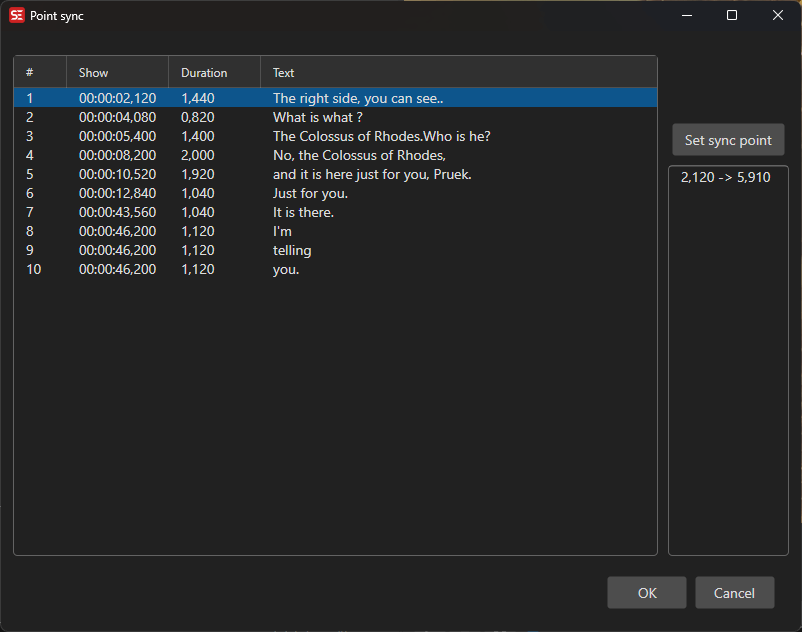
How to Use
- Open Synchronization → Point sync…
- Select a subtitle line in the list and click Set sync point to set its correct video position
- Repeat for additional sync points as needed for accuracy; a sync point can be removed with right-click Delete on the list or the Delete/Backspace key
- Click OK to apply
More sync points provide better accuracy for subtitles with non-linear drift. The window remembers its size and position between sessions.
Sync Points List
- The list is kept in subtitle order, however the points were added
- A line has at most one sync point: setting a sync point for a line that already has one re-points it instead of adding a second
- Delete in the list’s right-click menu, or the Delete/Backspace key with the list focused, removes the selected point; OK is only enabled while at least one point is left
Set Sync Point Window
Set sync point opens a window with the video, the subtitle drawn on it like on the main window’s video, and a waveform below when the main window has one - drag the handle between them to resize the waveform (the height is remembered).
- Sync point time code box: follows the video position while it plays or seeks, and can be edited directly - while the box has the focus the video leaves it alone. With no video loaded the box is the sync point, seeded with the line’s own start time
- One second back / One second forward, Play 2 secs & back, Go to sub pos and Find text work as in Visual sync; without a video the nudge buttons move the time code box instead
- The video uses the audio track selected in the main window; Open video file… loads a video when none is open (a video found next to the subtitle file is used automatically)
- Click Set sync point to take the time code back to the list