Remove Text for Hearing Impaired
Remove hearing-impaired annotations such as speaker names, sound descriptions, and music notations.
- Menu: Tools → Remove text for hearing impaired…
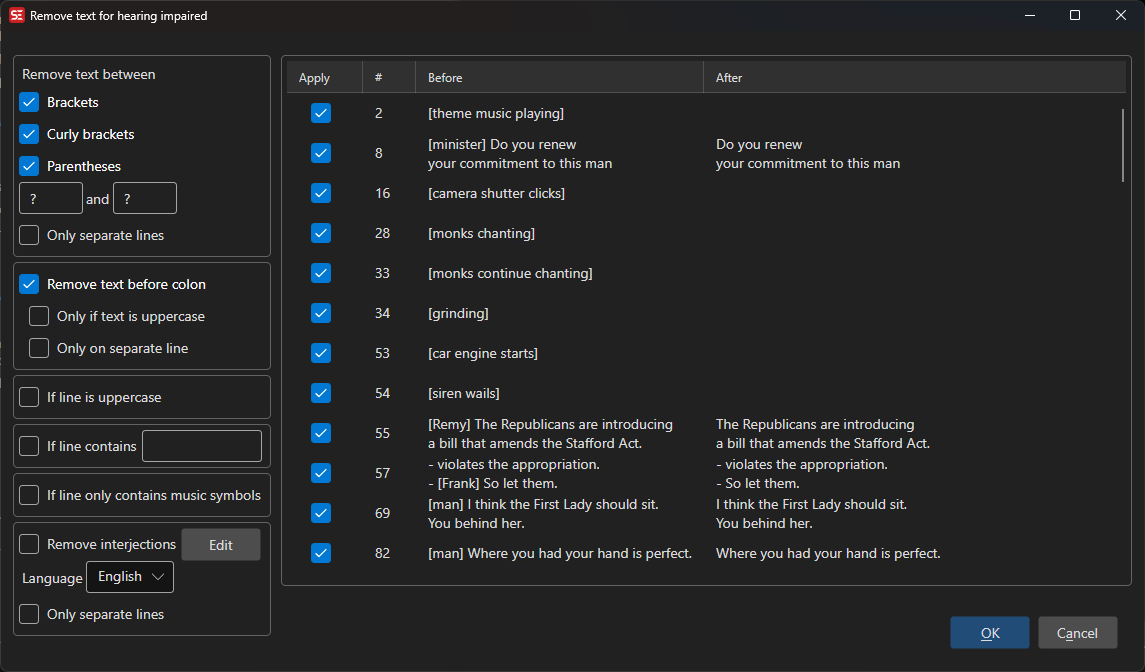
Options
Remove text between
- [ ] — Remove text inside square brackets, e.g.
[sound effect] - { } — Remove text inside curly brackets
- ( ) — Remove text inside parentheses, e.g.
(laughing) - Custom — Remove text between any custom start and end characters
- Only on separate lines — Only remove the text when it sits on a line of its own
Remove text before colon
- Remove text before colon — Remove speaker labels like
SPEAKER: - Only if text is uppercase — Only remove when the label is in uppercase
- Only on separate lines — Only remove when the label is on a line by itself
Other
- If line is uppercase — Remove the whole line when it is entirely uppercase. The text box next to it is a whitelist: uppercase words listed there (e.g.
NASA FBI) do not count as hearing-impaired text - If line contains — Remove the line when it contains a given substring
- If line only contains music symbols — Remove lines that consist only of music symbols (e.g.
♪ Music ♪) - Remove interjections — Remove common interjections like “hmm”, “uh”; the dictionary used follows the selected Language. Only on separate lines limits this to interjections that sit on a line of their own
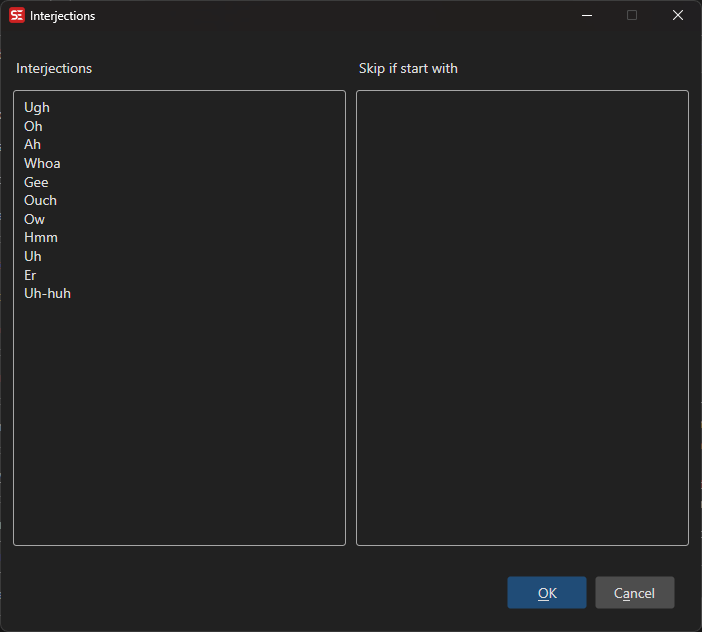
Interjections
Click Edit next to Remove interjections to modify the list of interjections for the selected language.
Preview
All proposed removals are shown in a preview list with Before and After columns. Uncheck individual items to exclude them before clicking OK. When the tool is opened from the main window, Apply applies the ticked rows without closing so you can run another pass with different options, and Done closes the window.
Right-click the list to tick or untick many rows at once:
- Select all (
Ctrl+A) — tick every row - Select none (
Ctrl+D) — untick every row, so single rows can be picked - Invert selection (
Ctrl+Shift+I) — tick the unticked rows and untick the ticked ones
Space toggles the checkbox of the rows that are highlighted, so a range selected with Shift+click can be flipped in one go.
Keeping the Hearing-Impaired Text
To save the hearing-impaired text instead of just discarding it, use the Hearing impaired (SDH) rule in Modify selection. It selects the lines this tool would change, so they can be cut out into a subtitle of their own — useful before aligning, when the SDH should be merged back in afterwards. That rule reads its options from the settings above.