Shortcuts
View, assign, and manage keyboard shortcuts for all commands in Subtitle Edit.
- Menu: Options → Shortcuts…
- Shortcut: Configurable
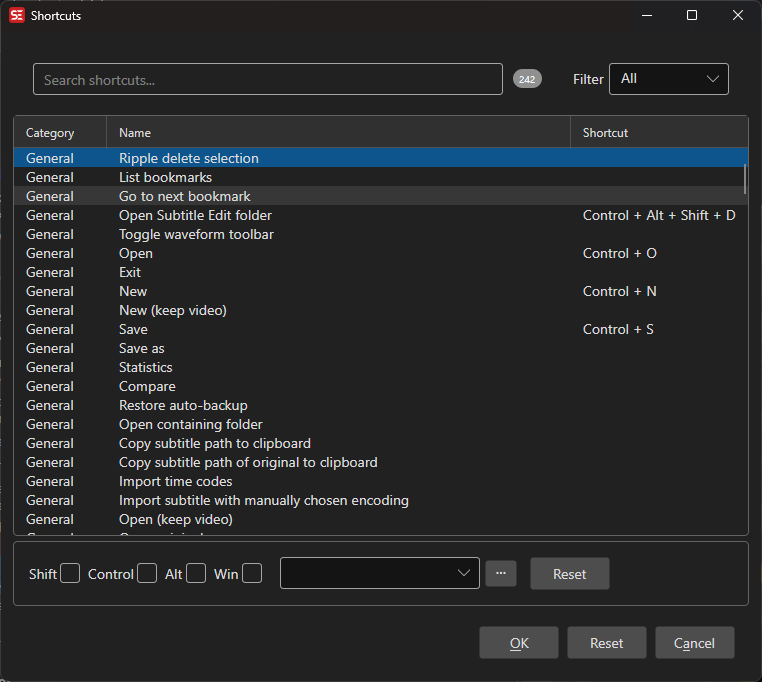
How to Use
- Open Options → Shortcuts…
- Pick a category tile, or search for the command you want to configure
- Select the command in the list
- Assign a shortcut by selecting modifier keys (Ctrl, Alt, Shift, Win) and a key
- Click OK to save all changes
Browsing by Category
A row of category tiles above the list groups the commands thematically. Each tile has an icon, a color, and the number of commands in the group — click one to filter the list:
All, General, File, Video, Waveform, Subtitle list view, Text box, Subtitle list view & text box, Synchronization, Translate, Search, Tools, and AI.
In the list, each command shows its group with the matching icon and color, and assigned key combinations are rendered as keycap-style chips.
Where a Shortcut Is Active
Independent of the thematic category, each command has a scope shown in the Active in column:
- Everywhere — global shortcuts, available in the whole main window (conflicts with all other scopes)
- Subtitle list view — active while the subtitle list view is focused
- Text box — active while the subtitle text box is focused
- Subtitle list view & text box — active in both
- Waveform — active while the audio visualizer is focused
Assigning a Shortcut
- Select a command from the list
- Check the desired modifier keys: Ctrl, Alt, Shift, Win — and on Windows also AltGr (the right Alt key). A shortcut with AltGr only fires when the right Alt key is held, so Ctrl+Alt shortcuts no longer swallow the characters AltGr types (€, @, …) on many keyboard layouts. Ctrl/Alt and AltGr cannot be combined
- Select the key from the dropdown
- The shortcut is applied immediately in the list
- Alternatively, double-click a command in the list to open the key capture dialog, then press the desired key combination directly
Configurable Commands
Some commands have additional configuration beyond the shortcut key:
- Set color 1–8 — Choose a color for each color shortcut
- Surround with 1–8 — Define the left/right text to surround selected text with (this replaces the Shortcut toggle custom start/end setting from Subtitle Edit 4), and its Behavior: Toggle adds the text, or removes it when it is already there; Add adds it every time, so pressing the shortcut twice adds it twice; Remove (all) only removes it, all at once; Remove (one each time) removes one pair per press, so it undoes Add step by step. Works on picks Selection, else whole text (the selected part of the text box, otherwise the whole text of each selected subtitle) or Each line (every line of a subtitle gets its own pair, e.g.
[Hello]/[Bye]) - Video move custom 1–4 back/forward — Set the number of milliseconds to skip. Each one also has a …and pause variant that uses the same milliseconds but pauses playback first, so a jog/shuttle step leaves the video paused on the new position
- Move selected lines / Move selected lines and forward / Move all lines, custom 1–2 back/forward — Set the number of milliseconds the lines are moved; the command name shows the current value
- Set actor 1–10 — Define the actor name assigned by each actor shortcut
- Custom search 1–5 — Set the name and URL for each search slot
- Custom shortcut 1–8 — Build your own shortcut from steps (see below)
- Go to first line / Go to last line — Whether the video position follows
Select a configurable command and click the gear icon to adjust its settings. The gear sits in the shortcut assignment row below the list, between the key detection button and Reset — it is only shown while a configurable command is selected, so if you cannot see it, the selected command has no extra settings.
Custom Shortcuts
Custom shortcut 1–8 (group Custom) are slots you build yourself. Select one, click the gear icon, give it an optional name and add steps that run from top to bottom:
- Run command — Runs any command from the shortcuts list (search by name). A command that opens a window waits for it to close before the next step runs.
- Insert text — Inserts text at cursor in the text box, or at start of text / at end of text of every selected line. Line breaks typed in the text box are inserted as line breaks.
- Find and replace — Replaces text in the selected lines, optionally as a regular expression (
$1etc. in the replacement) and case sensitive.
Examples: Insert text \N at end of text to lift a subtitle one line per key press; Find and replace regex (?m)^- with – followed by Run command Go to next line.
Active in sets where the key works: Everywhere, Subtitle list view, Text box, Subtitle list view & text box or Waveform — so the same key can do something else elsewhere. For text box areas use a key with Ctrl/Alt, as a plain key would no longer type. Handy commands for steps: Focus subtitle list view, Focus text box, Focus original text box, Focus waveform, Text box, go to start and Text box, go to end — each step waits for focus to move before the next one runs. Assign a key like for any other command. The text changes of one run are undone in a single step. A custom shortcut cannot run another custom shortcut; a slot without steps does nothing.
Worth Knowing
- Help — F1 by default. It can be changed here like any other shortcut, and the same key works in every dialog, where it opens the help page for that dialog
- Command palette — Ctrl+Shift+K (Cmd+Shift+K on macOS) by default; search for any command by name and run it, see Command palette
- Toggle break/unbreak — Unbreaks the text if it has a line break, otherwise forces a break (no default key)
- Save original — Saves only the original subtitle in translation mode (no default key; Ctrl+S saves both)
- Toggle screen privacy (hide file names, then also texts) — Each press cycles: hide file names → also blur the subtitle texts → off. Handy for screen sharing and recordings (no default key)
See Keyboard Shortcuts for the full list of default keys.
Resetting Shortcuts
- Reset (next to the assignment controls) — Clear the shortcut for the selected command
- Reset (button bar) — Restore all shortcuts to their default values (requires confirmation)
Filtering
Use the filter dropdown to narrow the list:
- All — Show all commands
- Assigned — Show only commands with a shortcut assigned
- Unassigned — Show only commands without a shortcut
Use the search box to filter commands by name.
Sorting
Click a column header to sort the list by that column — Active in, Category, Name, and Shortcut are all sortable. Click again to reverse the order. Sorting stays active while filtering by category tile or search text, so you can e.g. sort a single category by shortcut key.
Duplicate Detection
When saving, Subtitle Edit checks for duplicate shortcut assignments. If duplicates are found within the same scope (or if an “Everywhere” shortcut conflicts with any other scope), you will be warned and can choose to save anyway or go back and fix them.
Import / Export
Right-click the shortcut list to open the context menu:
- Import… — Load shortcuts from a
.shortcutsfile (JSON format) - Export… — Save all configured shortcuts to a
.shortcutsfile - Import from SE 4… — Import shortcuts from a Subtitle Edit 4
Settings.xml(also available as a button in the window)
This is useful for sharing shortcut configurations between machines or team members, or for keeping muscle memory when moving from Subtitle Edit 4.
Keyboard Shortcuts
| Key | Action |
|---|---|
| Escape | Close shortcuts window |
| F1 | Show help (default key, changeable) |