OCR Burned-in Subtitle (Video OCR)
Extract hardcoded (burned-in) subtitles from a video into editable text lines using OCR.
- Menu: Video → OCR burned-in subtitle…
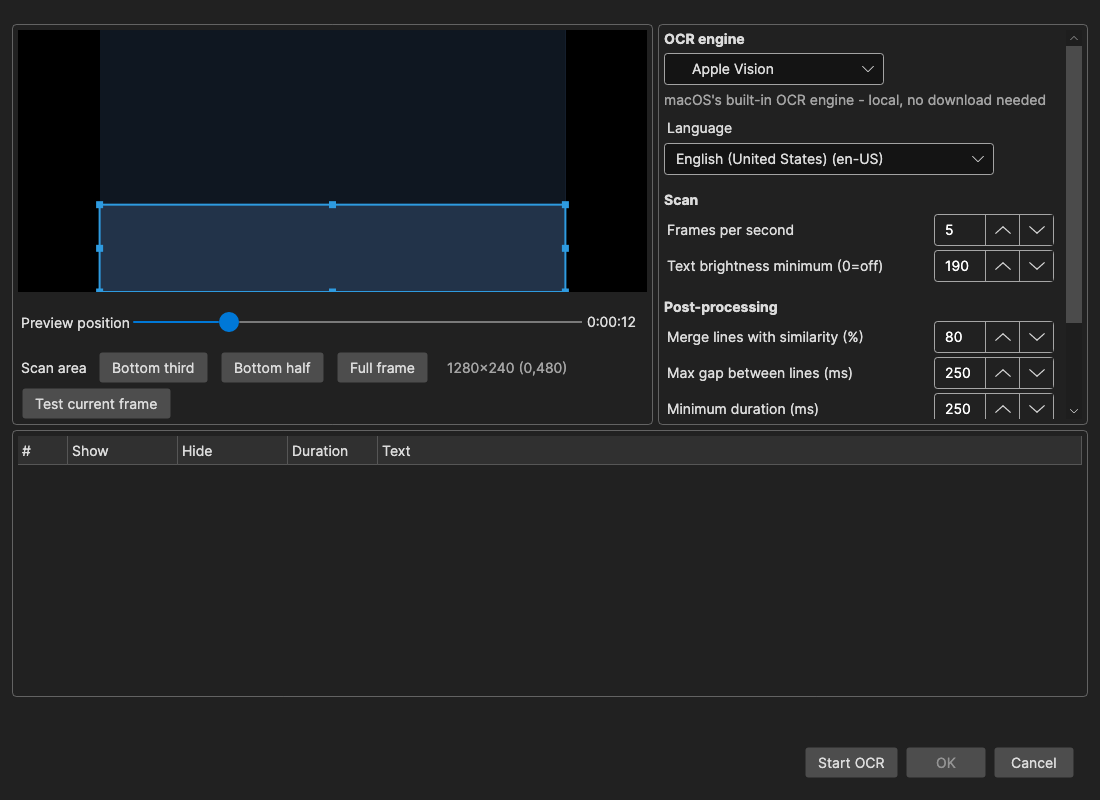
How to Use
- Open Video → OCR burned-in subtitle… (a video file is required)
- Use the preview slider to find a frame that shows a subtitle
- Adjust the scan area rectangle so it covers where the subtitles appear (default: bottom third) — drag to move/resize, or use the preset buttons
- Pick an OCR engine and language (for Ollama and llama.cpp, also pick a vision model)
- Optionally click Test current frame to try the current frame before running the full pass
- Click Start OCR — lines appear in the list as they are recognized, already run through the OCR fix engine and spell check when a dictionary is selected
- Click OK to load the result into the main window
To fix an OCR mistake, press Enter (or F2) on a line — or right-click and choose Edit… — to open the text in a small edit window. The right-click menu also offers Italic and Delete (the Delete key works too). Double-click a line to show the frame it came from in the preview.
OCR Engines
Engines are listed best-first for burned-in subtitles:
- Apple Vision (macOS) — the OCR built into macOS: local, fast, and nothing to download. Recommended on macOS.
- Paddle OCR (Windows/Linux) — local, fast and accurate; downloaded automatically. Recommended on Windows and Linux.
- CrispEmbed — local OCR engine with several model backends, downloaded automatically. For video the offered backends are GLM-OCR (default), DeepSeek-OCR-2 and PP-OCRv6 (see OCR).
- llama.cpp — local vision model via a managed llama.cpp server; the engine and models are downloaded automatically. Available models, listed best-first for subtitles: GLM-OCR 0.9B (the default), LFM2.5-VL 3B, PaddleOCR-VL 1.6 (109 languages), HunyuanOCR 1.5 and LightOnOCR 1B. A green dot marks models that are already downloaded; custom vision models in the llama.cpp models folder also appear, as long as the
mmprojvision projector sits next to the*.gguf(see OCR). - Ollama vision — local vision model via a self-managed Ollama installation, e.g.
glm-ocr - GLM API — GLM vision model via the Z.ai / bigmodel.cn cloud API (requires an API key)
How It Works
Frames are sampled from the scan area at a few frames per second with ffmpeg. Consecutive near-identical frames are collapsed so each on-screen subtitle is OCR’ed only once, then consecutive OCR results with near-identical text are merged into one line (the text variant shown the longest wins, weighted by the engine’s recognition confidence where available). Finally each line’s start and end are refined against the video’s own frames, so the times are precise to a few hundredths of a second even though the scan itself samples much coarser.
Fix OCR errors and spell check
With Fix OCR errors enabled and a Dictionary selected (the list shows the spell check dictionaries already downloaded; the language is pre-picked from the OCR language), every line runs through the OCR fix engine as it is recognized: common OCR mistakes are corrected from the language’s replace list, and the words are spell checked. In the list, words the dictionary knows are shown green and unknown words red — so the lines that need a human eye stand out while the OCR is still running.
Settings
- Frames per second — how many frames per second to sample (higher = more precise grouping, slower)
- Text brightness minimum — pixels darker than this are ignored when comparing frames, so the comparison follows the (bright) subtitle text instead of the moving video behind it; frames with no bright pixels are skipped entirely. With the Paddle engine, everything below this brightness is also blacked out in the image the engine reads, so darker scene text (shirt prints, credits) does not get mixed into the subtitles. Set to 0 to disable (e.g. for dark subtitle text).
- Merge lines with similarity (%) — how similar the text of two consecutive OCR results must be to merge into one line
- Max gap between lines (ms) — maximum time gap allowed when merging
- Minimum duration (ms) — lines shorter than this are dropped (removes OCR blips/false positives)
- Add ASSA position tag — prepend an alignment tag (e.g.
{\an8}for a top scan area) based on the scan area position, for Advanced Sub Station Alpha output - Fix OCR errors / Dictionary — see above
Tips
- Scan only the region where subtitles actually appear — a smaller area is faster and has fewer false positives
- For subtitles at the top of the frame (e.g. sign translations), move the scan area up and enable the ASSA position tag
- If lines are duplicated with small OCR differences, raise Merge lines with similarity tolerance by lowering the percentage
- If short random text blips appear, raise Minimum duration