Visual Sync
Synchronize subtitles visually by matching two points in the video.
- Menu: Synchronization → Visual sync…
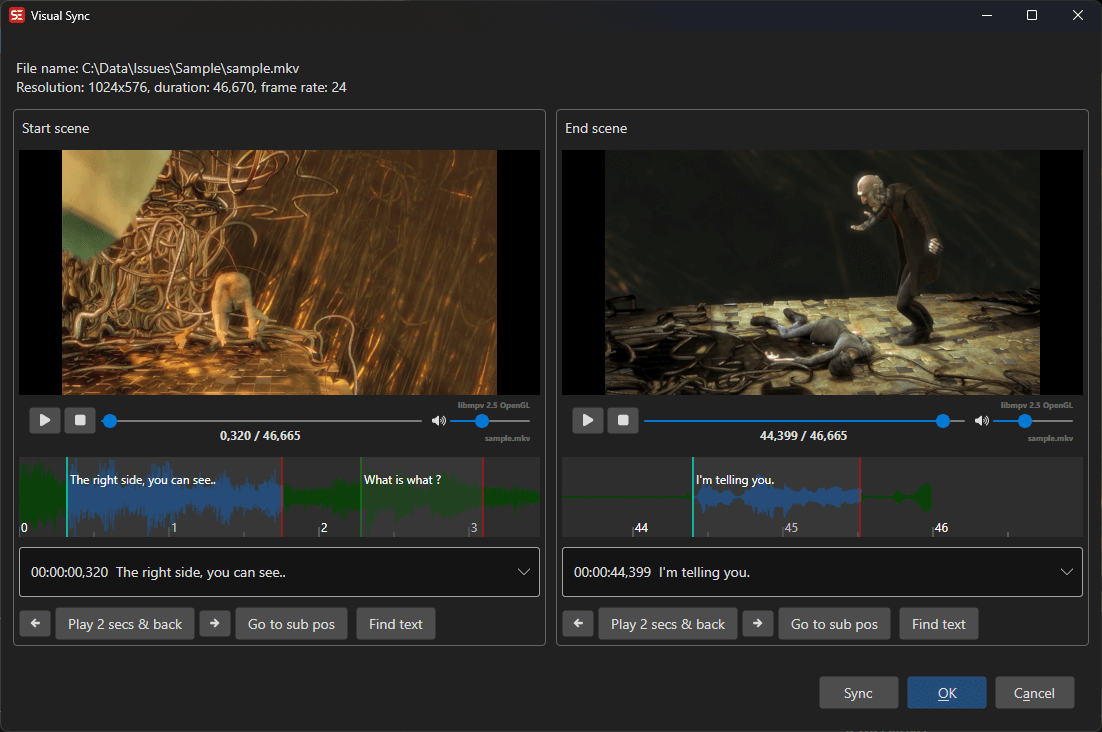
How to Use
The Visual sync window shows two video player panes (“Start scene” and “End scene”), each with its own audio visualizer and a combo box for picking a subtitle line. The subtitle is drawn on both videos with the same look as on the main window’s video, and both players use the audio track selected in the main window (Video → Audio tracks or the waveform toolbar picker); there is no separate track picker in the dialog.
The waveform under each video only appears when the main window has a waveform to share. Drag the handle between the video and the waveform to resize the waveform - both panes follow, and the height is remembered between sessions.
- Open Synchronization → Visual sync…
- In the Start scene pane, pick a subtitle line near the beginning and play the video to the position where that line should start
- In the End scene pane, pick a subtitle line near the end and play the video to the position where that line should start
- Click Sync to apply (or use Manual sync… from the Sync split-button for a manual offset/speed adjustment)
- Click OK to keep the result
An Open video file… button at the top loads a video if none is open. Each pane has One second back / One second forward arrow buttons, Play 2 secs & back, Go to sub pos (jump to the selected line’s position) and Find text to search for a line.
Keyboard Shortcuts
The keys act on the pane that has focus (click a video or waveform to focus it).
| Keys | Action |
|---|---|
| Space or Ctrl+P | Play/pause |
| Ctrl+Left / Ctrl+Right | Move 100 ms back/forward |
| Alt+Left / Alt+Right | Move 500 ms back/forward |
| Ctrl+Shift+Left / Ctrl+Shift+Right | Move 1 second back/forward |
| Move start/end X ms back/forward shortcut | Move X ms back/forward (default 10 ms) |
| Shift++ / Shift+- | Waveform vertical zoom in/out |
| F1 (the main window’s Help shortcut) | Help |
| Esc | Close the window |
For steps finer than 100 ms, for example to hit the start of a word in the waveform exactly, assign keys to Move start X ms back / Move start X ms forward (or the “end” pair) in Options → Shortcuts. In the main window they move the selected line’s start or end; in Visual sync they move the focused video by the same step. Set X in Options → Settings → General → Move start/end shortcut step (ms). A key you assign this way takes priority over the built-in arrow-key steps above.
The timing of all subtitles is linearly adjusted to match the two sync points. The window remembers its size and position between sessions.