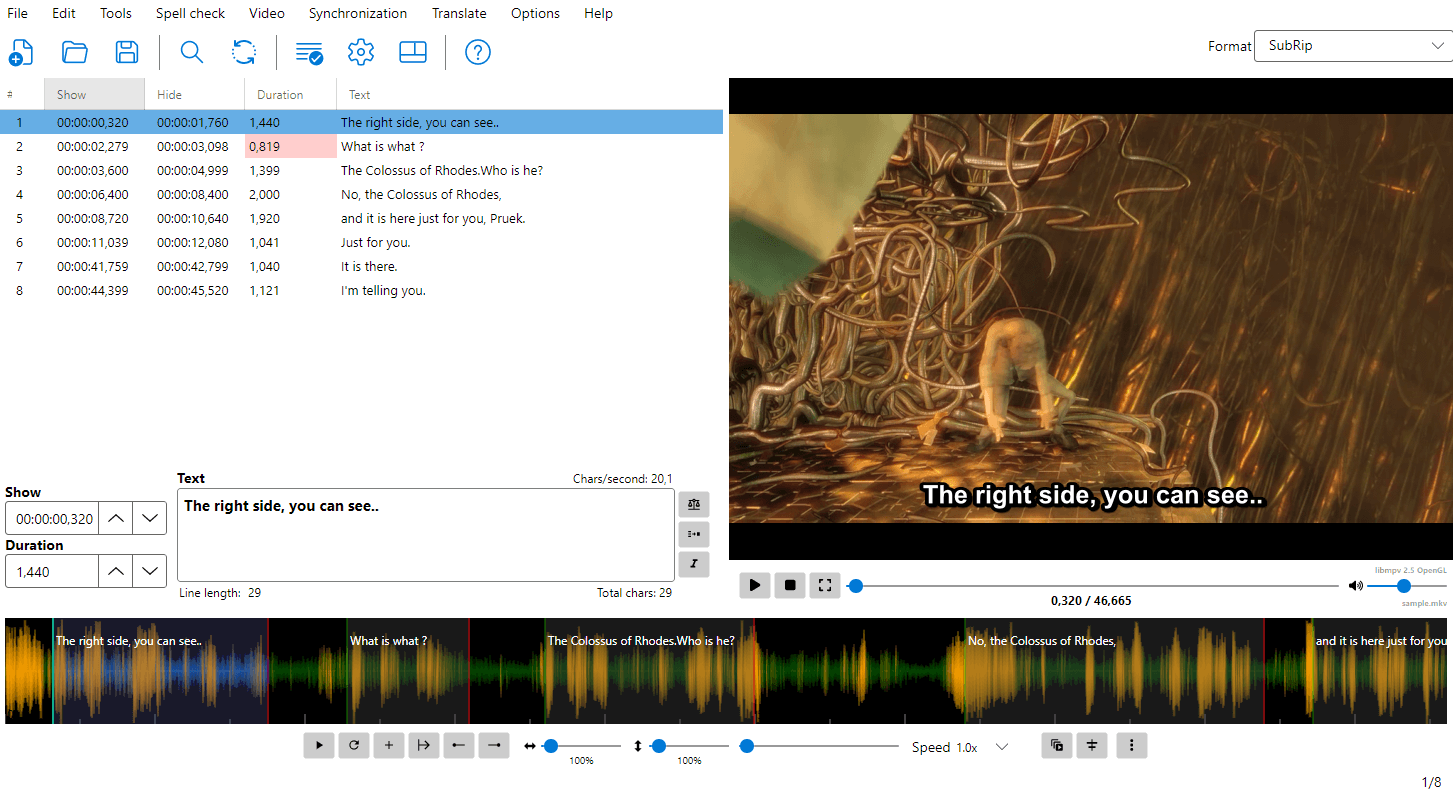
Overview
What is Subtitle Edit?
Subtitle Edit is a free, open-source editor for video subtitles. It allows you to create, edit, adjust, and convert subtitles in a wide variety of formats.
Subtitle Edit 5 is the latest generation, built with Avalonia UI for cross-platform support (Windows, Linux, macOS).
Key Features
- Create and edit subtitles in 380+ formats
- Synchronize subtitles to video with visual tools
- Speech to Text — transcribe audio using Whisper, Qwen3 ASR, Crisp ASR, and other local/cloud engines
- Text to Speech — generate audio from subtitle text
- Translate subtitles automatically
- OCR — convert image-based subtitles (Blu-ray, DVD, etc.) to text
- Fix common errors automatically
- Spell check with dictionary support
- Burn-in subtitles into video
- Batch convert multiple files
- ASSA/SSA styling with advanced override tags, drawing, and positioning
- Waveform/spectrogram for precise timing
- Shot change detection for professional workflows
- Export to image based subtitles (Blu-ray SUP, BDN-xml, VobSub, etc.)
System Requirements
- Windows 10 (version 22H2 / build 19045) or newer, Linux, or macOS 12 (Monterey) or newer (macOS 14 / Sonoma or newer recommended - that is the oldest macOS .NET 10 is supported on)
- FFmpeg (for audio/video processing)
- libmpv for video playback
Getting Started
Follow these simple steps to begin working with subtitles in Subtitle Edit:
-
Install Subtitle Edit
Download and install the latest version from the official website. -
Open a video file
Go to Video → Open video file… and select your video.
This allows you to preview and sync subtitles accurately. - Open, create, or generate a subtitle file
- Open an existing file via File → Open
- Create a new one via File → New
- Or generate subtitles automatically using speech-to-text (Video → Speech to text)
- Edit your subtitles
Use the subtitle grid and text editor to:- Adjust text
- Split or merge lines
- Fine-tune timing
-
Adjust timing visually
Use the waveform display to precisely sync subtitles with audio. - Save your work
Go to File → Save (or press Ctrl+S) to save your subtitle file.
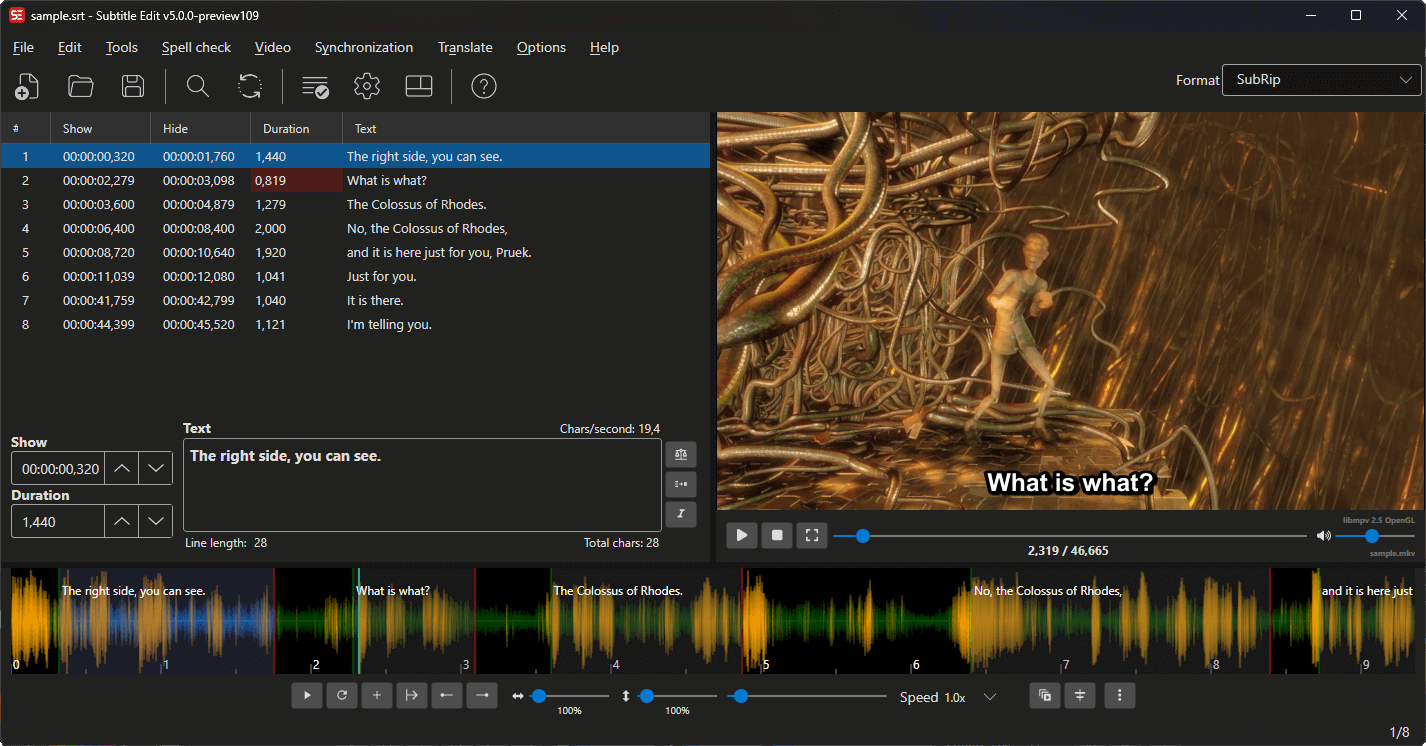
Main Window Layout
The main window consists of several key areas:
- Menu Bar — Access all features
- Toolbar — Quick access to common actions
- Subtitle Grid — List of all subtitle lines with timing and text
- Text Editor — Edit the currently selected subtitle text
- Video Player — Preview video with subtitles
- Audio Visualizer — Waveform/spectrogram for precise timing adjustments
Subtitle Edit offers 12 different layouts for arranging these areas. You can choose and customize the layout via Options → Choose layout.
For a detailed guide to each area, mouse interactions, and keyboard shortcuts, see the Main Window documentation.