Main Window
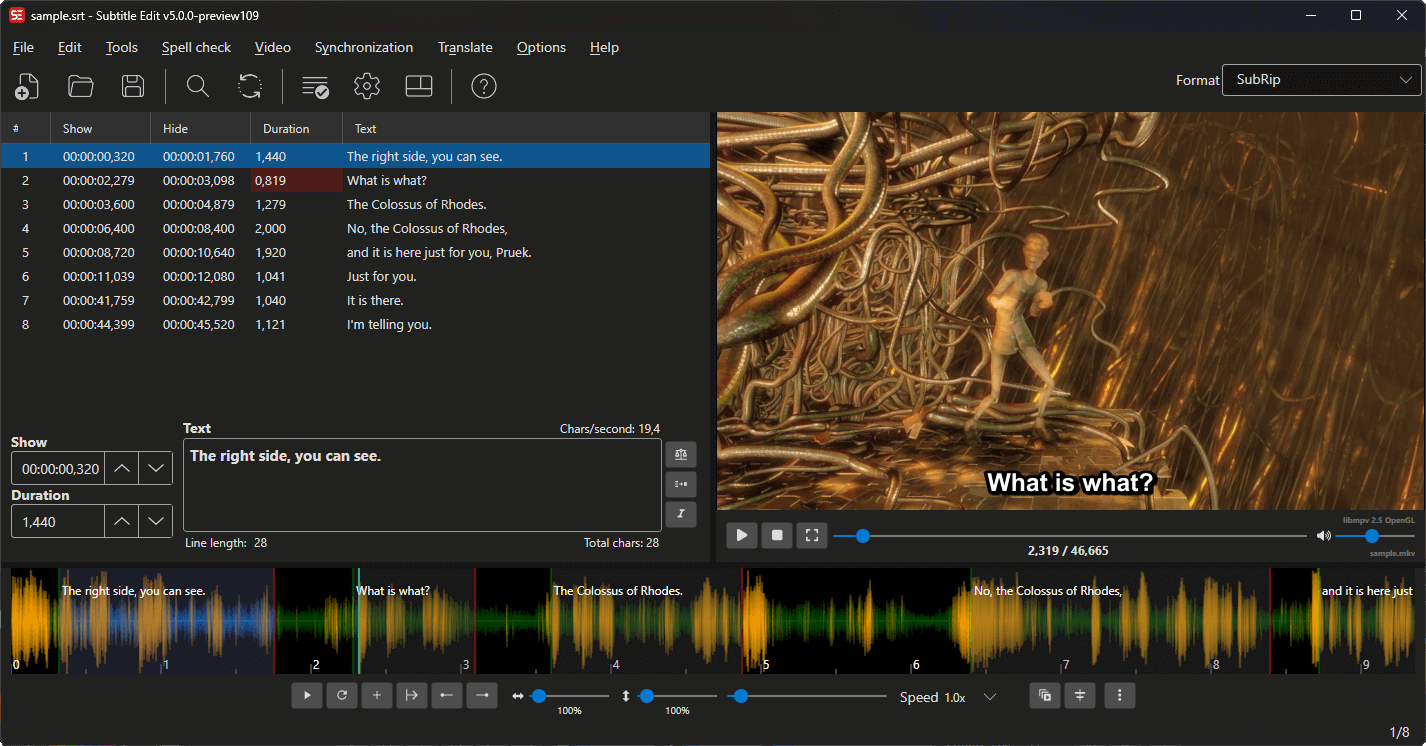
The main window is where you spend most of your time in Subtitle Edit. It combines all the key editing areas into a single, customizable interface.
Window Areas
The main window is divided into the following areas (the yellow lines at draggable area splitters):
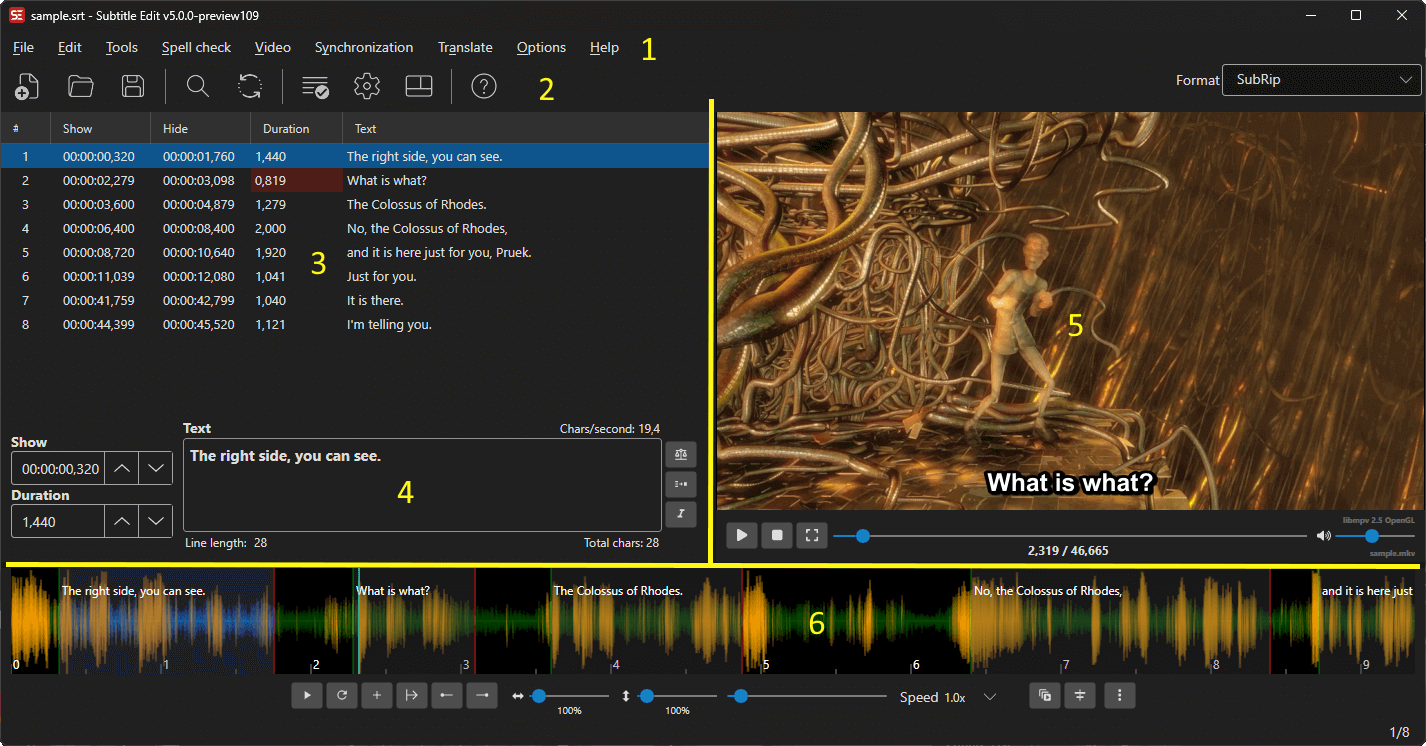
1. Menu Bar
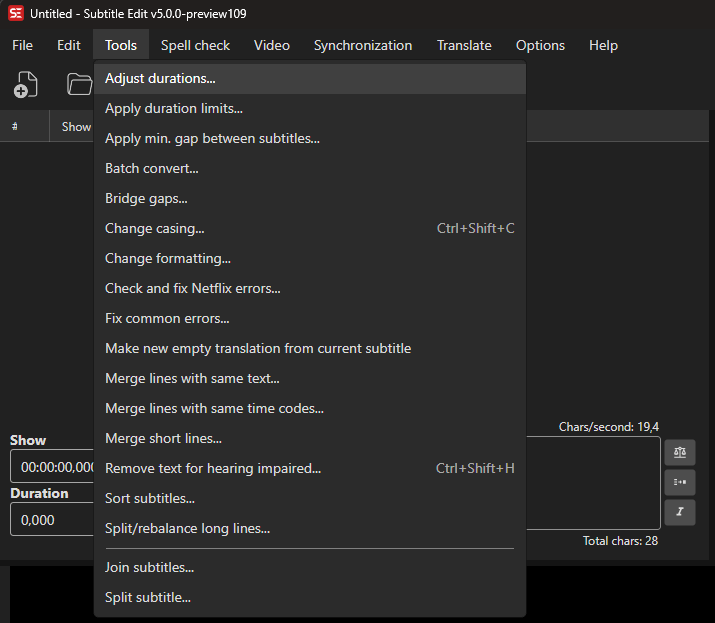
The menu bar provides access to all features organized into categories:
| Menu | Description |
|---|---|
| File | New, Open, Save, Import, Export, Compare, Statistics |
| Edit | Undo, Redo, Find, Replace, Multiple Replace, Modify Selection |
| Tools | Fix Common Errors, Batch Convert, Change Casing, Merge/Split, etc. |
| Plugins | Run installed plugins; manage installed plugins |
| Spell check | Spell checking, dictionaries, find double words / lines |
| Video | Open/close video, Speech to Text, Text to Speech, Burn-In, etc. |
| Sync | Adjust All Times, Visual Sync, Point Sync, Change Frame Rate/Speed |
| Translate | Auto Translate, Copy/Paste Translate |
| Options | Settings, Shortcuts, Word Lists, Language |
| Help | Check for updates, Help, About |
| ASSA tools | Styles, Properties, Attachments, Drawing, Positioning, etc. (only visible when an ASSA/SSA subtitle is loaded) |
See the individual feature pages for details on each menu item.
2. Toolbar
The toolbar provides quick one-click access to the most common actions. You can customize which buttons appear in Options → Settings → Toolbar.
Available toolbar buttons include:
| Button | Action |
|---|---|
| New | Create a new subtitle |
| Open | Open a subtitle file |
| Save | Save the current subtitle |
| Find | Open the Find dialog |
| Replace | Open the Replace dialog |
| Fix Common Errors | Open Fix Common Errors |
| Spell Check | Run spell check |
| Help | Show help / about |
| …and more | Configurable in Settings |
Some buttons only appear for certain formats — the style manager, properties, attachments and ASSA draw buttons show up when an ASSA, SSA or WebVTT file is loaded. They can be hidden in Options → Settings → Toolbar like any other button.
Note: You can right-click on the Subtitle format combobox for a format search window.

3. Subtitle Grid
The subtitle grid shows all subtitle lines in a table format. Each row represents a single subtitle entry.
| Column | Description |
|---|---|
| # | Line number |
| Start time | When the subtitle appears (e.g., 00:01:23,456) |
| End time | When the subtitle disappears |
| Duration | Display duration |
| CPS | Characters per second (reading speed) |
| WPM | Words per minute |
| Text | The subtitle text content |
| Original | Original text (visible in translation mode) |
Mouse:
- Click a row to select it and load its text into the text editor
- Ctrl+Click to add/remove rows from a multi-selection
- Shift+Click to select a range
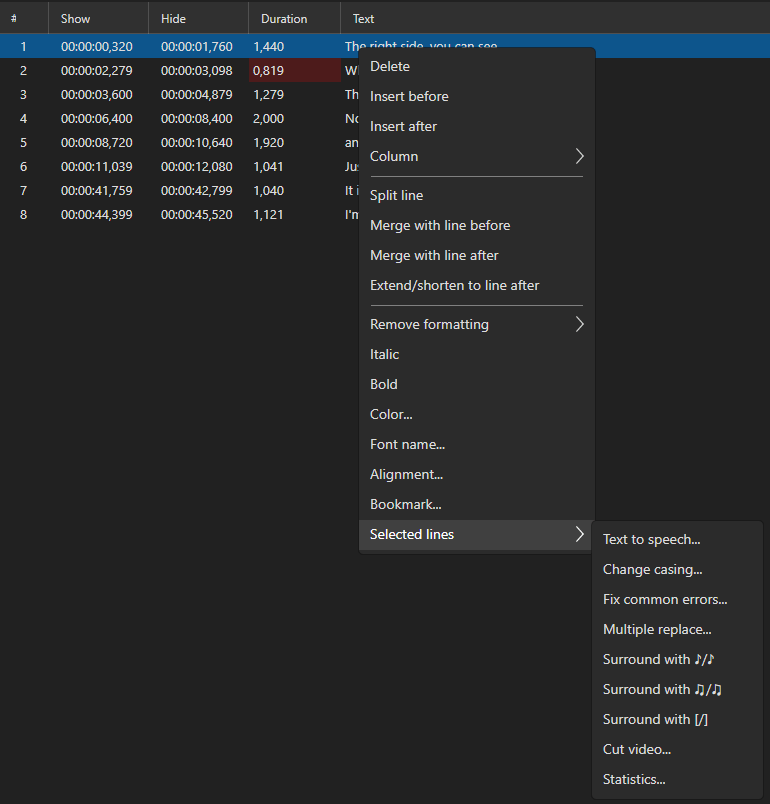
- Double-click a row to go to that subtitle’s video position (behavior configurable in Options → Settings)
- Right-click for a context menu
Keyboard:
- Up/Down arrows — Navigate between lines
- Delete — Delete selected lines
- Ctrl+A — Select all lines
See Subtitle Grid for full details.
4. Text Editor
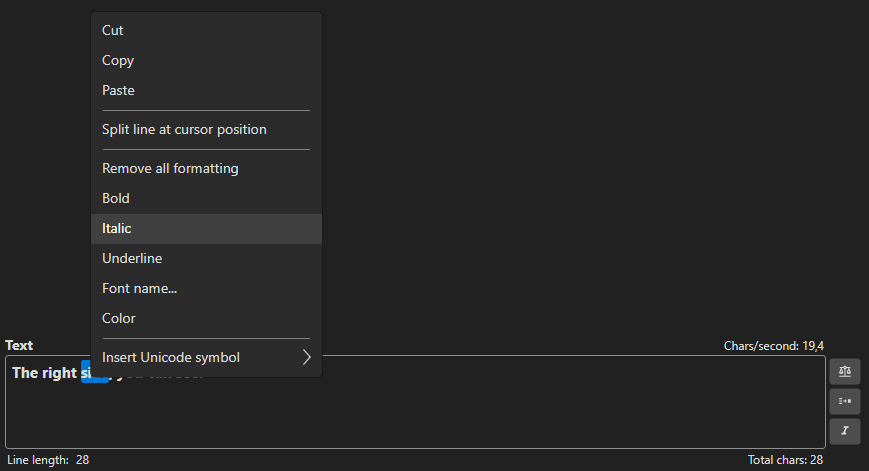
Below (or beside) the subtitle grid is the text editor, where you edit the text of the currently selected subtitle line. Start time, end time, and duration controls are also shown here.
Formatting shortcuts:
- Ctrl+I — Toggle italic
- Ctrl+B — Toggle bold
Other shortcuts:
- Ctrl+Z — Undo
- Ctrl+C / Ctrl+X / Ctrl+V — Copy / Cut / Paste
See Text Editor for full details.
5. Video Player
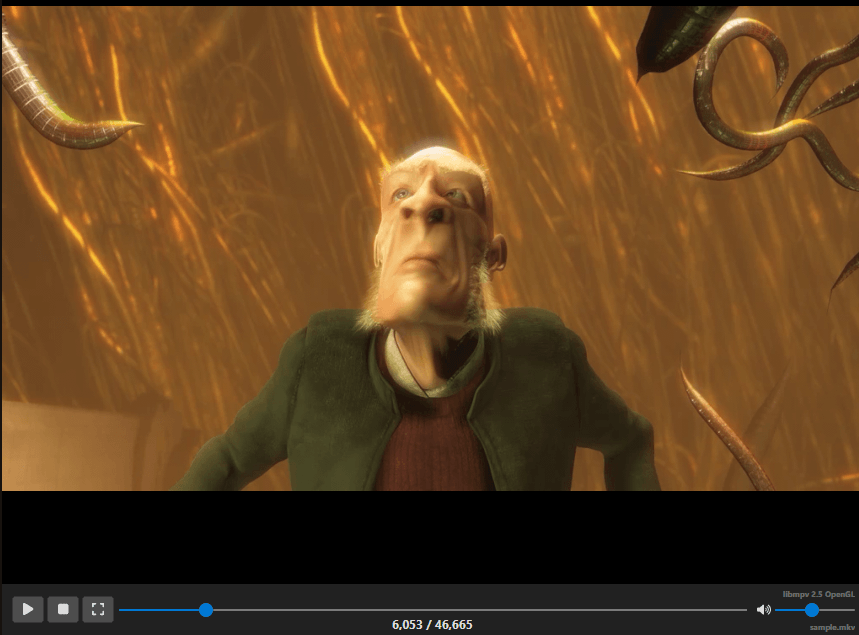
The video player shows the currently loaded video with subtitles overlaid. Controls are displayed below the video.
Playback controls:
- Play / Pause / Stop
- Seek bar (drag to scrub)
- Playback speed controls
- Volume
Keyboard (configurable):
- Toggle play/pause
- Jump forward/backward by frame, 100ms, 500ms, 1s, or custom amount
- Go to start/end of current subtitle
See Video Player for full details.
6. Audio Visualizer (Waveform / Spectrogram)
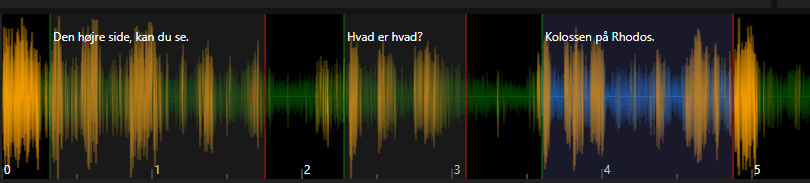
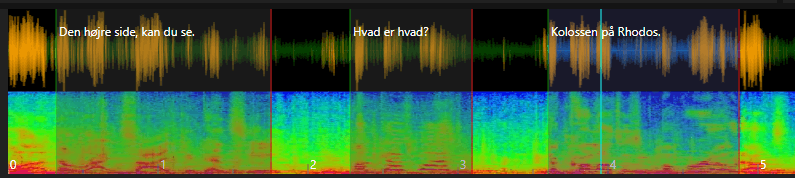
The audio visualizer shows the audio waveform and/or spectrogram, enabling precise visual timing of subtitles. Subtitle time spans are shown as colored bars overlaid on the waveform, and the current video position is displayed as a vertical cursor line.
Display Modes
Switch between modes via the right-click context menu:
| Mode | Description |
|---|---|
| Waveform only | Shows audio amplitude over time |
| Spectrogram only | Shows frequency distribution over time (useful for identifying speech vs. noise) |
| Waveform + Spectrogram | Combined view with both overlaid |
Two draw styles are available for the waveform: Classic (simple lines) and Fancy (gradient fill with glow). Configure in Options → Settings → Waveform.
Visual Elements
- Subtitle bars — Colored rectangles representing each subtitle’s time span. The selected subtitle is highlighted in a distinct color.
- Left/right edges — Green (left/start) and red (right/end) edge markers on each subtitle bar. Drag these to resize.
- Subtitle text — The text of each subtitle is displayed inside its bar.
- Video position cursor — A vertical cyan line showing the current video playback position.
- Shot change lines — Vertical markers indicating scene cuts (when loaded). Subtitle edges snap to nearby shot changes automatically.
- Grid lines — Optional time grid lines (toggle via settings or context menu).
- New selection — When you click+drag in an empty area, a new selection range is drawn that can become a new subtitle.
Mouse Controls
| Mouse Action | Area | Effect |
|---|---|---|
| Click | Empty area | Set video position |
| Click | Subtitle bar | Select subtitle and set video position |
| Double-click | Subtitle bar | Select subtitle and set video position |
| Ctrl+Click | Subtitle bar | Toggle subtitle in multi-selection |
| Shift+Click | Subtitle bar | Set start time of selected subtitle |
| Ctrl+Click | Empty area | Set end time of selected subtitle (macOS: Shift+Click) |
| Alt+Click | Empty area | Set start time of selected subtitle |
| Drag | Left edge of subtitle | Resize start time |
| Drag | Right edge of subtitle | Resize end time |
| Alt+Drag | Left edge | Resize start and adjust previous subtitle’s end simultaneously |
| Alt+Drag | Right edge | Resize end and adjust next subtitle’s start simultaneously |
| Drag | Middle of subtitle | Move entire subtitle (preserving duration) |
| Click+Drag | Empty area | Create a new subtitle selection |
| Scroll wheel | Anywhere | Scroll waveform left/right |
| Alt+Scroll | Anywhere | Horizontal zoom in/out |
| Shift+Scroll | Anywhere | Vertical zoom in/out |
| Ctrl+Scroll | Anywhere | Scroll and move video position |
| Right-click | Anywhere | Open context menu |
Note: On macOS, use Cmd instead of Ctrl for most modifier actions. Ctrl+Click on macOS opens the context menu.
Keyboard Controls (in Waveform)
| Key | Action |
|---|---|
| Escape | Cancel current drag/selection |
| Enter | Insert the new selection as a subtitle |
| Delete | Delete the selected subtitle |
Additional waveform shortcuts (set start, set end, center, zoom, etc.) are configurable via Options → Shortcuts. See the Keyboard Shortcuts Reference.
Right-Click Context Menu
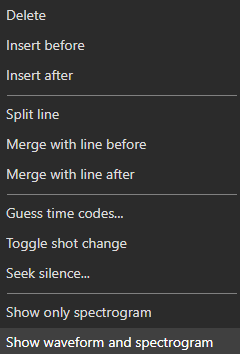
The context menu changes dynamically based on context (e.g., whether a new selection exists, whether a subtitle is selected):
| Menu Item | Description |
|---|---|
| Insert new selection | Insert the drawn selection as a new subtitle |
| Paste new selection | Paste subtitle from clipboard at current position |
| Insert at position | Insert a new empty subtitle at the video position |
| Paste from clipboard | Paste subtitle text from clipboard |
| Insert subtitle file at position | Import an entire subtitle file at the current video position |
| Delete at position | Delete the subtitle at the current position |
| Delete | Delete the selected subtitle(s) |
| Insert before / Insert after | Insert a new line before or after the selected subtitle |
| Split | Split the selected subtitle at the video position |
| Merge before / Merge after | Merge with the previous or next subtitle |
| Filter by layer | Filter visible subtitles by ASSA layer (ASSA format only) |
| Guess time codes | Auto-detect subtitle timing from audio silence |
| Toggle shot change | Add or remove a shot change marker at the video position |
| Seek silence | Find the next silent section in the audio |
| Extract audio | Save the selected subtitle’s audio to a file |
| Clone voice to | Clone the voice heard in the selected subtitle into a text-to-speech engine that supports voice cloning |
| Show only waveform | Switch to waveform-only display |
| Show only spectrogram | Switch to spectrogram-only display |
| Show waveform and spectrogram | Switch to combined display |
Waveform Toolbar
When enabled (toggle via shortcut or Options → Shortcuts → Toggle waveform toolbar), a toolbar appears below the waveform with buttons for:
| Button | Action |
|---|---|
| Play/Pause | Toggle video playback |
| Play selection | Play only the selected subtitle |
| Play selection (repeat) | Play selected subtitle in a loop |
| Play next | Play the next subtitle |
| New | Insert a subtitle at the current position |
| Set start + offset rest | Set start time and shift all following subtitles |
| Set start | Set the start time of the selected subtitle |
| Set end | Set the end time of the selected subtitle |
| Remove blank lines | Remove empty subtitle lines |
| Horizontal zoom slider | Adjust horizontal zoom (0.1× – 20×) |
| Vertical zoom slider | Adjust vertical zoom (0.1× – 20×) |
| Position slider | Scrub through the video |

Shot Changes
Shot changes (scene cuts) appear as vertical lines on the waveform. They help align subtitle timing with scene transitions for a professional result.
- Subtitle edges snap to nearby shot changes automatically (configurable snap distance)
- You can toggle snapping behavior in settings
- Shot changes can be generated via Video → Generate/import shot changes or toggled manually via the context menu
Customization
Waveform appearance is highly configurable via Options → Settings → Waveform:
| Setting | Description |
|---|---|
| Waveform color | Color of the waveform line |
| Background color | Background of the waveform area |
| Selected color | Color of the selected subtitle bar |
| Cursor color | Color of the video position cursor |
| Draw grid lines | Show/hide time grid |
| Draw style | Classic or Fancy waveform rendering |
| Invert mouse wheel | Reverse scroll direction |
| Focus on mouse over | Auto-focus waveform when mouse enters |
| Allow overlap | Allow subtitle bars to overlap |
| Right-click selects subtitle | Whether right-clicking a subtitle selects it |
See Audio Visualizer / Waveform for even more details.
7. Status Bar (Footer)
The status bar at the bottom shows:
- Waveform generation progress (when generating)
- Current subtitle format
- Line/character count information
- Other status messages

Layouts
Subtitle Edit offers 12 predefined layouts for arranging the main window areas. Choose a layout via the Layout button on the toolbar or the configurable keyboard shortcut.
| Layout | Description |
|---|---|
| 1 | Video right, grid left, waveform bottom |
| 2 | Video right, grid and text left |
| 3 | Video top-right, grid bottom |
| 4 | Video left, grid right |
| 5 | Grid only (no video) |
| 6 | Video top, grid bottom |
| 7 | Video bottom-right, grid left |
| 8 | Video bottom, grid top |
| 9 | Grid left, video and waveform right |
| 10 | Video right, grid left (wide) |
| 11 | Video top-right, stacked panels |
| 12 | Minimal layout without video |
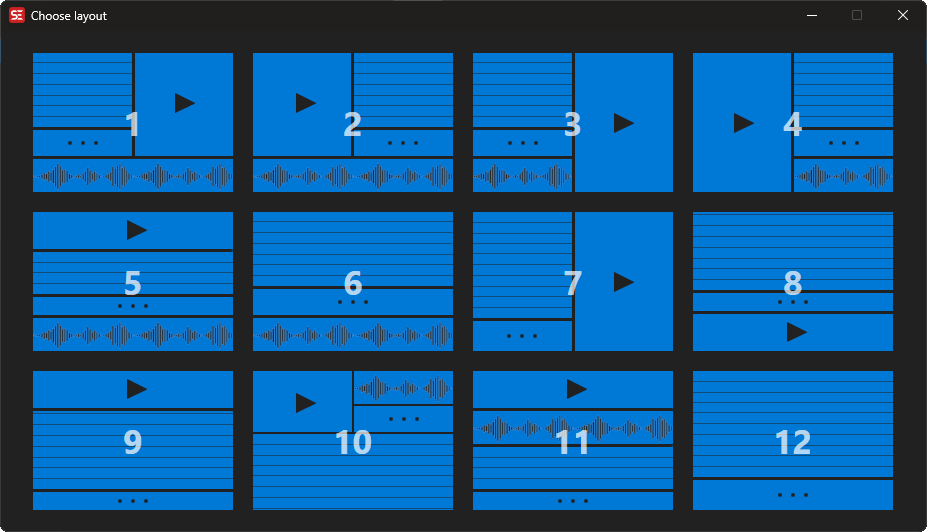
Panel sizes can be adjusted by dragging the splitters (dividers) between areas. Your layout preferences are saved automatically.
Undocking
You can undock the video player or audio visualizer into separate windows for multi-monitor setups:
- Undock video controls — Move video player to its own window
- Redock video controls — Return video player to the main window
Translation Mode
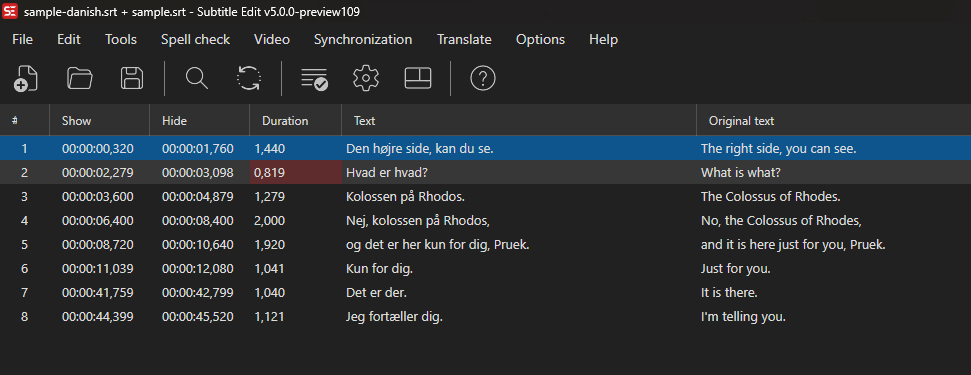
When you open an original subtitle file (File → Open original subtitle), the main window enters translation mode:
- The subtitle grid shows an additional Original column
- The text editor shows both the original and translation text
- This allows side-by-side translation work
When the original does not line up 1:1
If the original file does not have the same number of lines as the subtitle you are editing, Subtitle Edit asks how to show it:
- Show only the matching original lines — the classic side-by-side view. Lines are paired by time codes; original lines with no counterpart are not shown.
- Show all original lines — original lines with no counterpart appear as extra, dimmed rows (without a line number), placed in time order, so you can see exactly what your subtitle is missing.
The dialog also offers an Allow edit of original subtitle check box. Left off (the default), the original is a read-only reference: it is never written to, and closing it leaves the file on disk exactly as it was. Both choices are remembered for the next time.
The dimmed rows belong to the original, so they are not saved with your subtitle, and editing commands (delete, merge, export, …) skip them. To adopt a missing line into your subtitle, select it and simply type or paste the translation — the row immediately becomes a normal line, keeping its timings. Column → Copy text from original to current in the grid’s context menu does the same while also copying the original text over. You can nudge a dimmed row’s start/end/duration first (it stays a dimmed reference row until you type text into it), so an adopted line lands with exactly the timing you want.
Each row remembers which original line it shows, so editing or retiming your own lines never re-shuffles the reference: the dimmed rows only slide to keep time order, and if you delete a row that had adopted a reference line, that line comes back as a dimmed row.
Edit original mode
File → Edit original subtitle (visible while an original is open) switches which file you are editing:
- The original’s text becomes editable — including a reference that was opened read-only.
- The working subtitle’s text box goes read-only while the mode is on, so the two sides can’t be mixed up. The edit-box label reads Original text (edit mode).
- Changes to the original are tracked:
Ctrl+Ssaves them, and closing the original (or the app) asks about unsaved changes.
Leaving the mode returns the original to the state it was opened with. If it was a read-only reference and you have unsaved edits, Subtitle Edit asks whether to save them, discard them (the reference goes back to exactly what the file contains), or stay in the mode.
Launch Parameters
Subtitle Edit accepts a few command-line arguments at startup, useful for desktop shortcuts, file-manager “Open with…” entries, and sync scripts.
| Argument | Description |
|---|---|
| (positional) | Subtitle file to open. The first existing path on the command line is treated as the subtitle file. |
/video:<path> |
Open the given video file alongside the subtitle. |
/batchconvertui |
Launch directly into the standalone Batch Convert window instead of the full editor. |
The video file is always loaded when supplied via /video:, even if Options → Settings → Video → Auto-open is disabled — a flag on the command line is treated as an explicit instruction.
Examples (Windows shell):
SubtitleEdit.exe movie.srt /video:movie.mkv
SubtitleEdit.exe /batchconvertui
On Linux/macOS the binary name is SubtitleEdit (no .exe).
For headless conversion without launching the editor, see Command Line (seconv).