ASSA Resolution Resampler
Resample ASSA subtitle styles and positions from one video resolution to another, so subtitles look correct at a different resolution.
Menu: ASSA tools → Change resolution...
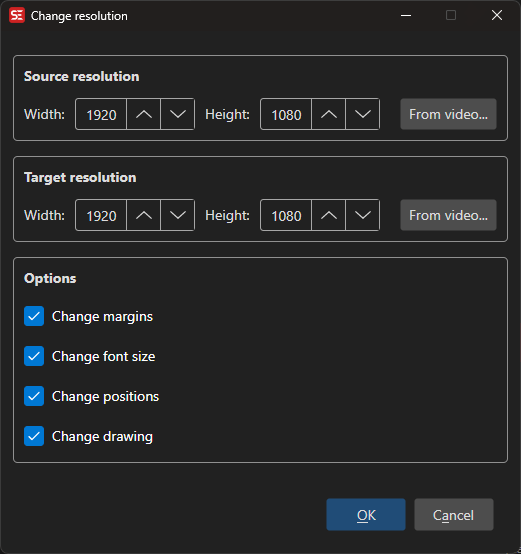
How to Use
- Open a subtitle file in ASS/SSA format.
- Go to ASSA tools → Change resolution… to open the resampler dialog.
- The Source resolution is read from the subtitle header (PlayResX / PlayResY).
- Set the Target resolution — if a video is loaded, it is used as the default.
- Choose which elements to resample (margins, font sizes, positions, drawings).
- Click OK to apply the resampling.
Features
Resolution Settings
- Source Width / Height: The original resolution the subtitle was authored for (read from the subtitle header).
- Target Width / Height: The new resolution to resample to.
Resample Options
- Change margins: Scale left, right, and vertical margins.
- Change font size: Scale font sizes proportionally.
- Change positions: Scale \pos, \move, and \org coordinates.
- Change drawing: Scale \p drawing coordinates.
Automatic Detection
- Source resolution is automatically read from the subtitle’s Script Info header.
- Target resolution defaults to the currently loaded video’s dimensions.
Keyboard Shortcuts
| Shortcut | Action |
|---|---|
| F1 | Show help (default key, changeable) |
| Escape | Close dialog |
Resolution set from the video
When a video is opened and the subtitle’s PlayResX / PlayResY differ from the video’s picture size, this dialog opens by itself, pre-filled with the subtitle resolution as source and the video resolution as target - the same check Aegisub makes when loading a video. Press OK to resample the subtitle to the video, or Cancel to leave it as it is. Untick Ask when a video with a different resolution is opened to stop the prompt; the subtitle is then resampled to the video automatically.
Both behaviours can be changed under Options → Settings → Subtitle formats:
- ASSA: set resolution (PlayResX/PlayResY) from the video when a video is opened - turn off to never touch the resolution on video load.
- ASSA: ask before changing the resolution to match the video - turn off to resample automatically instead of showing the dialog.
The resampling only applies to a subtitle whose header already names a resolution - a file authored for another picture size. A header without PlayResX / PlayResY is the built-in one, or your default style storage written into it (an OCR result takes that route): there the video’s dimensions are written into the header silently, only the small built-in font sizes (25 and below) are lifted to the video height, and your font size, margins, outline and shadow are kept exactly as configured.