Edit Image-based Subtitle
Edit image-based subtitles — Blu-ray SUP, VobSub, DVB, BDN XML — directly, without OCR: adjust timing and position, resize, recolor, set forced flags, and export to a range of image-based formats.
- Menu: File → Import → Image-based subtitle for edit…
- Also: The Edit/export… button in the OCR window opens the loaded subtitle here
- Shortcut: Configurable (no default)
Supported Files
- Blu-ray SUP (
.sup) - DVD sup (
.supwith SP packets, e.g. demuxed with SubRip or Subtitle Processor) - VobSub (
.sub+.idx) - Transport stream (
.ts,.m2ts,.mts,.rec) with DVB subtitles - Matroska (
.mkv/.mks) with PGS, VobSub, or DVB tracks - MP4/MOV (
.mp4,.m4v,.mov,.3gp) with VobSub image tracks - XSUB/DivX subtitles in
.avi/.divx - WebVTT with embedded base64 images (
.vtt,.webvtt) - BDN XML, Final Cut Pro image xml, IMSC image profile (PNG files next to the document), and SMPTE-TT with base64 images (
.xml,.ttml,.dfxp)
Window Layout
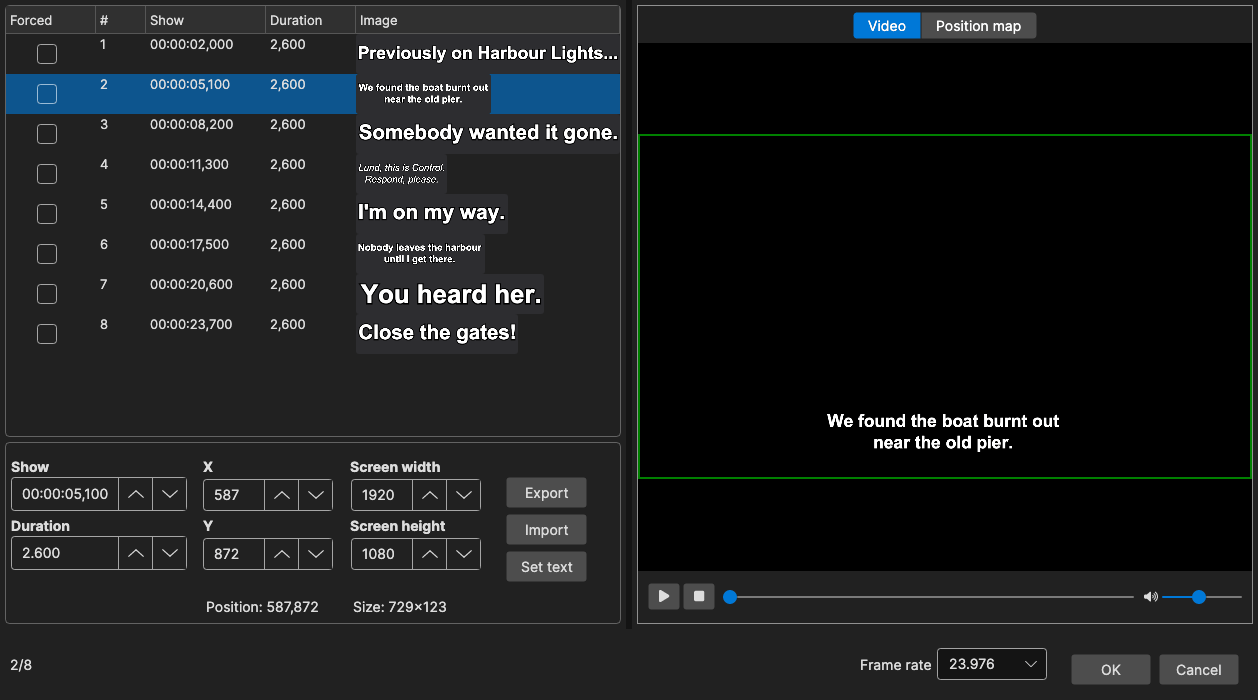
The subtitle list shows the forced flag, number, start time, duration, and the image itself. Below it you can edit the selected line’s show time, duration, X/Y position, and the screen size. Double-click a line to seek the video to it; Delete removes selected lines.
The right panel toggles between:
- Video — Video preview with the subtitle image overlaid at its real position; drag the image with the mouse to move it. A matching video file next to the subtitle is opened automatically
- Position map — An overview of where all subtitles sit on screen, with clickable counts for lines in the picture, bottom bar, and top bar. Pick a letterbox aspect ratio (or a custom bar height) and a title-safe margin to check that positioned subtitles stay inside the bars
Tools
From the Tools menu (all lines) or the right-click menu (selected lines):
- Alignment / Center horizontally / Top align / Bottom align — Reposition using the margins from the window’s Options → Settings
- Resize images… — Scale the bitmaps by a percentage
- Crop images — Trim transparent borders
- Video resolution… - Re-target the subtitle to another screen resolution (a preset or a custom width and height): every bitmap and every X/Y position is scaled by the width and height ratios, so a 1080p file keeps its layout at 720p or PAL. Changing the screen size fields alone only re-labels the canvas
- Move captions… - For letterboxed video: pick the letterbox ratio (1.66:1 to 2.40:1, or a custom bar height) and move the captions Into the letterbox bars (outside the picture) or Inside the picture (out of the bars), keeping an Offset from edge (px). Captions centred in the upper half of the screen go to the top edge, the rest to the bottom edge; the dialog shows how many captions will move. From the right-click menu it moves only the selected lines
- Adjust brightness… / Adjust alpha (transparency)… / Adjust color… — Image corrections with live preview
- Adjust durations… / Apply duration limits… — Same duration tools as for text subtitles
- Append subtitle… — Append another image-based file, keeping its time codes or offsetting them
- Sort by start time
- Remove fade in/out - Authoring tools write a fade as a run of back-to-back captions that share one image and differ only in transparency; this collapses each run (gaps up to 50 ms) into a single caption spanning the whole time, using the most opaque image
The right-click menu additionally offers Insert before / Insert after (a new line from an image file), Toggle forced, Select forced/non-forced lines, and Show earlier/later….
Under the image, Set text replaces the selected line’s image with newly rendered text (font, colors, outline, shadow, box), Import replaces it with an image file, and Export saves it as a PNG.
The File menu has Import time codes… (apply the timing of a text subtitle to the lines) next to Export, and the Synchronization menu offers Adjust all times, Change frame rate, and Change speed.
Video → Generate video with burned-in subtitles… burns the images into a video as they are, through the burn-in dialog - the video in the player, or the one next to the subtitle file, or one you pick.
Export
There is no in-place save — use File → Export:
- Blu-ray (sup), DVD sup, VobSub (sub/idx)
- BDN/xml, BDN/xml 8-bit, DOST/png, Final Cut Pro + image
- D-Cinema interop png, D-Cinema SMPTE 2014 png
- IMSC 1.1 image profile, WebVTT png
- Images with HTML index, Images with time code
When a Blu-ray SUP is exported, the times are written on a frame grid. The frame rate for that grid is worked out from the loaded file’s own time codes rather than taken from the frame-rate value stored in the file, which is often wrong (many tools, and older versions of Subtitle Edit, store 25 fps for 23.976 fps material). With fewer than ten subtitles the stored frame rate is kept, and if the time codes fit no standard frame rate, the current frame rate is used.
The Frame rate box next to OK shows that frame rate, and its tooltip says where it came from (stored in the file, detected from the time codes, the video, the current frame rate, or set by you). Blu-ray SUP, BDN/xml, DOST/png and Final Cut Pro exports are written at it; D-Cinema SMPTE uses the current frame rate. Changing it does not move any times. Use Change frame rate for that, which starts from this frame rate and sets it to the new one. When you open a video with a different frame rate, Binary Edit asks whether to use the video’s. It only skips the question when the box just holds the current frame rate, and then takes the video’s frame rate without asking.
Closing with unexported changes asks for confirmation.