Cut Video
Cut segments from a video file using an audio visualizer and video player.
- Menu: Video → More → Cut video…
- Shortcut: Configurable
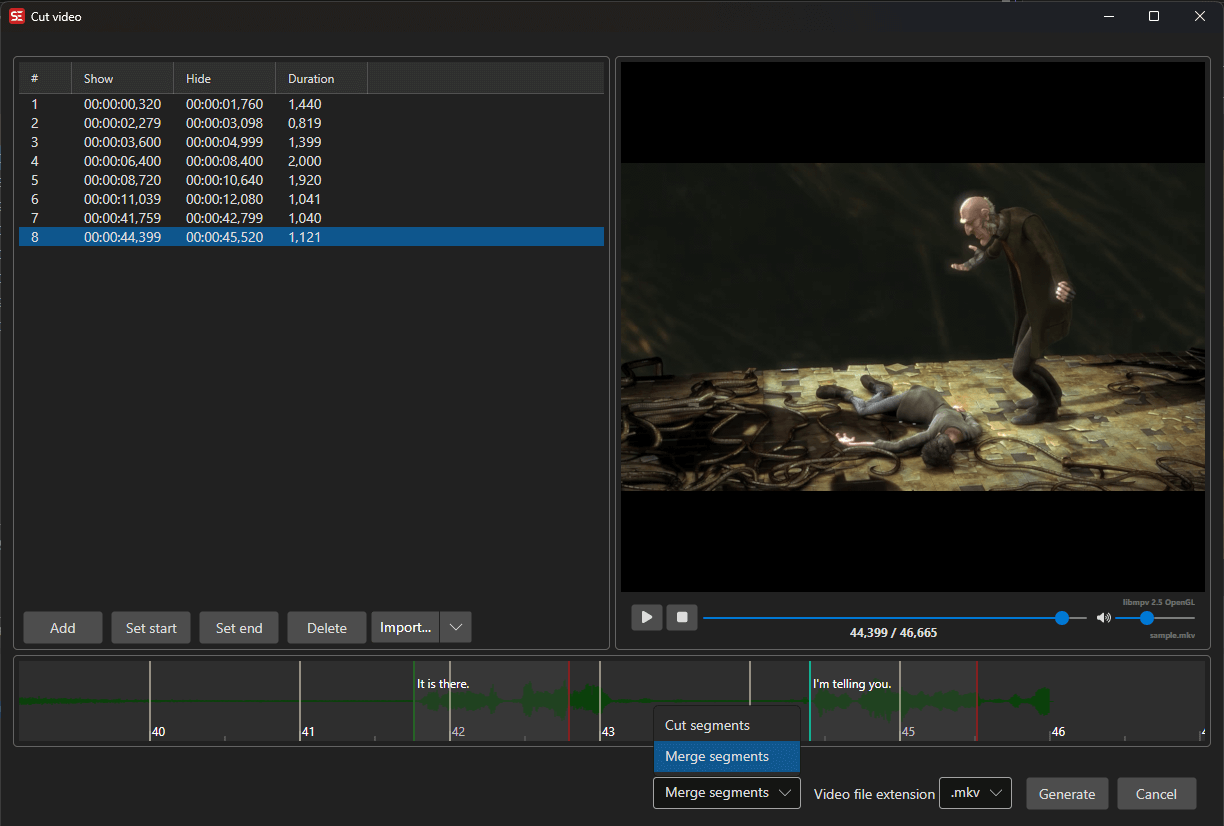
How to Use
- Open Video → More → Cut video…
- The video is loaded with the audio visualizer
- Define segments by adding entries and setting their start/end points
- Choose the cut type (cut or merge segments)
- Select the output container extension
- Click Generate to create the cut video
Segment Controls
- Add — Add a new segment
- Set start — Set the start point of the selected segment at the current video position
- Set end — Set the end point of the selected segment at the current video position
- Delete — Remove the selected segment
- Import… — Import segments from a file, or use the split-button menu to import from the current subtitle
- The segment list shows all defined cut points
Cut Types
- Cut segments — Remove the listed segments from the video and keep the rest
- Merge segments — Keep only the listed segments and concatenate them into a single output file
Transitions
- Transition between segments — Joins the parts with a transition (fade, fade through black, dissolve, wipe, slide, circle, pixelize, …) instead of a hard cut. For Merge segments there is a join between each pair of segments; for Cut segments there is one where each cut-out segment was
- Duration (seconds) — Length of each transition. The audio crossfades over the same time. A transition overlaps the two parts it joins, so the output gets one transition shorter per join. If a part is too short, the transition is shortened to fit
- Preview transition — Renders a few seconds around one join and plays them. The join nearest the selected segment is used
- Also cut subtitle follows the transitions: the subtitle switches from the outgoing part to the incoming one halfway through each transition
Fade From/To Black
- Fade from black at start — Fades the video in from black, and the audio in from silence, at the very start of the output
- Fade to black at end — Fades the video out to black, and the audio out to silence, at the very end of the output
- These work with or without transitions, and never touch the joins
Video Settings
- Video extension — Output container format (
.mkv,.mp4,.mp3,.wav) - Also cut subtitle — Shown when a subtitle is loaded. Writes the subtitle re-timed to the cut video’s timeline next to the output video (same base name; ASSA stays ASSA, other formats are written as SubRip)
Audio Visualizer
The built-in audio visualizer helps you precisely identify cut points by showing the waveform.
Keyboard Shortcuts
| Key | Action |
|---|---|
| Escape | Close / Cancel |
| Space | Toggle video play/pause |
| F1 | Show help (default key, changeable) |