Shot Changes
Detect scene/shot changes in a video using FFmpeg, or import them from a file.
- Menu: Video → Generate/import shot changes
- Shortcut: Configurable
A second menu item, Show shot changes list, appears under the Video menu once the loaded video has any shot changes - see Shot changes list.
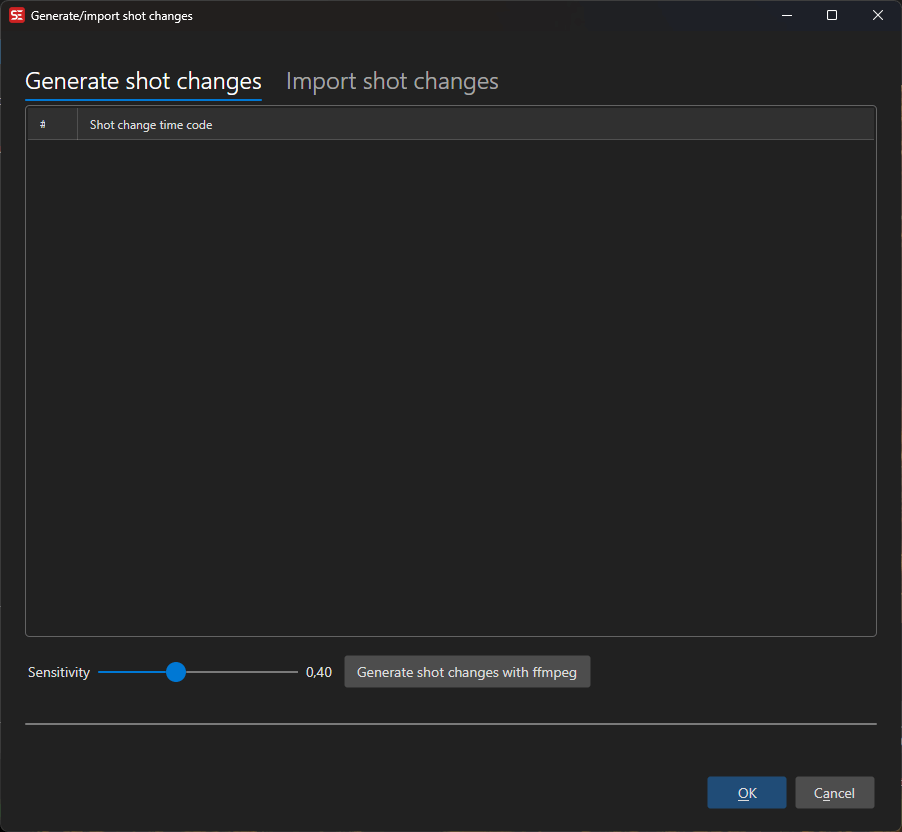
How to Use
- Open Video → Generate/import shot changes
- Adjust the Sensitivity slider (higher = fewer detected changes)
- Click Generate to run FFmpeg scene detection
- Detected shot change times appear in the list
- Click OK to apply them to the audio visualizer
Time Code Format
Choose how imported shot change times are interpreted:
- Seconds — Decimal seconds
- Frames — Frame numbers
- Milliseconds — Millisecond values
- HH:MM:SS.FFF — Full time code format
Import
The window has two tabs: Generate shot changes and Import shot changes.
- Import shot changes from file — Load shot changes from a text file (one time code per line); the text box on the tab can also be edited or pasted into directly
Shot changes are displayed as vertical lines on the audio visualizer waveform.
Shot Changes List
Video → Show shot changes list opens the Shot changes list window with every shot change of the loaded video (number and time):
- Go to (or double-click) — Move the video position to the selected shot change
- Clear — Remove all shot changes
- Right-click → Copy (or Ctrl+C) copies the selected times; Delete removes the selected shot change
- Home / End jump to the first / last entry
Export Shot Changes
Export… in the shot changes list saves the shot changes to a .shotchanges or .txt file (one time in seconds per line, the same format Subtitle Edit stores and imports). The file name defaults to the video’s name.
Keyboard Shortcuts
| Key | Action |
|---|---|
| Escape | Close / Cancel |
| F1 | Show help (default key, changeable) |