Spell Check
Check spelling of subtitle text and correct misspelled words.
- Menu: Spell check → Spell check…
- Shortcut: Configurable
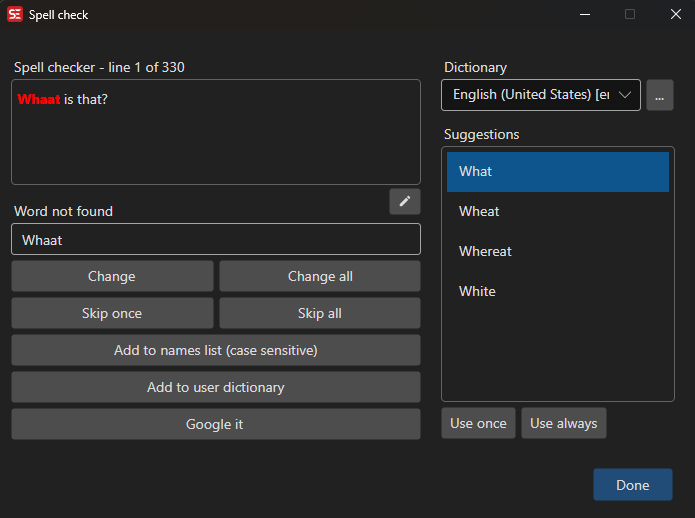
How to Use
- Open Spell check → Spell check…
- Select the dictionary language (auto-detected from subtitle content)
- The spell checker will highlight the first unknown word
- Choose an action for each flagged word:
- Change — Replace with the text in the word field (once)
- Change all — Replace all occurrences, and remember the correction for future runs
- Skip once — Ignore this occurrence
- Skip all — Ignore all occurrences of this word, for the current session only
- Add to names list (case sensitive) — Add the word to the names/proper nouns list (matches the exact casing)
- Add to user dictionary — Add the word to your personal dictionary
- The spell checker advances to the next unknown word automatically
- When all words have been checked, a Spell check completed summary shows how many words were changed, skipped and added — tick Do not show this message again to turn it off
Skip all is not saved. It lasts until the window closes and is not carried over to the next run, so a mis-click never has lasting consequences. To accept a word permanently use Add to user dictionary (or Add to names list for proper nouns); to have a correction applied automatically from now on use Change all.
Suggestions
When a misspelled word is found, the spell checker provides a list of suggested corrections.
- Double-click a suggestion to use it once
- Use once — Replace with the selected suggestion for this occurrence
- Use always — Replace all occurrences with the selected suggestion
“Use always” list
Change all and Use always save the correction per language in the “Use always” list
(<language>_UseAlways.xml in the dictionary folder). A saved correction is only applied to words
the dictionary flags as misspelled, so a correctly spelled word is never replaced.
To view or edit the list, click the list button next to the dictionary dropdown in the spell check window, or use Edit “Use always” list… in Options → Word lists:
- Pick the language, and search to filter the pairs
- Select a pair to edit it, or type a misspelled word and its replacement and click Add
- Remove a pair with its trash button (or Delete)
- Pairs whose word is spelled correctly (or is a name or user word) are marked with a warning icon - spell check never flags those words, so the pair is never used. Remove unused deletes them all
- Changes are saved when you click OK
The list is only used and saved when Spell check: remember “Use always” list is turned on in Settings → Tools.
Dictionaries
Spell check requires a dictionary to be installed. If no dictionary is found, you will be prompted to download one.
- Get dictionaries — Download additional dictionaries
- The dictionary language is auto-detected from the subtitle content
- You can manually select a different dictionary from the dropdown
- The last used dictionary is remembered between sessions
Additional Features
- Edit whole text — Edit the full subtitle text for the current line
- Google it — Search Google for the current word
- Undo — Reverts the last change; the button only appears once there is something to undo
- Play current — Plays the line in the main window’s video player and pauses at its end; hidden when no video is loaded
- Show source images too… — The image button next to Done attaches an image-based subtitle (sup, VobSub, BDN XML, TS, MKV, …) so the original bitmap is shown for each line; after an OCR run the images are attached automatically
- The current subtitle line is highlighted in the subtitle grid as you check
Keyboard Shortcuts
| Key | Action |
|---|---|
| Escape | Close spell check |
| F1 | Show help (default key, changeable) |