Text to Speech
Generate speech audio from subtitle text using various TTS engines.
- Menu: Video → Text to speech…
- Shortcut: Configurable
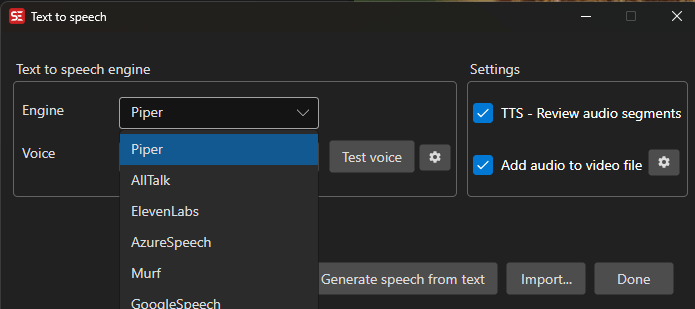
How to Use
- Open Video → Text to speech…
- Select a TTS engine from the dropdown
- Select a language and voice
- Optionally enable Review audio segments to check each line before the final mix
- Optionally enable Add audio to video file to mux the result into a new video file (the settings button next to it opens the encoding settings); Advanced… below opens further TTS settings
- Click Generate speech from text to start
- Close the window with OK to apply the session’s subtitle changes (lines merged before generation, text edits made in the review window) to the subtitle in the main window — or Cancel to discard them
The bottom bar holds Set up cast (when speakers are present), Import…, OK, Cancel and Generate speech from text. OK is hidden while generating, and Cancel then stops the generation.
Remove the Original Speech From the Video
By default Add audio to video file replaces the video’s sound with the new speech, so music and sound effects are lost. Audio ducking (under Advanced…) keeps them by mixing the speech over the original track turned down - but the original voices are then still faintly audible under the new ones.
Remove original speech (slow) (also under Advanced…) gets rid of just the voices: it splits the video’s sound into speech and everything else, throws the speech away, and mixes the new speech over the music and sound effects. That is what a dub normally sounds like.
- Model (below the checkbox) picks the separation model: Best quality (Mel-Band RoFormer) (default) keeps the most of the music and sound effects; Fast (HTDemucs) is about three times quicker, with a little more of the music lost.
- The first use downloads the CrispASR runtime (if no CrispASR engine is installed yet) and the selected separation model (Mel-Band RoFormer 457 MB, HTDemucs 81 MB). Speech to text’s Isolate speech uses the Mel-Band RoFormer model too.
- It is slow: with Best quality, about as long as the video itself on a GPU (Metal, CUDA, Vulkan), and many times longer on CPU only.
- The music and effects play at full volume. Turn on Audio ducking as well to lower them - its volume then applies to the music and effects.
- The video’s first audio track is used.
- If the separation fails, the speech is added to the video the normal way and the tools log says why.
Set Up Cast: One Voice per Speaker
When the subtitle carries speaker names — the Actor field in ASSA/SSA, or <v Name> voices in WebVTT — a Set up cast button appears (with the speaker count). It opens a dialog where each actor is assigned an engine, voice, and optionally a model and voice instruction of their own. Lines without an actor use the globally selected voice. The cast is remembered between sessions, so the same actors open already assigned next time.
If the speaker names are written into the text instead (an SDH subtitle), see the speaker prompt below — and for a video where nobody labeled the speakers at all, Find Voices in Video and Clone works out the cast by listening.
Prompts Before Generation
Clicking Generate speech from text runs up to three quick checks on the subtitle before any audio is made. Each one only appears when it has something to show, each opens a review dialog where every proposed change is a checkbox, and each can be turned off in Options → Settings (search for “Text to speech: prompt”).
Speaker names in the text
An SDH subtitle writes its speakers into the text — MIKE: text, [NARRATOR] text, (Speaker 1) text, or a name alone on its line with the speech below. Sent to a TTS engine as-is, the names are read aloud. When no cast exists yet and at least two speakers are found, Subtitle Edit offers to move the names into the actor field: the tags leave the spoken text, the Set up cast dialog opens so each speaker gets a voice, and generation continues with the cast.
- Names written the SDH way (ALL CAPS,
Speaker 1) are checked by default; mixed-case candidates likeWarning:are listed for you to judge, but unchecked. - Lines without a name continue the previous speaker (on by default) handles the SDH convention of naming only the speaker changes — the lines between two tags belong to the name above them.
- Only the speech generation is affected: the subtitle in the main window keeps its text. To move the names into the actor field of the file itself, use Tools → Convert actors….
Merge continuation lines
Sentences split across several subtitles are offered for merging, so the engine speaks each thought as one breath group. These merges are applied to the subtitle in the main window when the window is closed with OK.
Skip sound and music lines
Lines that contain only sounds or music — ♪, [door slams], (sighs), or nothing once formatting tags are stripped — get read aloud or hallucinated into made-up words by TTS engines. Subtitle Edit offers to leave the checked lines silent: no audio is generated for them, and they are not counted as failures. A sound annotation followed by real speech ([gunshot] Get down!) is kept.
Speak From Current Line
Listen to the subtitle instead of generating an audio file: Speak from current line… reads the lines aloud one after another, starting at the selected line. It is meant for proofreading by ear - typos, awkward phrasing and bad line breaks are often easier to hear than to see.
- Menu: right-click the subtitle grid, or Video → Speak from current line…
- Shortcut: Configurable (no default)
- Select the line to start from
- Choose Speak from current line…
- Pick an engine, a voice and (for Supertonic) a language, then click OK - a missing engine or voice is downloaded at this point
Only the engines fast enough to keep up with speech are offered: Supertonic (the default), Kokoro TTS, Edge TTS and Piper (not on macOS). The choice is remembered for next time. The first line can take a few seconds while a local engine starts; after that the next line is generated while the current one plays, so the lines follow each other without gaps.
While reading, the selected line, the video position and the waveform follow the line being spoken. Time codes are ignored - each line is simply read after the previous one. The video is paused when reading starts.
- Speed: the Speed dropdown in the waveform toolbar sets how fast the lines are read, and a change is heard right away
- Stop: press Escape, click another line, choose Stop speaking in the grid’s right-click menu, or run the command (or shortcut) again
Play With Speech
Watch a video with its subtitles spoken, like a live dub - handy for a course or a film in a language you do not speak, so you can watch the picture instead of reading. Play with speech… plays the video and speaks each line when the video reaches it. Nothing is saved; for an audio track to keep, use Text to speech above.
- Menu: Video → Play with speech…
- Shortcut: Configurable (no default)
- Open the video and the (translated) subtitle, and move the video to where you want to start
- Choose Play with speech…
- Pick an engine, a voice and (for Supertonic) a language - the same fast engines as Speak from current line - and the options below, then click OK
- Lower video volume while speaking: the video’s own sound is turned down while a line is spoken, and back up between lines
- Pause video when speech runs into the next line: a spoken line that is longer than its subtitle is first sped up (up to 1.5x). If it still runs into the next line, the video waits for it to finish, so no line is cut off or skipped. With this off, the video keeps playing and a line the video has already passed is skipped
The next few lines are generated ahead while the video plays. If the engine falls behind - for example while a local engine starts - the video waits for it. Pausing the video pauses the speech, seeking (clicking the waveform, a line or the position slider) continues from the new position, and the waveform toolbar’s Speed applies to both the video and the speech. The subtitle is read as it was when you started - edits made while playing are spoken after a restart.
- Stop: press Escape, choose Stop speaking in the grid’s right-click menu, or run the command (or shortcut) again
Supported Engines
- Piper — Local, open-source TTS (Windows and Linux). Custom voice models are supported: any Piper voice is an
.onnxmodel with an.onnx.jsonconfig beside it, and Import voice… in the voice settings dialog (the settings button next to Test voice) copies such a pair into the Piper folder (TextToSpeech/Piperin the data folder). It then appears in the voice list as Custom - name; a pair copied into the folder by hand is picked up the same way - EdgeTts — Microsoft Edge online voices
- AllTalk — Local TTS server
- ElevenLabs — Cloud-based, high-quality voices (requires API key)
- AzureSpeech — Microsoft cloud TTS (requires API key and region)
- MistralSpeech — Cloud-based Mistral speech generation (requires API key)
- Murf — Cloud TTS (requires API key)
- GoogleSpeech — Google cloud TTS (requires key file)
- Kokoro TTS — Local downloadable Kokoro TTS server and models
- Supertonic (CrispASR) — Supertone Supertonic-3 via the CrispASR runtime: 31 languages and ten preset voices (five female, five male) from one 200 MB model, at 44.1 kHz. It does not clone, and it is by far the fastest local engine - a line takes a second or less
- KugelAudio (audio.cpp) — KugelAudio-0-Open on the audio.cpp runtime: 23 European languages (including Danish, Swedish, Norwegian, Finnish and Polish) at 24 kHz, read from the text with no language pick. Four preset voices: two German female and two British (female and male). It does not clone. The voices keep their accent in other languages; for Danish the two German voices and the British male are clear, but the British female is not. It is a 7B model, so it is slow (several times slower than real time even on a fast GPU) and needs about 9 GB of memory with the default Q4_K model
- OmniVoice TTS — Local CPU TTS with voice cloning and many languages
- Qwen3 TTS (CrispASR) — Local Qwen3 TTS running through the CrispASR runtime (VoiceDesign, CustomVoice, and Voice clone 1.7B models)
- Chatterbox TTS (CrispASR) — Chatterbox TTS via the CrispASR runtime, with voice cloning (multilingual Base or English-only Turbo model)
- IndexTTS (CrispASR) — IndexTTS-1.5 via the CrispASR runtime; a small voice-cloning engine (about 870 MB)
- CosyVoice3 (CrispASR) — Alibaba CosyVoice3 with 9 languages and 18 Mandarin dialects, baked-in voice presets and zero-shot cloning
- IndexTTS 2.5 (audio.cpp) — IndexTTS-2.5 on the audio.cpp runtime: cloning in Chinese, English, Japanese, Spanish and Arabic, with emotion and speaking-rate control. The reference voice is sent per request, so switching voice does not restart the server
- VoxCPM2 (CrispASR) — Tokenizer-free diffusion engine at 48 kHz, about 30 languages, with zero-shot cloning
- MOSS-TTS (CrispASR) — MOSS-TTS v1.5 (Qwen3-8B backbone, 24 kHz) with zero-shot cloning
- Zonos TTS (CrispASR) — Zonos-v0.1 at 44.1 kHz in 100+ languages, with one built-in default voice. It does not clone: the CrispASR backend has no speaker encoder yet, so there are no voices to import or pick
- OmniVoice TTS (CrispASR) — The OmniVoice model on the shared CrispASR runtime, run as a persistent server so the model loads once instead of once per line
- dots.tts (CrispASR) — dots.tts SOAR 2B rendered at 48 kHz by a BigVGAN vocoder, with zero-shot cloning
- VibeVoice (CrispASR) — Microsoft VibeVoice 1.5B via the CrispASR runtime, with voice cloning; a single GGUF with no separate codec file
- Confucius4-TTS (CrispASR) — NetEase Youdao Confucius4-TTS at 22.05 kHz, 14 languages; cloning only — a reference voice is required, there is no default voice
- Pocket TTS (CrispASR) — Kyutai Pocket TTS 100M; the smallest and fastest cloning engine (one 124-365 MB GGUF per language, 6 languages), and the reference is sent per request
- Higgs Audio v3 (audio.cpp) — Boson AI Higgs Audio v3 4B on the audio.cpp runtime; zero-shot cloning in 100+ languages, per-request reference so switching voice does not restart the server
- Fish Audio S2 Pro (audio.cpp) — Fish Audio S2 Pro on the audio.cpp runtime; zero-shot cloning in 80+ languages at 44.1 kHz, per-request reference
- FireRedTTS3 (audio.cpp) — FireRedTTS3-Base on the audio.cpp runtime; zero-shot cloning in 24 languages at 24 kHz with the best published speaker similarity of the open models, per-request reference. Pick the language explicitly (there is no auto-detection); numbers and dates are only spelled out for English, Chinese and Cantonese. Every reference needs its transcript — without one the model produces noise, so a voice imported without a transcript is asked for it when picked, and Clone from video needs the original subtitle loaded. It clones best when the reference and the text are in the same language; for dubbing a video into another language, Fish Audio S2 Pro or CosyVoice3 hold up much better
Local downloadable engines are installed into the Subtitle Edit data folder when you accept the download prompt.
CrispASR voice engines
Several of the local engines above are different models on the same CrispASR runtime, sharing one CrispASR/models folder with the speech-to-text backends. What separates them is voice output quality rather than features, so they are collected here.
Output rate is the engine’s native render rate - 48 kHz carries noticeably more high end than 24 kHz on headphones, though for speech mixed under a video the difference is small. Reference WAV is the format a cloning reference is converted to on import; Subtitle Edit resamples with ffmpeg for you, but a clean 3-10 second recording at or above that rate clones best.
| Engine | Output rate | Languages | Voice cloning | Reference WAV | Download |
|---|---|---|---|---|---|
| OmniVoice TTS (CrispASR) | 24 kHz | 646 | Built-in voice + zero-shot | 24 kHz mono | ~1 - 1.6 GB |
| Qwen3 TTS (CrispASR) | 24 kHz | 10 | VoiceDesign, CustomVoice or Voice clone | 24 kHz mono (strictly enforced) | ~2.3 GB |
| Chatterbox TTS (CrispASR) | 24 kHz | 23 on Base; Turbo is English-only | Zero-shot | 24 kHz mono | ~700 MB - 1.8 GB Base, ~1 GB Turbo |
| IndexTTS (CrispASR) | 24 kHz | Follows the text | Zero-shot | 24 kHz mono | ~600 MB - 2.4 GB |
| CosyVoice3 (CrispASR) | 24 kHz | 9, plus 18 Mandarin dialects as voices | 8 baked-in presets + zero-shot | 16 kHz mono + a transcript sidecar | ~1.6 - 2.5 GB |
| MOSS-TTS (CrispASR) | 24 kHz | 20 | Zero-shot | 24 kHz mono | ~10.5 - 20.5 GB incl. codec |
| Zonos TTS (CrispASR) | 44.1 kHz | 100+ via the language picker (trained on English, Japanese, Chinese, French and German; the rest rely on eSpeak pronunciation) | None - one built-in voice | - | ~1.8 GB |
| VoxCPM2 (CrispASR) | 48 kHz | ~30 | Zero-shot | 24 kHz mono (upsampled internally) | ~1.7 - 5 GB |
| dots.tts (CrispASR) | 48 kHz | Follows the text | Zero-shot | 24 kHz mono | ~2.4 - 5 GB |
| VibeVoice (CrispASR) | 24 kHz | Follows the text | Zero-shot | 24 kHz mono | ~1.6 - 5 GB |
| Confucius4-TTS (CrispASR) | 22.05 kHz | 14 | Zero-shot (required - no default voice) | 22.05 kHz mono | ~1.9 - 2.6 GB |
| Pocket TTS (CrispASR) | 24 kHz | 6 (one model per language) | Zero-shot, per request | 24 kHz mono | ~124 - 365 MB per language |
| Supertonic (CrispASR) | 44.1 kHz | 31 via the language picker | None - 10 preset voices | - | ~200 MB |
“Follows the text” means the engine has no language picker - it speaks whatever script it is given, taking its accent from the reference voice.
Notes on picking one:
- Smallest download that still clones: Pocket TTS at 124-365 MB per language; IndexTTS (about 600 MB - 870 MB) is the smallest that covers many languages with one model.
- Fastest, and the smallest download overall: Supertonic at about 200 MB. It is not autoregressive, so a five-second line renders in under half a second on a GPU and in about a second on CPU - but it has preset voices only. Pick the language explicitly: it cannot detect it, and text read under the wrong language comes out garbled.
- Most languages: OmniVoice, at 646.
- Highest output rate: VoxCPM2 and dots.tts at 48 kHz, then Zonos and Supertonic at 44.1 kHz.
- MOSS-TTS is by far the largest because its Qwen3-8B backbone needs a ~3.5 GB codec companion on top of the backbone quant. Check free disk space before selecting it.
- Quantized engines follow the same rule as the speech-to-text models:
Q4_Kis the small fast default,Q8_0is close to full precision, andF16is rarely worth the extra gigabytes. - Most of the CrispASR engines load their reference voice at server start, so switching voice reloads the model. The exceptions are Pocket TTS, VibeVoice, MOSS-TTS, CosyVoice3 and VoxCPM2 (per-request reference) and Qwen3 TTS with the Voice clone model — those, the four audio.cpp engines (IndexTTS 2.5, Higgs Audio v3, Fish Audio S2 Pro, FireRedTTS3) and the standalone OmniVoice TTS engine are what Clone From Video (Voice of Each Line) can use.
Engine Settings
Some engines require additional configuration:
- API Key — Enter your API key for cloud-based engines
- Region — Select the Azure region (for Azure engine)
- Model — Select the voice model
- Key file — Browse for Google Cloud service account key file
Voice Cloning
Several local engines can clone a voice from a reference recording. The first time you do this — when you import a reference recording, or generate speech with a cloned voice — Subtitle Edit shows a one-time dialog with the terms you are accepting. You have to tick the checkbox before you can continue.
The points that matter:
- Only clone a voice you have the right to use: your own, or one where the speaker has given permission. A voice is personal data and a personality right, so cloning without permission can be unlawful.
- If you publish audio that imitates a real person, you must say that it is AI-generated. In the EU this is required by the AI Act (Regulation (EU) 2024/1689, article 50), which applies from 2 August 2026.
- Subtitle Edit turns off the engine’s spoken AI disclaimer, inaudible watermark and C2PA signature so the audio can be muxed into your video unchanged — so nothing marks the result as AI-generated for you.
- Do not use a cloned voice to impersonate someone, or for fraud, harassment or deception.
- The reference recording stays on your computer. Cloning runs locally and the audio is not uploaded anywhere.
- Each speech model also has its own license, which may add further limits on commercial use.
Declining just means “not now” — nothing is changed, the clone is refused, and you are asked again the next time. The answer is remembered per terms version, so you are asked again if the terms change.
Clean Voice-Clone References
Clean voice-clone references (Sidon) under Advanced… removes music, noise and reverb from the audio a voice is cloned from before the engine sees it: clips taken from the video (Clone voice to, Clone from video, Find voices in video and clone) and recordings imported in the voice manager. It uses the Sidon speech restoration model on audio.cpp (940 MB download, asked for on first use). The cloned voice no longer copies the background, but very quiet or overlapping speech can come out muffled. If the download is declined or cleaning fails, the reference is used as it is.
Renaming and Deleting Imported Voices
Right-click the voice combo box for Rename voice… and Delete voice…. Both work on voices you imported or cloned - the engines list those straight from their voices folder, one reference recording per voice - and are disabled for engine presets, built-in speakers and the Clone from video entry.
- Rename voice… moves the recording together with its sidecar files (the
.txttranscript, engine JSON) and the cached prepared copy, so nothing is left behind as an orphan. Spaces are stored as underscores, which is what the engines show as spaces. - Delete voice… asks for confirmation, then removes the recording and its files from disk.
Supported for every file-backed cloning voice: the CrispASR engines (Chatterbox, Confucius4-TTS, CosyVoice3, dots.tts, IndexTTS, MOSS-TTS, OmniVoice, Pocket TTS, Qwen3 TTS, VibeVoice, VoxCPM2), the standalone OmniVoice TTS, and the audio.cpp engines (IndexTTS 2.5, Higgs Audio v3, Fish Audio S2 Pro, FireRedTTS3).
Voice Manager
Click the voice-manager button (the head-and-microphone icon next to the voice combo box) or pick Voice manager… from the combo box’s right-click menu to open one window for all voices of all engines.
- Engines that support voice cloning are listed on the left; pick one to list its voices with type (cloned voice or built-in preset), duration, format and whether a transcript is present. Search filters the list.
- Play (Space, or double-click) plays a cloned voice’s reference recording; the waveform below shows the whole clip with a playhead, and clicking the waveform seeks.
- Transcript - for engines that read the transcript of the reference recording (ref-text), the text is shown under the waveform and can be edited and saved, or filled in with Use speech-to-text…. The hint says whether the engine requires it (CosyVoice3, Fish Audio S2 Pro, Qwen3 TTS, OmniVoice TTS) or only benefits from it (F5-TTS, FireRedTTS3, Higgs Audio, MOSS-TTS, OmniVoice CrispASR, VoxCPM2). Engines that clone from a speaker embedding do not use one.
- Rename (F2) and Delete (Del) work as in the combo box menu.
- Copy voice to engine… imports the recording and its transcript into another cloning engine, resampled to what that engine wants. A transcript is asked for when the target requires one and none is stored. Voices with the same name in the target are confirmed first.
- Import voice… adds a recording (or, for Piper, a voice model) to the current engine, with the same transcript prompt as the voice settings dialog.
- Download voice packs… fetches ready-made sets of reference recordings with transcripts and installs them into a chosen cloning engine, skipping voices already present: the 18-voice English standard set, and German, Spanish, French, Italian, Dutch, Polish and Portuguese readers cut from Multilingual LibriSpeech (LibriVox, CC BY 4.0). Every pack carries an
ATTRIBUTION.txtwith its license and sources. - Open voices folder shows the engine’s
voicesfolder on disk; Refresh re-lists (and for online engines re-downloads the voice list).
Cloned voices are the only editable kind; an engine’s built-in presets are listed for orientation.
Cloning a Voice Heard in the Video
You do not have to prepare a reference recording by hand. In the main window, right-click a subtitle line in the waveform and choose Clone voice to → engine name. Subtitle Edit cuts the audio for that line out of the video’s current audio track, asks what to call the new voice (pre-filled with the line’s actor, or the video name and line number), and imports it as a cloned voice for the chosen engine. The line’s own text is used as the transcript the cloning engines want, so you are not asked to type it.
The menu item appears when exactly one subtitle line is selected and the right-click was on that line, and a video is open. Only engines that can clone are listed. The new voice is then in the voice list for that engine the next time you open Video → Text to speech….
Pick a line with clean speech: a couple of seconds or more, one speaker, and as little music and effects as possible. The clip is used exactly as it sounds in the video.
Find Voices in Video and Clone
Video → More → Find voices in video and clone… does the whole cast in one go: it works out who speaks in the video, clones each of them, and leaves the cast assigned so the dubbing is ready to generate.
What happens, in order:
- The video is transcribed with a speech-to-text engine that tells speakers apart — Crisp ASR MOSS Diarize is preselected (English and Chinese). You can change the engine in that window if you have another that labels speakers.
- The speaker labels the engine writes into the text (
(Speaker 1) …) are moved into the subtitle’s Actor field, where they belong. - A dialog lists the speakers with their line count, how much audio each has, and one of their lines so you can tell who is who. Give each speaker a real name — two speakers with the same name are merged into one voice, which is how you fix a person diarization split in two. Pick the cloning engine here as well.
- Each speaker’s voice is cloned from up to ~15 seconds of their own lines (their longest ones, joined), with those lines as the transcript.
- The subtitle switches to ASSA, which is the format that keeps actors, and the actor column is shown.
- The actor→voice cast is remembered, so Video → Text to speech… opens with every speaker already assigned to their cloned voice. Press Generate.
If a subtitle is already open, its lines and text are kept — the speakers are matched to your existing lines by time overlap, so a translation is not replaced by the transcription. With nothing open, the transcription becomes the subtitle.
Lines that overlap no detected speech (music, on-screen text) are left without an actor and fall back to the globally selected voice.
Clone From Video (Voice of Each Line)
For dubbing a video with several speakers there is a faster way than cloning each of them by hand. With a video open, pick Clone from video (voice of each line) at the top of the voice list. Every subtitle line is then spoken in the voice heard in the video at that line — whoever speaks line 12 in the original speaks line 12 in the dub. No reference recordings, no imports, no cast to assign.
Before generating, Subtitle Edit cuts one short reference clip per line out of the video’s audio. Lines shorter than about three seconds are grown into the silence around them, but never into the neighbouring line — a reference with two speakers in it would clone the wrong person.
- Supported engines: OmniVoice TTS, Pocket TTS (CrispASR), VibeVoice (CrispASR), MOSS-TTS (CrispASR), CosyVoice3 (CrispASR), VoxCPM2 (CrispASR), Qwen3 TTS (CrispASR) with the Voice clone model, and the audio.cpp engines IndexTTS 2.5, Higgs Audio v3, Fish Audio S2 Pro and FireRedTTS3. The entry only appears for engines that accept a reference for each line; engines that load their reference when their server starts would have to reload the model for every line.
- Reference text: if you have the original subtitle loaded next to the translation, its lines are used as the transcript of the clips — that is what the video actually says, and it makes cloning noticeably better. Without an original loaded the clips have no transcript (the translated line is never used as one, since telling the model the clip already says the target text makes it replay the clip instead of speaking the line). What happens then depends on the engine: CosyVoice3 transcribes the clip itself, IndexTTS 2.5, Higgs Audio v3 and Fish Audio S2 Pro clone from the audio alone, and Qwen3 TTS and FireRedTTS3 need the transcript — FireRedTTS3 refuses to start without an original subtitle loaded, and Qwen3 speaks such lines with the first ordinary voice.
- Language: the engines clone best when the voice in the video speaks the language you are generating. Fish Audio S2 Pro and CosyVoice3 handle a video in one language dubbed into another well; FireRedTTS3 does not (its single language tag covers both the clip’s transcript and the text, and the result garbles or mixes the two languages).
- Test voice previews the clone taken from the longest line of the subtitle.
- Quality depends on the source audio. Loud music or two people talking over each other in a line makes that line’s clone worse. Longer subtitle lines clone better than very short ones, so a subtitle segmented into full sentences gives the best result.
Local SE5 Engines
Qwen3 TTS (CrispASR)
Qwen3 TTS runs through the CrispASR runtime and shares the CrispASR/models directory with the speech-to-text Crisp ASR engines.
- Available model choices are 1.7B VoiceDesign (uses a free-text voice instruction), 1.7B CustomVoice (nine built-in speakers selected by name), and 1.7B Voice clone (clones an imported reference WAV).
- Subtitle Edit downloads the engine and the selected talker + codec/tokenizer GGUFs on first use.
- Imported reference WAV voices appear in the voice dropdown for the Voice clone model. Each imported voice needs a transcript of what is spoken in the WAV, and the reference audio is resampled to 24 kHz mono (required by the clone model).
- Voice cloning can be slow, especially the first time you synthesize after starting the engine — the model’s compute kernels are compiled on first use, so the first clip can take a while (minutes on some machines); subsequent clips are much faster.
Chatterbox TTS (CrispASR)
Chatterbox TTS runs through the CrispASR runtime (shared with the speech-to-text feature) and supports voice cloning.
- Available model choices are Base and Turbo.
- The Base model is multilingual: pick one of its 23 languages (Arabic, Chinese, Danish, Dutch, English, Finnish, French, German, Greek, Hebrew, Hindi, Italian, Japanese, Korean, Malay, Norwegian, Polish, Portuguese, Russian, Spanish, Swahili, Swedish, Turkish) in the language dropdown. Auto sends no language and lets the model guess — non-English text usually comes out with an English accent that way, so picking the language explicitly is recommended. Turbo is an English-only distillation and has no language choice.
- If the models were downloaded before the multilingual release, Subtitle Edit will prompt to download them again — the older files are English-only and ignore the language selection.
- Imported reference WAV voices are sent as the per-request voice for runtime cloning.
Kokoro TTS
Kokoro TTS runs a local server with downloadable models.
- Subtitle Edit downloads the engine and model files when needed.
- Voice names are available immediately from the bundled voice list and can be refreshed from the running server.
- It is a good choice when you want a local, multilingual TTS engine without an API key.
OmniVoice TTS
OmniVoice TTS runs the omnivoice-tts CLI on CPU. It supports a large set of languages and voice cloning from reference WAV files (with an accompanying transcript). Because each line is a separate run that takes its own reference, it is also the engine behind Clone from video (voice of each line).
MistralSpeech
MistralSpeech is configured with an API key and model selection. The selected model is remembered in settings.
ElevenLabs Pauses and Pacing
You can control pausing and pacing in ElevenLabs output directly from the subtitle text.
- Break tags — Insert
<break time="1.5s" />for an explicit pause (up to about 3 seconds). Keep them sparse: too many break tags in one line can make ElevenLabs speed up or add audio artifacts. - Punctuation — Ellipses (
...) add a hesitant pause, and dashes (---) add a short break. These are less precise than break tags but useful for a natural feel.
Subtitle Edit sends your text to ElevenLabs with text normalization turned off, so these pause cues are preserved instead of being collapsed or rewritten.
The models offered are eleven_v4_turbo (the default), eleven_v4, eleven_turbo_v2_5, eleven_v3 and eleven_multilingual_v2. Behavior depends on the selected model:
- Standard models (
eleven_turbo_v2_5,eleven_multilingual_v2) honor SSML<break>tags and punctuation pauses. - Eleven v4, v4 Turbo and v3 do not support SSML
<break>tags. Subtitle Edit automatically converts each<break time="Xs" />into the nearest audio pause tag —[short pause](under 0.75 s),[pause](up to 1.5 s), or[long pause](longer) — so the same subtitle text keeps working when you switch model. - These three models also understand expressive audio tags such as
[whispers]or[laughs]. With one of them selected, a help button next to the Model drop-down in the review window opens ElevenLabs’ guide to audio tags.
Review Audio Clips
When Review audio segments is enabled, a dedicated review window opens after generation. This window lets you inspect, play, and regenerate audio for every subtitle line before the result is used. A 120px waveform of the original video audio is shown above the grid as a reference. The session (clips, per-line voice and engine, includes, text edits) can be written to SubtitleEditTts.json and imported again later — see Continuing a Session Later. Regeneration history is kept for the current session only and is not part of the export.
The Review Grid
Each subtitle line is shown as a row with the following columns:
| Column | Description |
|---|---|
| Enabled | Checkbox to include or exclude the line from the final output |
| # | Subtitle line number |
| Text | The subtitle text (editable — double-click to modify before regenerating). Text edits are applied to the subtitle in the main window when the Text to speech window is closed with OK |
| Voice | The voice used for that line |
| Speed | The speed factor applied to fit the audio into the subtitle’s duration |
| CPS | Characters per second for the subtitle line |
Playback Controls
- Play — Plays the selected line’s audio clip
- Stop — Stops playback
- Auto-continue — When enabled, playback automatically advances to the next line as soon as the current clip finishes
Right-click a line in the waveform for Play line, Regenerate audio, Show history and two timing fixes: Fit duration to generated audio ends the line where the generated speech ends, and Reset timing restores the times the line had when the window opened.
Regenerating a Clip
You can regenerate the audio for any individual line:
- Select the line in the grid
- Choose the desired engine, voice, language, model, or style from the dropdowns
- Click Regenerate or press R (or Ctrl+R)
The new clip is trimmed for silence and automatically speed-adjusted to fit the subtitle timing. After regeneration the new clip plays back immediately for review.
For ElevenLabs, extra fine-tuning parameters are available when that engine is selected: Stability, Similarity, Speaker Boost, Speed, and Style Exaggeration. A Reset button restores all ElevenLabs parameters to their defaults.
Regeneration History
Every time a clip is regenerated, the previous version is saved. To review the history for a line, click the History button on that row. The history dialog shows all generated versions with their voice name and speed, and lets you play each one. Selecting a version and clicking OK restores it as the active clip for that line.
Including / Excluding Lines
Uncheck the Enabled checkbox on any row to exclude that line’s audio from the final output. Excluded lines are skipped when the video file is assembled.
Exporting Clips
Click Export to save all audio clips and a SubtitleEditTts.json metadata file to a folder of your choice. The JSON file records the audio file names, subtitle timings, voice names, engine names, speed factors, and text for each line, making it easy to re-import or post-process the clips externally.
Continuing a Session Later
A long video does not have to be dubbed in one sitting. Export the session when you stop, and import it when you come back:
- In the review window, click Export… and pick a folder. Subtitle Edit writes
SubtitleEditTts.jsonthere, plus awavsubfolder with every generated clip. - Next time, open Video → Text to speech… and click Import…, then pick that
SubtitleEditTts.json. - The review window opens again with all the lines and their audio, and you carry on where you left off.
What comes back with the session:
- Every line’s generated clip, text and timing
- The engine, model, voice, instruction and speed factor each line was generated with
- The Enabled checkboxes
- The actor/voice cast mapping, so regenerating uses the same voices
- The video the session was made from — you do not have to open it first
From there you can play, edit text, regenerate single lines, and finish the session normally. Keep the wav folder next to the JSON file: the clip paths are stored relative to it, so the whole folder can be moved or copied to another machine.
Keyboard Shortcuts
| Key | Action |
|---|---|
| R / Ctrl+R | Regenerate selected line |
| Space | Play / pause the selected line |
| Escape | Close / Cancel |
| F1 | Show help (default key, changeable) |