Beautify Time Codes
Snap subtitle in- and out-cues to shot changes, frame boundaries, and minimum-gap / duration rules in one pass, using a fully configurable profile.
- Menu: Tools → Beautify time codes…
- Profile editor: Options → Settings → Waveform → gear icon next to Snap to shot changes, or Edit beautify time codes profile… button inside the tool window.
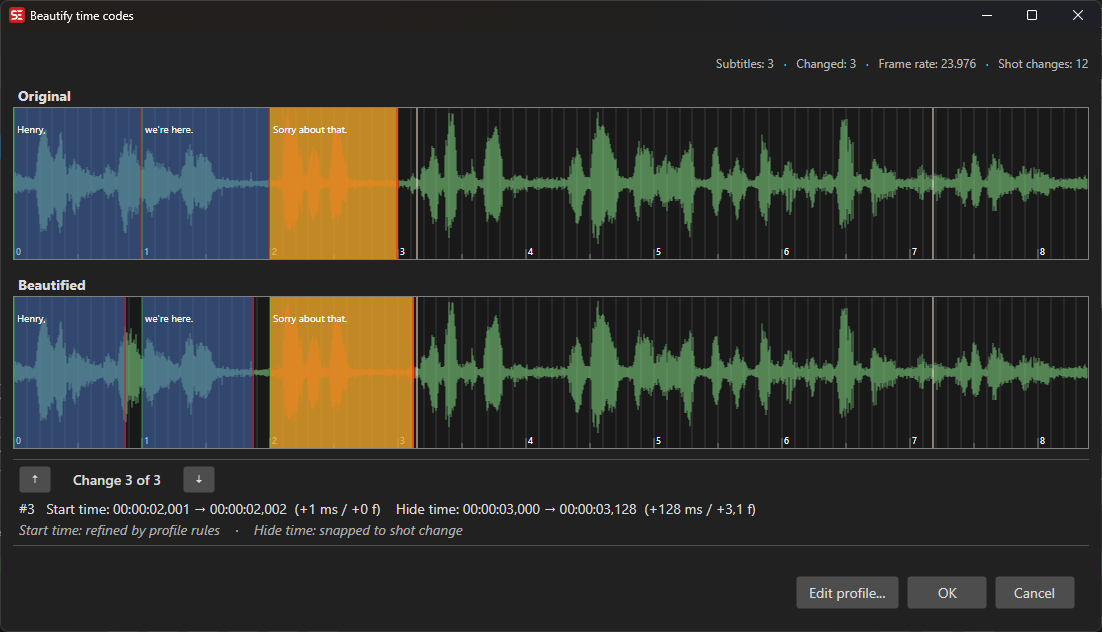
Tool window
The window shows the loaded subtitle in two stacked waveform visualizers:
- Original — the subtitles as they are now.
- Beautified — the result of applying the current profile. This view updates live every time the profile changes.
Above the visualizers a stats line summarises the run:
Subtitles: N · Changed: M · Frame rate: 25 · Shot changes: K
Below the visualizers, the change navigator lets you step through every cue the beautify pass moved:
- ▲ / ▼ — previous / next change. Both visualizers center on the change.
- Change X of Y — position counter.
- Detail line —
#15 Start: 00:01:23,456 → 00:01:23,400 (−56 ms / −1.4 f) End: … - Reason line — italic, dimmed: explains why the cue moved, per side:
Start: snapped to shot changeEnd: snapped to frameStart: min. gap enforced— start landed exactly on previous end + min. gap.End: min. gap enforced— end landed exactly on next start − min. gap.Duration: min. duration enforced/max. duration enforced— duration was clamped to the Subtitle min/max display milliseconds general setting.—when no reason is detected (e.g. chaining / connected-subtitle adjustments).
Press OK to apply the beautified cues to the subtitle, or Cancel to discard.
Profile editor
The profile editor controls exactly how cues are moved. It is independent of which subtitle is loaded, and persists across Subtitle Edit restarts via the main Settings.json.
Presets
Load a known-good configuration from the Load preset menu at the bottom of the dialog:
- Default — sensible general defaults.
- Netflix — matches Netflix’s Timed Text Style Guide timing rules (2-frame min. gap, 12-frame green zones around shot changes, Extend until shot change chaining).
- SDI — for SDI-style broadcast work (4-frame gap, larger zones).
Presets overwrite all profile values. Use them as a starting point.
General
- Gap — the project-wide minimum gap, in frames. Changing this value also rewrites all per-section gap fields below that are currently non-zero, so a custom value in one place doesn’t silently disagree with the global.
In cues / Out cues
For a paragraph in-cue (start) or out-cue (end), the profile defines a snap window around the nearest shot change:
- Gap — for out-cues, how far before a shot change the cue should be placed (in frames). For in-cues this is 0 by default (start on the shot change).
- Zones — four numeric fields, left-to-right:
- Left green — soft, advisory zone before the shot change.
- Left red — hard snap zone before the shot change. A cue dragged into this range snaps to the shot change.
- Right red — hard snap zone after the shot change.
- Right green — soft, advisory zone after the shot change.
The preview to the right of each section shows the current setup: gray gap area, red and green zones around the center line (the shot change), and the two subtitle blocks pressed up against the gap.
Connected subtitles
When two consecutive subtitles are connected (separated by less than Treat as connected if gap smaller than milliseconds), the beautifier preserves their relationship instead of treating each cue independently. The same zone logic applies, but with separate gap values depending on whether the in cue or out cue is closer to the shot change. Use the inner tab control to switch between the two cases.
Chaining
When two consecutive subtitles almost touch but a shot change sits between them, the beautifier can chain them — extending one to meet the other — based on the General, In cue on shot change, and Out cue on shot change sub-tabs.
Each sub-tab offers:
- Max gap (radio) / Zones (radio) — choose whether to gate the chaining by an absolute gap budget in milliseconds, or by frame-based zones identical to the In/Out cue zones.
- If there is a shot change in between (General tab only) — controls the behavior across a shot change:
- Don’t chain — leave the gap untouched.
- Extend across shot change — let the previous cue cross the shot.
- Extend until shot change — extend up to the shot, but not past it. (Netflix preset default.)
- Apply ‘general’ chaining rules too (In/Out tabs) — also apply the General tab’s chaining rules to this scenario.
Snap-to-shot-changes while editing
The profile’s In cues gap and Out cues gap decide where a cue lands when it snaps to a shot change anywhere in Subtitle Edit — dragging in the waveform, or the snap to shot change shortcuts:
- A snapped start lands the In cues gap after the shot change.
- A snapped end lands the Out cues gap before the shot change (so the cue doesn’t bleed onto the next shot).
With both gaps at 0 (the Default preset) cues land exactly on the cut. Raise Out cues gap to 1 or 2 frames if you prefer ends to stop just short of it.
How close a cue has to be before it snaps is not taken from the profile — that is set in Options → Settings → Waveform, in pixels for dragging and in seconds for the keyboard commands. See Audio Visualizer.
Related
- Shot Changes — detecting and importing the shot-change list that this tool relies on.
- Audio Visualizer — the waveform editor where snap-to-shot-changes happens during normal editing.