Auto Translate
Automatically translate subtitles using various translation engines and AI services.
- Menu: Translate → Auto-translate…
- Shortcut: Configurable
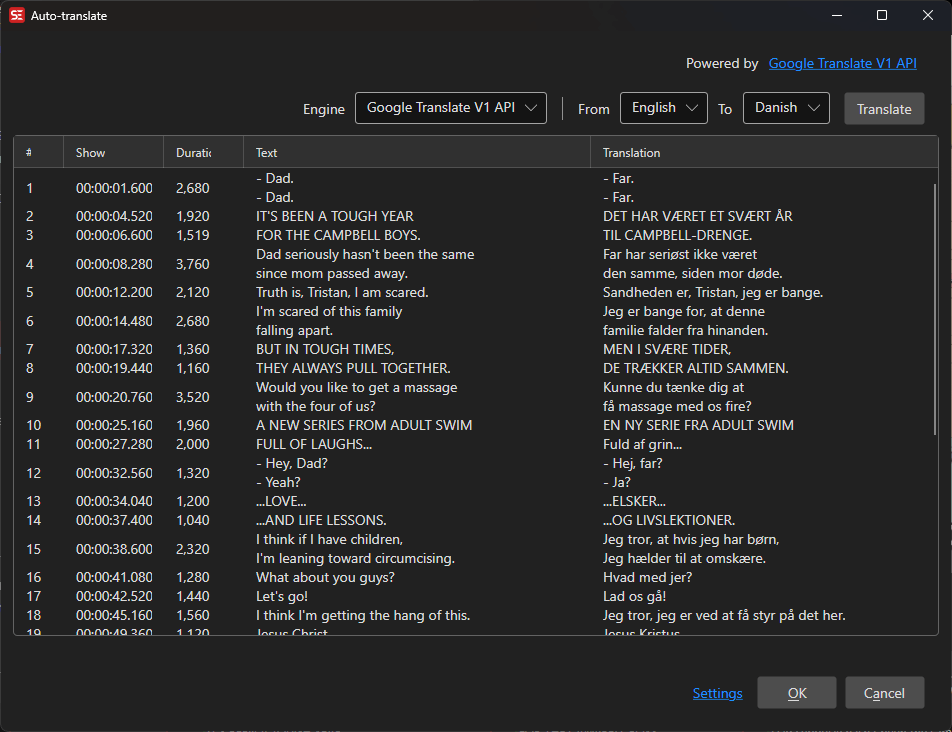
How to Use
- Open Translate → Auto-translate…
- Select a translation engine
- Select the source and target languages (the button between them swaps the two)
- Click Translate to start
- Review the translations in the grid
- Click OK to apply
Translating selected lines
Right-click selected lines in the grid and choose Auto-translate to translate only those lines. With no original column open, the dialog offers Translate in place (do not create original): the translated text replaces the selected lines’ text instead of turning the subtitle into the original. Otherwise the whole subtitle becomes the original, as with a whole-file translation.
The shortcut Auto-translate selected lines (no prompt, use last engine/languages) (no default key; set it in Shortcuts) starts right away with the last used engine and languages; the dialog only shows progress and closes when done. Until a translation has been run once, it prompts as usual.
Supported Engines
- Google Translate V1 API — Free Google Translate. When Google answers with its “unusual traffic” block page, Subtitle Edit retries the request through a fallback endpoint (
clients5.google.com) before giving up; a block is on Google’s side and is usually lifted again after minutes to a few hours - Google Translate V2 API — Google Cloud Translation (requires API key)
- Bing Microsoft Translator — Azure Cognitive Services (requires API key)
- DeepL V2 translate — DeepL translation (requires API key). Every language the DeepL API offers is listed, as source and as target (including the target-only regional variants such as fr-CA and de-CH). A Formality dropdown — Default, More formal, Less formal, More formal (fall back to default), Less formal (fall back to default) — appears for target languages that support it
- LibreTranslate — Open-source, self-hosted translation
- MyMemory Translate — Free translation memory
- ChatGPT — OpenAI AI translation (requires API key)
- LM Studio (local LLM) — Local LLM translation
- LM Studio advanced (local LLM) — LM Studio translated in batches with surrounding context, a synopsis and a glossary; see Advanced local engines
- Ollama (local LLM) — Local LLM-based translation
- Ollama advanced (local LLM) — Ollama translated in batches with surrounding context, a synopsis and a glossary; see Advanced local engines
- llama.cpp (local LLM) — Server-managed local LLM translation; Subtitle Edit downloads llama.cpp and a curated model (TranslateGemma, Gemma 4, Qwen, Aya Expanse, MiLMMT, Hy-MT2 or TranslatePsy-AfriSLM for English ↔ 19 African languages) and runs a local
llama-serverfor you. See Using your own model to run a model we don’t ship, such as TranslateGemma 27B - llama.cpp advanced (local LLM) — The managed llama.cpp server translated in batches with surrounding context, a synopsis and a glossary; see Advanced local engines
- OpenAI Compatible API — Generic engine for any service exposing an OpenAI-compatible
chat/completionsendpoint (vLLM, KoboldCpp, a llama.cpp server on another machine, cloud providers, …); configure URL, model, prompt, and an optional API key - Anthropic Claude — AI translation (requires API key)
- Groq — AI translation (requires API key)
- OpenRouter — AI translation (requires API key)
- API Route — AI translation through api-route.com (requires API key)
- Lara — AI translation (requires API key)
- Perplexity — AI translation (requires API key)
- Google Gemini — AI translation (requires API key)
- NVIDIA — AI translation (requires API key)
- Mistral AI Translate — AI translation (requires API key)
- DeepSeek — AI translation (requires API key)
- Papago Translate — Naver Papago translation (requires API key)
- thammegowda-nllb-serve — Self-hosted NLLB (No Language Left Behind) server
- winstxnhdw-nllb-api — NLLB (No Language Left Behind) API
- Baidu Translate — Baidu translation (requires App ID and secret)
- CrispASR MADLAD — Local MADLAD-based translation with downloadable models (shown with size and install status); also available in Batch Convert. The language list is the 419 languages the MADLAD-400 model itself knows, so it is both longer and shorter than the usual one: it adds languages such as Iloko, Waray, Papiamento, Moroccan Arabic and Latin, and leaves out ones MADLAD cannot produce — including Cantonese, for which Google Translate, NLLB or any of the LLM engines are the alternatives. Quality varies a lot across that long tail — Google evaluated only about half of the languages the model claims
llama.cpp: using your own model
The models offered in the download list are deliberately kept small enough to run on an ordinary machine (mostly under 8 GB, the largest around 12 GB). You are not limited to them — larger models such as TranslateGemma 27B work fine if your hardware can handle them.
Two ways to use one:
- Drop a
.ggufinto the models folder. Copy the file into Subtitle Edit’sllama.cpp/modelsfolder and it appears in the model list marked (custom). Subtitle Edit recognizes the model family from the file name and startsllama-serverwith the right chat template, so a self-downloaded TranslateGemma or Qwen quant behaves like the curated ones. - Run your own server. Tick Use remote server and point Subtitle Edit at any
llama-serveryou started yourself (the default ishttp://localhost:8080/v1/chat/completions). Subtitle Edit then does no model management at all.
Be aware of what a bigger model costs. TranslateGemma 27B at Q4_K_M is roughly a 16 GB download and needs about 20 GB of VRAM to run fully on the GPU — a 24 GB card in practice. Google’s own figures put the 12B ahead of the Gemma 3 27B baseline, so the 12B in the download list is already a strong choice and the jump to 27B buys less than the size difference suggests.
Prompts: chat models and completion models
Every local-LLM engine (LM Studio, Ollama, llama.cpp, OpenAI Compatible API) has a
prompt you can edit in the engine’s Settings dialog (gear button). {0} is replaced with the source language and {1} with the target
language, both as English names.
By default the prompt is an instruction and Subtitle Edit appends the subtitle text after it — what a chat-tuned model expects.
Some translation models are trained on a completion format instead: the text has to sit inside the
prompt, followed by a cue for the target language. Write {2} where the text belongs and Subtitle
Edit sends the filled-in template as one block instead of appending anything. For example
MiLMMT-46 (Xiaomi’s 46-language
translation model) is trained on:
Translate this from {0} to {1}:
{0}: {2}
{1}:
The trailing {1}: cue is what makes such a model translate at all — without it, it tends to echo
the source. Set the model’s temperature to 0 where the engine offers it. Curated MiLMMT models in
the llama.cpp engine’s download list carry this prompt already; for LM Studio, Ollama or
your own OpenAI-compatible server (vLLM, KoboldCpp, …), paste it into the engine’s prompt field.
Headless runs take the same prompt via seconv --translate-prompt:<text|file> — see
Auto-translate (command line).
Engine Configuration
Depending on the selected engine, you may need to provide:
- API Key — Authentication key for cloud services
- API URL — Custom endpoint URL (for self-hosted services)
- Model — Specific model to use (for AI engines)
The gear button opens the engine’s Settings dialog with Line merge, Delay in seconds between requests, Max bytes per request and, for engines that have one, the Prompt text with a reset-to-default button. Do not translate lines in music symbols (♪ … ♪) leaves song lines untranslated.
The llama.cpp advanced, Ollama advanced and LM Studio advanced engines translate in batches with context, synopsis, and glossary support — see Advanced Local Engines.
Translation Review
The translation grid shows the original text alongside the translated text. You can edit individual translations before accepting them.
Engines keep the source’s line breaks and often add their own, so a two-line source can come back as three short lines that no long-line tool would touch. After translating, a row with more lines than the maximum number of lines or a line longer than the single-line limit is un-broken and auto-broken again with the target language’s rules. Rows that already fit are left alone, and lyrics (♪) and CJK targets are never re-broken.
Switching engine to compare results keeps the source and target languages you picked, as long as the new engine offers them - only then does the default derived from the subtitle take over.
Keyboard Shortcuts
| Key | Action |
|---|---|
| Escape | Close / Cancel |
| F1 | Show help (default key, changeable) |