Remux Video
Repackage the video with new audio tracks and optional soft subtitles into an MP4, MKV, MOV or MPG file without re-encoding the video.
- Menu: Video → More → Remux video…
- Shortcut: None (menu only)
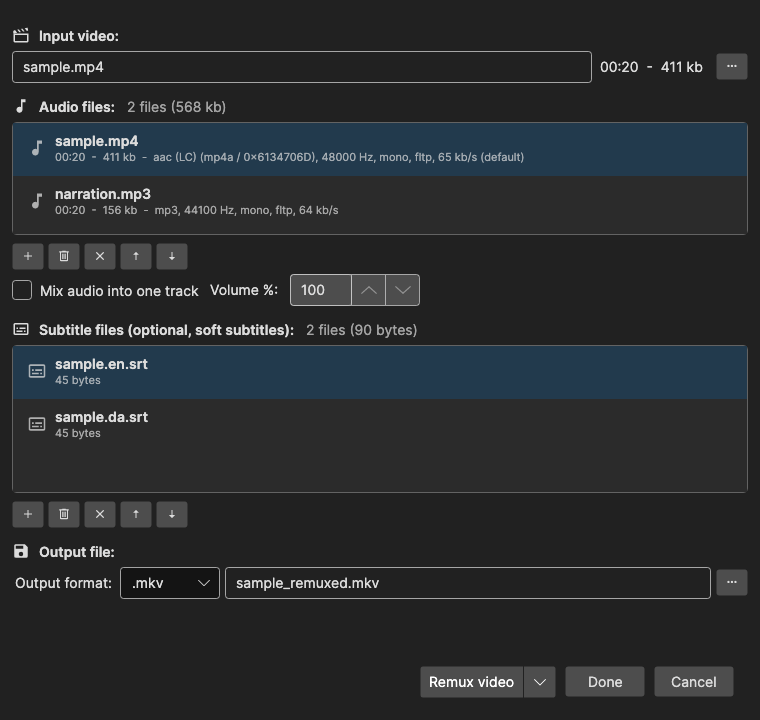
Remuxing copies the streams into a new container, so it is quick and lossless. Use it to attach a dubbed or translated audio track (for example from Text to Speech), to add subtitle tracks that can be switched on and off in the player, to embed CEA-608 closed captions, or to convert between MP4, MKV, MOV and MPG. To draw the subtitle into the picture instead, see Burn-In Subtitles.
The More submenu is shown while a video is loaded, and ffmpeg is required (you are offered to download it when it is missing).
How to Use
- Open Video → More → Remux video…
- Input video is filled with the loaded video, and its own audio is placed first in the audio list (with several audio tracks you are asked which one to use)
- Add… the audio files and, optionally, the subtitle files
- Pick the Output format and check the Output file name
- Click Remux; a progress bar shows how far ffmpeg has come
- When done, a file-saved prompt appears and Open containing folder and Play buttons show up next to Done
Cancel while remuxing stops ffmpeg and deletes the partial output file. The window is not modal, so the main window stays usable while it is open; only one remux window can be open at a time.
Input Video
Accepted formats: .mp4, .mkv, .mov, .avi, .webm, .ts, .mpg, .mpeg, .vob. The first video stream is copied as-is (for an MPG output it may have to be re-encoded, see below).
When the video can’t be stored in the chosen output format without re-encoding - for example VP8 video from an older .webm, which MP4 cannot hold - the output format switches to .mkv (unless a subtitle file needs MOV or MPG).
Audio Files
Accepted formats: .mp3, .aac, .ac3, .m4a, .wav, .mka, and every video format accepted as input video (its audio track is used). At least one audio file is required. A file that has no audio track is refused with a message.
- Each file becomes one audio track, in list order - use Move up / Move down (Ctrl+Up / Ctrl+Down) to change the order, Remove (Delete) or Clear to drop entries
- A file with several audio tracks asks which track to use when it is added; Select audio track… in the list’s right-click menu changes it later
- The video’s own audio is included only while it is in the list - remove it to replace the original sound entirely
- Each track gets a title (the file name, or the track name for multi-track files) and, when known, its language
- For an
.mp4or.movoutput, audio the container cannot hold is encoded to AAC (192 kb/s):.wavfiles, other PCM audio in MP4, TrueHD and Vorbis in both, Opus and FLAC in MOV. Everything else is copied
Subtitle Files
Accepted formats: .srt, .ass, .ssa, .vtt, .sub, .scc, .mcc. These become soft subtitle tracks (selectable in the player, not burned in), one per file, titled after the file name. In an MKV the file is stored unchanged; in an MP4 it is converted to the MP4 text subtitle format (mov_text), which loses styling.
A Scenarist .scc file is embedded as a CEA-608 closed caption track (QuickTime c608) in a MOV. Save the subtitle as Scenarist Closed Captions first, then add the .scc file here.
Closed captions in MPG (ATSC A/53)
With Output format .mpg, the subtitles are embedded as CEA-608 (and CEA-708) closed captions inside the MPEG-2 video (ATSC A/53 “GA94” picture user data, as in US broadcast and NTSC MPEG-2 files). Players and tools show them as “EIA-608” or “CC1”.
- A
.sccfile goes in byte for byte (pop-on, roll-up and paint-on all work); any other subtitle format is converted to pop-on captions first, like Save as Scenarist Closed Captions does - A MacCaption
.mccfile goes in with all its caption data - CEA-608 field 1 and 2 and CEA-708 (DTVCC) - repacked to the video’s frame rate. An.mcccan only be embedded in MPG, so adding one switches the output to.mpg - The first subtitle file becomes CC1 (field 1), a second one CC3 (field 2) - replacing any field 2 data of an
.mccfirst file; at most two - The video must be MPEG-2. Any other video (H.264, HEVC, …) is re-encoded to MPEG-2 after asking, which takes longer and lowers the quality a little
- The audio is copied when it is MP2, MP3 or AC-3, and converted to AC-3 (192 kb/s) otherwise
- Caption data the video already has is replaced
- Caption times are taken from the video’s first frame, so SCC/MCC timecodes should start at 00:00:00:00 (not at a 01:00:00:00 tape start)
ffmpeg first writes the MPEG program stream, then Subtitle Edit adds the captions to the video; the progress bar shows both steps. To check the result: MediaInfo lists Text tracks “EIA-608” (and “EIA-708”) muxed in the video, and ffmpeg -f lavfi -i "movie=out.mpg[out0+subcc]" -map 0:1 out.srt extracts it.
Output Format and File
- Output format is
.mp4,.mkv,.movor.mpg; the default follows the input video (MKV in, MKV out; MOV in, MOV out; MPG/MPEG/VOB in, MPG out; anything else MP4) - MOV is required, and switched to automatically with a message, when there is an
.sccsubtitle (unless the output is MPG). MOV also holds several audio and subtitle tracks - MPG is required, and switched to automatically with a message, when there is an
.mccsubtitle - MPG puts every subtitle into the video as closed captions (see above), so it needs no other container
- MKV is required, and switched to automatically with a message, when there is more than one audio file, more than one subtitle file (unless the output is MOV or MPG), or an
.ass/.ssasubtitle (to keep its styles; not for MPG) - Output file defaults to the video name with
_remuxedappended, next to the video; a number is added if that file exists. It cannot be one of the input files
The window remembers its size and position.
Keyboard Shortcuts
| Key | Action |
|---|---|
| Ctrl+Up / Ctrl+Down | Move the selected audio or subtitle file up / down |
| Delete | Remove the selected file from its list |
| Escape | Close (not while remuxing) |
| F1 | Show help (default key, changeable) |