Main Window
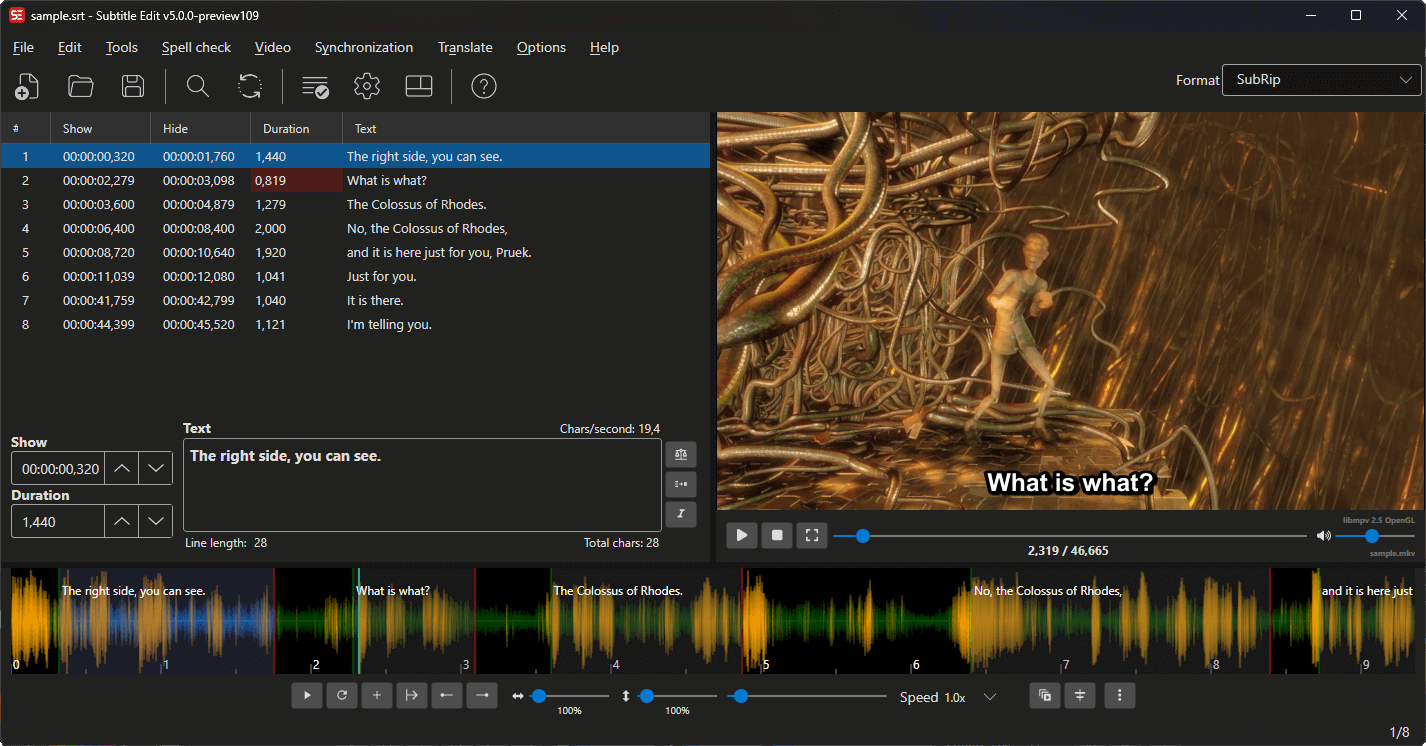
The main window is where you spend most of your time in Subtitle Edit. It combines all the key editing areas into a single, customizable interface.
Window Areas
The main window is divided into the following areas (the yellow lines at draggable area splitters):
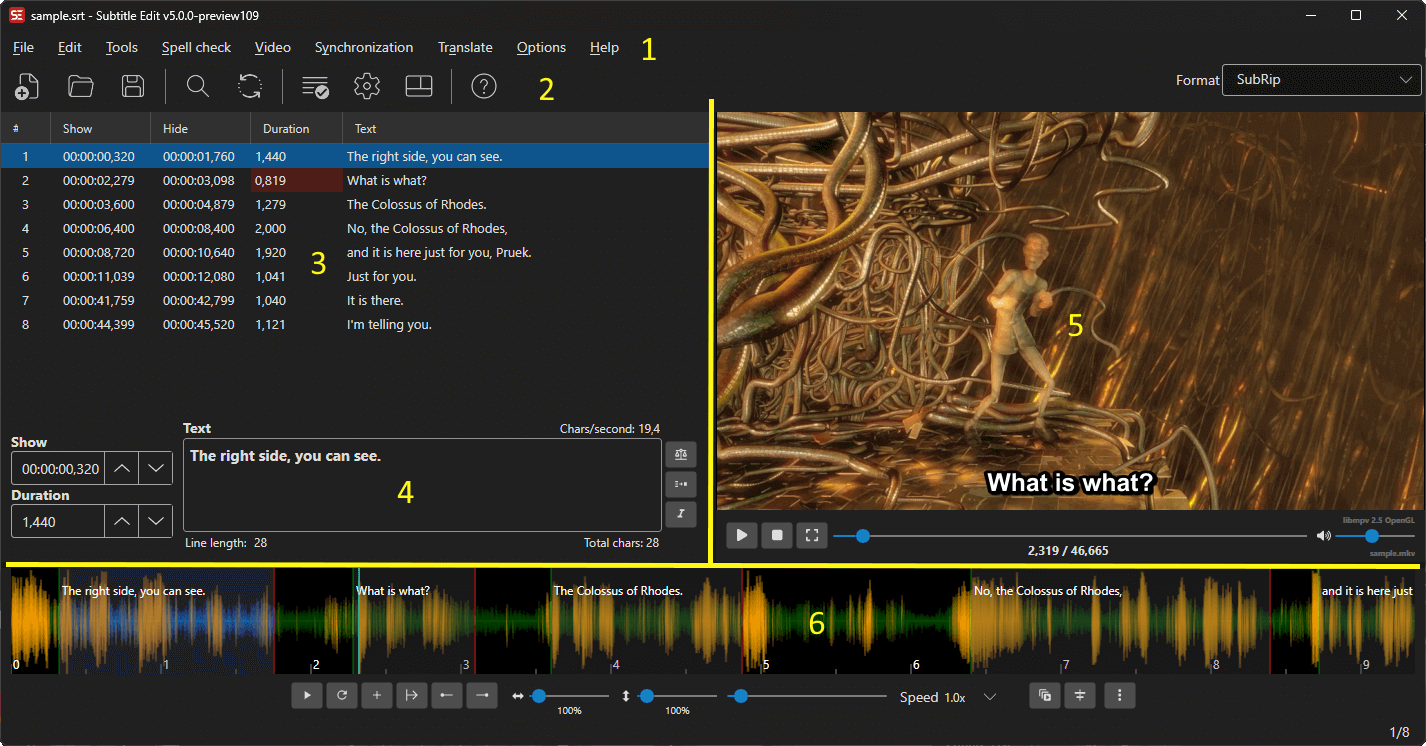
1. Menu Bar
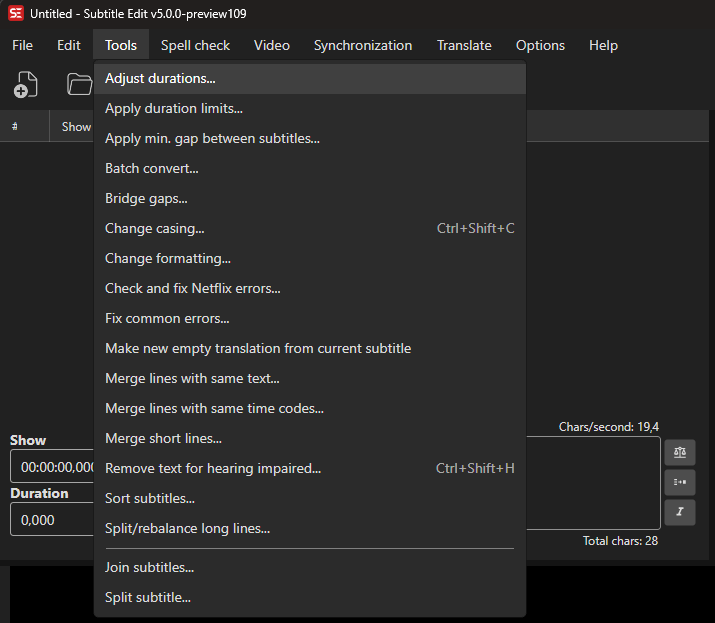
The menu bar provides access to all features organized into categories:
| Menu | Description |
|---|---|
| File | New, New (keep video), New window, Open, Open (keep video), Open original, Edit original subtitle, Close original, Close translation, Reopen, Restore auto-backup, Save, Save as, Save forced lines as, format properties, Open containing folder, Compare, Statistics, Import, Export, Exit |
| Edit | Undo, Redo, Show history for undo, Find, Find next, Replace, Multiple replace, Go to line number, Command palette, Right-to-left mode and the RTL tools (fix RTL via Unicode control chars, remove Unicode control chars, reverse RTL start/end), Modify selection, Invert selection, Select all |
| Tools | Adjust durations, AI review, Apply duration limits, Apply min. gap between subtitles, Batch convert, Beautify time codes, Improve time codes (forced alignment), Bridge gaps, Change casing, Change formatting, Check and fix Netflix errors, Convert actors, Fix common errors, List errors, Make new empty translation from current subtitle, Merge continuation lines, Merge lines with same text, Merge lines with same time codes, Merge short lines, Merge two subtitles, Remove text for hearing impaired, Remove/replace Unicode characters, Renumber, Snap all times to frames, Sort subtitles, Split/rebalance long lines, and below a separator Join subtitles and Split subtitle |
| Plugins | Run installed plugins; manage installed plugins (only shown when Options → Settings → Appearance → Show Plugins menu is on) |
| Spell check | Spell check, Find double words, Find double lines, Add name to names list, Get dictionaries |
| Video | Open video, Open video from URL, Open recent video, Close video file, Open second subtitle file, Edit second subtitle settings, Remove second subtitle file, Audio tracks, Go to video position, Speech to text, Text to speech, Speak from current line, Play with speech, TTS voice manager, OCR burned-in subtitle, Generate video with burned-in subtitles, Generate transparent video with subtitles, Generate blank video, Embed subtitles, Generate/import shot changes, List shot changes, Undock/Dock video controls, Toggle select subtitle while playing, and a More submenu (Chapters, Cut video, Find voices in video and clone, Generate background music, Re-encode video, Remux video, Set video offset, SMPTE timing, Toggle waveform toolbar) shown while a video is loaded |
| Synchronization | Adjust all times, Visual sync, Point sync, Point sync via other subtitle, Change frame rate, Change speed |
| Translate | Auto-translate, Auto-translate via copy-paste |
| Options | Settings, Shortcuts, Word lists, Choose UI language |
| Help | Check for updates, Help, About |
| ASSA tools | Styles, Properties, Attachments, Drawing, Positioning, etc. (only visible when an ASSA/SSA subtitle is loaded) |
See the individual feature pages for details on each menu item.
2. Toolbar
The toolbar provides quick one-click access to the most common actions. You can customize which buttons appear in Options → Settings → Toolbar.
Available toolbar buttons include:
| Button | Action |
|---|---|
| New | Create a new subtitle |
| Open | Open a subtitle file |
| Open video | Open a video file |
| Save | Save the current subtitle |
| Save as | Save the subtitle to a new file or format |
| Find | Open the Find dialog |
| Replace | Open the Replace dialog |
| Multiple replace | Open Multiple Replace |
| Spell Check | Run spell check |
| Fix Common Errors | Open Fix Common Errors |
| Remove text for HI | Open Remove text for hearing impaired |
| Visual sync / Point sync | Open the sync tools |
| Beautify time codes | Open Beautify time codes |
| Burn-in | Open Generate video with burned-in subtitle |
| Auto-translate | Open Auto-translate |
| Speech to text | Open Speech to text |
| Settings | Open Settings |
| Layout | Choose a main window layout |
| Source view | Open the Source view |
| Help | Show help |
| Encoding / Frame rate combos | Optional combo boxes next to the format combo (off by default) |
Every button and combo can be shown or hidden in Options → Settings → Toolbar.
Some buttons only appear for certain formats — the style manager, properties, attachments and ASSA draw buttons show up when an ASSA, SSA or WebVTT file is loaded. They can be hidden in Options → Settings → Toolbar like any other button.
Note: You can right-click on the Subtitle format combobox for a format search window.

3. Subtitle Grid
The subtitle grid shows all subtitle lines in a table format. Each row represents a single subtitle entry.
| Column | Description |
|---|---|
| # | Line number |
| Show | When the subtitle appears (e.g., 00:01:23,456) |
| Hide | When the subtitle disappears |
| Duration | Display duration |
| Chars/sec | Characters per second (reading speed) |
| Words/min | Words per minute |
| Text | The subtitle text content |
| Original text | Original text (visible in translation mode) |
More columns (Gap, Style, Actor, Layer, Pixel width, Forced, …) can be turned on or off by right-clicking the column header, e.g. Show “Gap” column, or with Columns….
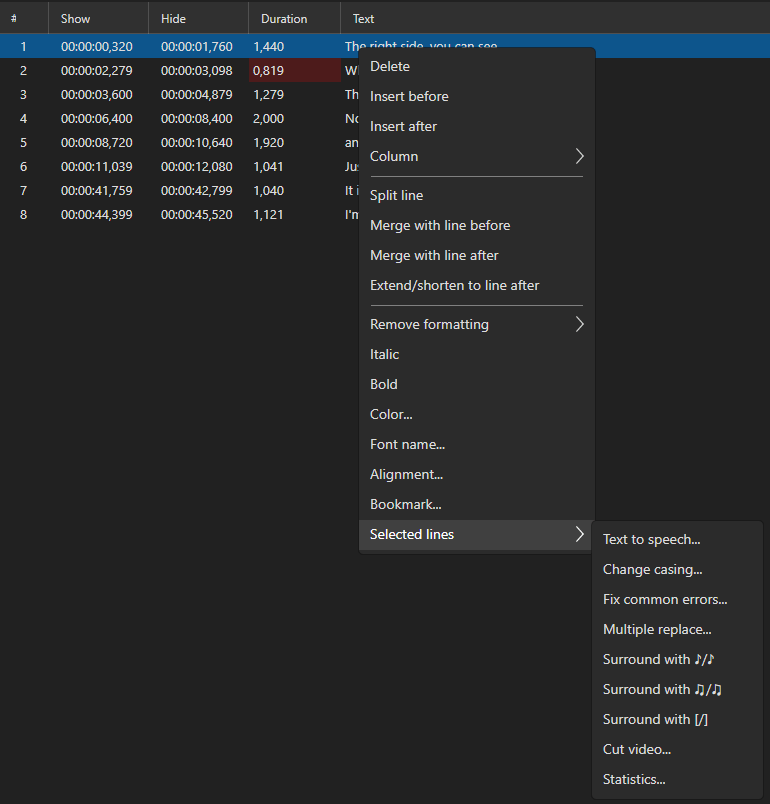
Mouse:
- Click a row to select it and load its text into the text editor
- Ctrl+Click to add/remove rows from a multi-selection
- Shift+Click to select a range
- Double-click a row to go to that subtitle’s video position (behavior configurable in Options → Settings)
- Right-click for a context menu
Keyboard:
- Up/Down arrows — Navigate between lines
- Delete — Delete selected lines
- Ctrl+A — Select all lines
See Subtitle Grid for full details.
4. Text Editor
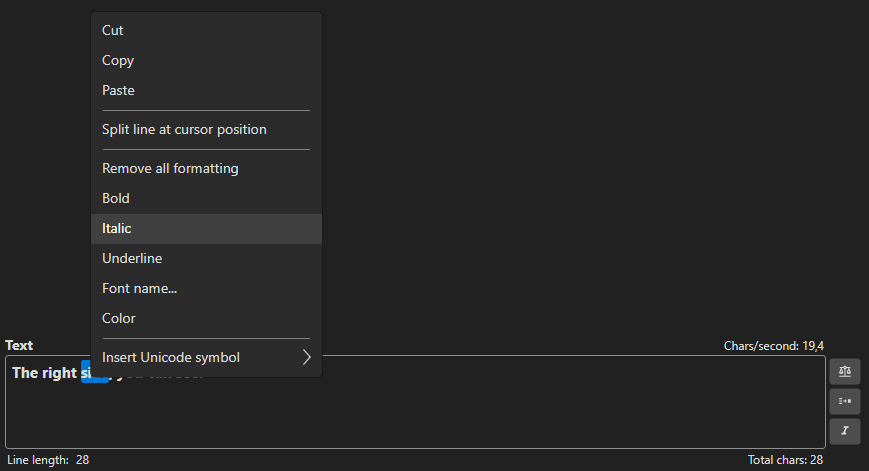
Below (or beside) the subtitle grid is the text editor, where you edit the text of the currently selected subtitle line. Start time, end time, and duration controls are also shown here.
Formatting shortcuts:
- Ctrl+I — Toggle italic
- Bold has no default key; assign one in Options → Shortcuts
Other shortcuts:
- Ctrl+Z — Undo
- Ctrl+C / Ctrl+X / Ctrl+V — Copy / Cut / Paste
See Text Editor for full details.
5. Video Player
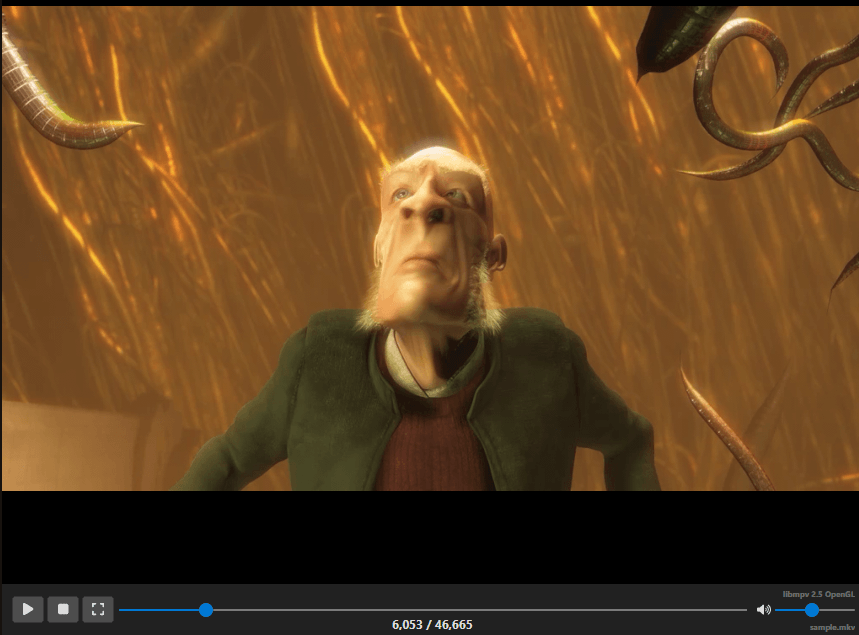
The video player shows the currently loaded video with subtitles overlaid. Controls are displayed below the video.
Playback controls:
- Play / Pause / Stop
- Seek bar (drag to scrub)
- Playback speed controls
- Volume
Keyboard (configurable):
- Toggle play/pause
- Jump forward/backward by frame, 100ms, 500ms, 1s, or custom amount
- Go to start/end of current subtitle
See Video Player for full details.
6. Audio Visualizer (Waveform / Spectrogram)
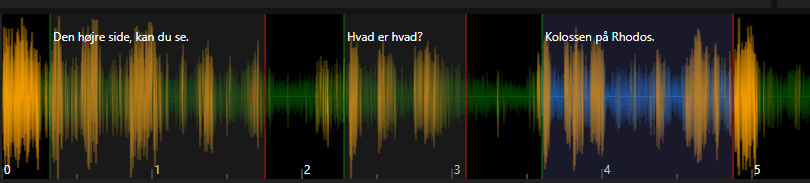
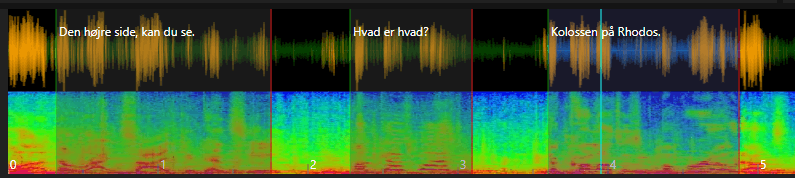
The audio visualizer shows the audio waveform and/or spectrogram, enabling precise visual timing of subtitles. Subtitle time spans are shown as colored bars overlaid on the waveform, and the current video position is displayed as a vertical cursor line.
Display Modes
Switch between modes via the right-click context menu:
| Mode | Description |
|---|---|
| Waveform only | Shows audio amplitude over time |
| Spectrogram only | Shows frequency distribution over time (useful for identifying speech vs. noise) |
| Waveform + Spectrogram | Combined view with both overlaid |
Two draw styles are available for the waveform: Classic (simple lines) and Fancy (gradient fill with glow). Configure in Options → Settings → Waveform.
Visual Elements
- Subtitle bars — Colored rectangles representing each subtitle’s time span. The selected subtitle is highlighted in a distinct color.
- Left/right edges — Green (left/start) and red (right/end) edge markers on each subtitle bar. Drag these to resize.
- Subtitle text — The text of each subtitle is displayed inside its bar.
- Video position cursor — A vertical cyan line showing the current video playback position.
- Shot change lines — Vertical markers indicating scene cuts (when loaded). Subtitle edges snap to nearby shot changes automatically.
- Grid lines — Optional time grid lines (toggle via settings or context menu).
- New selection — When you click+drag in an empty area, a new selection range is drawn that can become a new subtitle.
Mouse Controls
| Mouse Action | Area | Effect |
|---|---|---|
| Click | Empty area | Set video position |
| Click | Subtitle bar | Select subtitle and set video position |
| Double-click | Subtitle bar | Select subtitle and set video position |
| Shift+Click | Anywhere | Set start time of selected subtitle |
| Ctrl+Click | Anywhere | Set end time of selected subtitle |
| Ctrl+Shift+Click | Anywhere | Set start time of selected subtitle and offset all following subtitles |
| Alt+Click | Anywhere | Move selected subtitle so it starts here (duration kept) |
| Drag | Left edge of subtitle | Resize start time |
| Drag | Right edge of subtitle | Resize end time |
| Alt+Drag | Left edge | Resize start and adjust previous subtitle’s end simultaneously |
| Alt+Drag | Right edge | Resize end and adjust next subtitle’s start simultaneously |
| Drag | Middle of subtitle | Move entire subtitle (preserving duration) |
| Click+Drag | Empty area | Create a new subtitle selection |
| Scroll wheel | Anywhere | Scroll waveform left/right |
| Alt+Scroll | Anywhere | Horizontal zoom in/out |
| Shift+Scroll | Anywhere | Vertical zoom in/out |
| Ctrl+Scroll | Anywhere | Scroll and move video position |
| Right-click | Anywhere | Open context menu |
Note: On macOS, use Cmd instead of Ctrl for most modifier actions. Ctrl+Click on macOS opens the context menu.
Keyboard Controls (in Waveform)
| Key | Action |
|---|---|
| Escape | Cancel current drag/selection |
| Enter | Insert the new selection as a subtitle |
| Delete | Delete the selected subtitle |
Additional waveform shortcuts (set start, set end, center, zoom, etc.) are configurable via Options → Shortcuts. See the Keyboard Shortcuts Reference.
Right-Click Context Menu
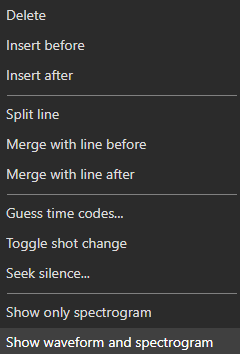
The context menu changes dynamically based on context (e.g., whether a new selection exists, whether a subtitle is selected):
| Menu Item | Description |
|---|---|
| Insert new selection | Insert the drawn selection as a new subtitle |
| Paste new selection | Paste subtitle from clipboard at current position |
| Speech to text for new selection… | Transcribe the audio in the drawn selection |
| Insert at position | Insert a new empty subtitle at the video position |
| Paste from clipboard | Paste subtitle text from clipboard |
| Insert subtitle file at position | Import an entire subtitle file at the current video position |
| Delete at position | Delete the subtitle at the current position |
| Delete | Delete the selected subtitle(s) |
| Insert before / Insert after | Insert a new line before or after the selected subtitle |
| Copy subtitle / Copy (text only) | Copy the selected subtitle, with or without time codes |
| Split line | Split the selected subtitle |
| Split line at waveform head | Split the selected subtitle at the waveform position |
| Merge before / Merge after | Merge with the previous or next subtitle |
| Filter by layer | Filter visible subtitles by ASSA layer (ASSA format only) |
| Guess time codes | Auto-detect subtitle timing from audio silence |
| Toggle shot change | Add or remove a shot change marker at the video position |
| Toggle chapter at video position | Add or remove a chapter at the video position |
| Seek silence | Find the next silent section in the audio |
| Extract audio | Save the selected subtitle’s audio to a file |
| Clone voice to | Clone the voice heard in the selected subtitle into a text-to-speech engine that supports voice cloning |
| Speech to text selected lines… | Transcribe the audio of the selected subtitle(s) |
| Show only waveform | Switch to waveform-only display |
| Show only spectrogram | Switch to spectrogram-only display |
| Show waveform and spectrogram | Switch to combined display |
Waveform Toolbar
When enabled (toggle via shortcut or Options → Shortcuts → Toggle waveform toolbar), a toolbar appears below the waveform with buttons for:
| Button | Action |
|---|---|
| Play/Pause | Toggle video playback |
| Play selection | Play only the selected subtitle |
| Play selection (repeat) | Play selected subtitle in a loop |
| Play next | Play the next subtitle |
| Previous / Play current / Pause / Next | SE 4 “translate tab” style text buttons: play a single line and stop at its end |
| New | Insert a subtitle at the current position |
| Set start + offset rest | Set start time and shift all following subtitles |
| Set start | Set the start time of the selected subtitle |
| Set end | Set the end time of the selected subtitle |
| Move selected lines / Move selected lines and all following / Move all lines | Back/forward buttons (off by default) that shift the lines by the step from Options → Settings → General and the two custom milliseconds set in Options → Shortcuts; durations are kept and nothing moves before 00:00:00.000 |
| Remove blank lines | Remove empty subtitle lines |
| Horizontal zoom slider | Adjust horizontal zoom (0.1× – 5×; Alt+Scroll zooms up to 20×) |
| Vertical zoom slider | Adjust vertical zoom (0.1× – 5×; Shift+Scroll zooms up to 20×) |
| Position slider | Scrub through the video |
| Video position | Editable time code box: type, step or copy the current position |
| Audio track | Pick the audio track the waveform is extracted from (only shown when the video has more than one) |
| Playback speed | Speed slider |
| Auto-select on play | Toggle selecting the current subtitle while playing |
| Center | Toggle keeping the video position centered in the waveform |
| Video seek | Seek back/forward buttons |
| More | Menu: reset zoom and speed, configure toolbar items, hide the toolbar |
| Line break 1 / 2 | Not buttons (off by default): the toolbar continues on a new row from where a line break is placed, so you decide where a wide toolbar wraps |
| Initial text of selected line | Not a button (off by default): a read-only box with the selected line’s text as it was when the line was selected, so a machine translation stays readable (and can be selected and copied) while you type over it. Font size and Width are set in Configure toolbar items; put a line break before it to give it a row of its own |

Shot Changes
Shot changes (scene cuts) appear as vertical lines on the waveform. They help align subtitle timing with scene transitions for a professional result.
- Subtitle edges snap to nearby shot changes automatically (configurable snap distance)
- You can toggle snapping behavior in settings
- Shot changes can be generated via Video → Generate/import shot changes or toggled manually via the context menu
Customization
Waveform appearance is highly configurable via Options → Settings → Waveform:
| Setting | Description |
|---|---|
| Waveform color | Color of the waveform line |
| Background color | Background of the waveform area |
| Selected color | Color of the selected subtitle bar |
| Cursor color | Color of the video position cursor |
| Draw grid lines | Show/hide time grid |
| Draw style | Classic or Fancy waveform rendering |
| Invert mouse wheel | Reverse scroll direction |
| Focus on mouse over | Auto-focus waveform when mouse enters |
| Allow overlap | Allow subtitle bars to overlap |
| Right-click selects subtitle | Whether right-clicking a subtitle selects it |
See Audio Visualizer / Waveform for even more details.
7. Status Bar (Footer)
The status bar at the bottom shows:
- Waveform generation progress (when generating)
- Status messages (left)
- Line counter (right):
current/total, orX lines selected of Ywhen several lines are selected - Indicators, shown when relevant: update available, time codes locked, layer filter on, SMPTE timing, video offset. Click one to open the related dialog (the padlock is display only)

Layouts
Subtitle Edit offers 15 predefined layouts for arranging the main window areas. Choose a layout via the Layout button on the toolbar or the configurable keyboard shortcut.
| Layout | Description |
|---|---|
| 1 | Grid and text editor left, video right, waveform bottom |
| 2 | Video left, grid and text editor right, waveform bottom |
| 3 | Grid and text editor top-left with the waveform below them, video right |
| 4 | Video left; grid and text editor top-right with the waveform below them |
| 5 | Video top, grid and text editor middle, waveform bottom |
| 6 | Grid and text editor top, waveform bottom; the video player is hidden (the video stays loaded) |
| 7 | Grid and text editor left, video right; no waveform |
| 8 | Grid and text editor top, video bottom; no waveform |
| 9 | Video top, grid and text editor bottom; no waveform |
| 10 | Video top-left, waveform top-right with the text editor under it, grid bottom (SE 4 / Aegisub style) |
| 11 | Video top, waveform middle, grid and text editor bottom |
| 12 | Grid left, video right with the text editor under it, waveform bottom |
| 13 | Video left with the text editor under it, grid right, waveform bottom |
| 14 | Editor style: grid and text editor left, video right; a timeline across the bottom with a video row (filmstrip), a subtitle row, and the waveform |
| 15 | Grid and text editor only; no video, no waveform |
In layout 14 the rows above the waveform follow its zoom, scroll position and play-head:
- Video row — frames from the video (extracted with FFmpeg as they scroll into view), with shot changes marked. Switch it off with Show video thumbnails in the waveform’s right-click menu; the subtitle rows then move up into its place.
- Subtitle rows — one block per line. Drag a block to move the line, drag its edge to change the start or end time; clicks, snapping, minimum gap, multi-selection and undo all work exactly as on the waveform. The layers button on the waveform toolbar (a regular toolbar item: show, hide or move it with ⋮ → Configure toolbar items…; also Group subtitle tracks by in the waveform’s right-click menu) splits the subtitles over several rows, by layer, actor or style, so overlapping lines (two speakers, signs over dialogue) get a row each instead of piling up.
- Original row — shown while an original subtitle is loaded, with the original text of each line.
Because the text has rows of its own, the waveform below shows only the timing of each line (its region, number and duration), not the text.
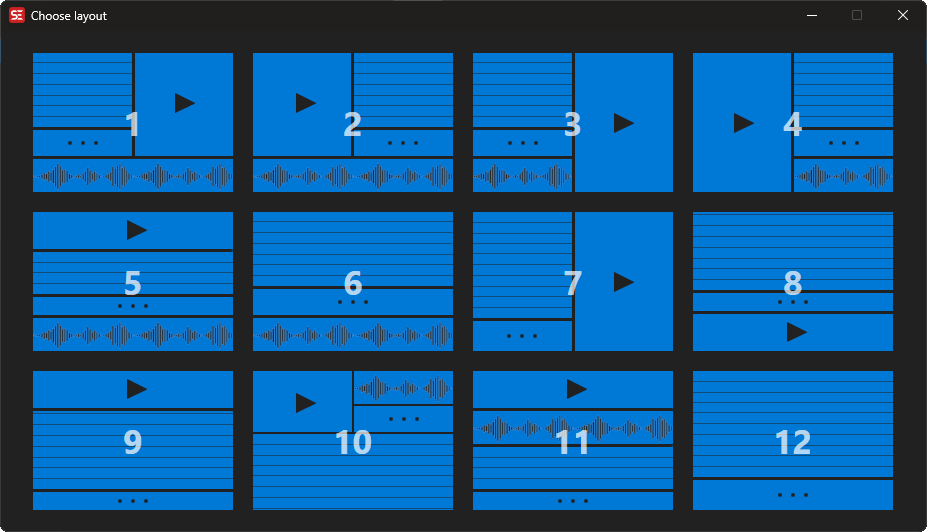
Panel sizes can be adjusted by dragging the splitters (dividers) between areas. Your layout preferences are saved automatically.
Undocking
You can undock the video player or audio visualizer into separate windows for multi-monitor setups:
- Undock video controls — Move video player to its own window
- Dock video controls — Return video player to the main window
Translation Mode
When you open an original subtitle file (File → Open original subtitle), the main window enters translation mode:
- The subtitle grid shows an additional Original text column
- The text editor shows both the original and translation text
- This allows side-by-side translation work
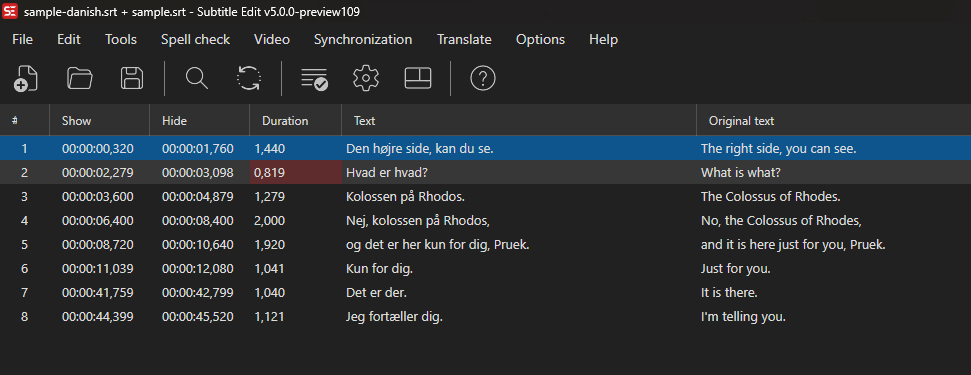
When the original does not line up 1:1
If the original file does not have the same number of lines as the subtitle you are editing, Subtitle Edit asks how to show it:
- Show only the matching original lines — the classic side-by-side view. Lines are paired by time codes; original lines with no counterpart are not shown.
- Show all original lines — original lines with no counterpart appear as extra, dimmed rows (without a line number), placed in time order, so you can see exactly what your subtitle is missing.
The dialog also offers an Allow edit of original subtitle check box. Left off (the default), the original is a read-only reference: it is never written to, and closing it leaves the file on disk exactly as it was. Both choices are remembered for the next time.
The dimmed rows belong to the original, so they are not saved with your subtitle, and editing commands (delete, merge, export, …) skip them. To adopt a missing line into your subtitle, select it and simply type or paste the translation — the row immediately becomes a normal line, keeping its timings. Column → Copy text from original to current in the grid’s context menu does the same while also copying the original text over. You can nudge a dimmed row’s start/end/duration first (it stays a dimmed reference row until you type text into it), so an adopted line lands with exactly the timing you want.
Each row remembers which original line it shows, so editing or retiming your own lines never re-shuffles the reference: the dimmed rows only slide to keep time order, and if you delete a row that had adopted a reference line, that line comes back as a dimmed row.
Edit original mode
File → Edit original subtitle (visible while an original is open) switches which file you are editing:
- The original’s text becomes editable — including a reference that was opened read-only.
- The working subtitle’s text box goes read-only while the mode is on, so the two sides can’t be mixed up. The edit-box label reads Original text (edit mode).
- Changes to the original are tracked:
Ctrl+Ssaves them, and closing the original (or the app) asks about unsaved changes.
Leaving the mode returns the original to the state it was opened with. If it was a read-only reference and you have unsaved edits, Subtitle Edit asks whether to save them, discard them (the reference goes back to exactly what the file contains), or stay in the mode.
Launch Parameters
Subtitle Edit accepts a few command-line arguments at startup, useful for desktop shortcuts, file-manager “Open with…” entries, and sync scripts.
| Argument | Description |
|---|---|
| (positional) | Subtitle file to open. The first existing path on the command line is treated as the subtitle file. |
/video:<path> |
Open the given video file alongside the subtitle. --video:<path> and --video <path> are accepted too. |
/batchconvertui |
Launch directly into the standalone Batch Convert window instead of the full editor. --batchconvertui is accepted too. |
The video file is always loaded when supplied via /video: (or --video), even if Options → Settings → Video player → Auto-open video file when opening subtitle is disabled — a flag on the command line is treated as an explicit instruction.
Examples (Windows shell):
SubtitleEdit.exe movie.srt /video:movie.mkv
SubtitleEdit.exe /batchconvertui
On Linux/macOS the binary name is SubtitleEdit (no .exe).
For headless conversion without launching the editor, see Command Line (seconv).