Audio Visualizer
The audio visualizer displays the audio waveform (and/or spectrogram) of the loaded video, enabling precise visual timing of subtitles.

Display Modes
- Waveform — Shows audio amplitude over time
- Spectrogram — Shows frequency distribution over time
The spectrogram can be generated and toggled independently of the waveform. If you disable spectrogram generation, Subtitle Edit hides the spectrogram layer and keeps the waveform view available.
Mouse Controls
Navigation
| Mouse Action | Effect |
|---|---|
| Scroll wheel | Scroll waveform left/right |
| Alt+Scroll wheel | Horizontal zoom in/out |
| Shift+Scroll wheel | Vertical zoom in/out |
With Mouse-wheel sets video position on (Options → Settings → Waveform), the plain scroll wheel steps the video position instead of scrolling the view; Mouse-wheel video position step sets the step size (a frame, or a number of milliseconds). Ctrl (Cmd on macOS) + wheel keeps its scroll behavior.
Subtitle Timing
| Mouse Action | Effect |
|---|---|
| Click + Ctrl (cmd on mac) + Shift | Set start and offset the rest |
| Click + Shift | Set start of current |
| Click + Ctrl (cmd on mac) | Set end of current |
| Click on empty area | Set video position |
| Click on subtitle | Select the subtitle |
| Double-click on subtitle | Set video position and select subtitle |
What a single click and a double-click do is configurable: Waveform single-click action (set video position, pause, select subtitle, center, or combinations) and Waveform double-click action (none, select subtitle, center, pause, play) in Options → Settings → Waveform. | Drag subtitle left/right edge | Adjust start/end time | | Drag subtitle body | Move entire subtitle | | Right-click | Context menu |
Creating New Subtitles
| Mouse Action | Effect |
|---|---|
| Click+Drag in empty area | Mark a new subtitle range; press Enter to insert it (Escape cancels) |
Keyboard Shortcuts (Waveform)
| Shortcut | Action |
|---|---|
| Set start | Set the start time of the selected subtitle (F11; F9 on macOS) |
| Set end | Set the end time of the selected subtitle (F12) |
| Set end and go to next | Set end time and move to next subtitle |
| Set start and offset the rest | Set start and shift all following subtitles (F9 on Windows / Linux; no default on macOS) |
| Set end and offset the rest | Set end and shift all following subtitles |
| Center on video position | Center the waveform on the current video position |
| Insert at position (focus text) | Insert a new subtitle at video position and focus the text editor |
| Insert at position (no focus) | Insert a new subtitle at video position |
| Seek silence | Find the next silent section |
| Guess start time from waveform | Move the selected line’s start to just before the speech begins (no default key) |
| Guess end time from waveform | Move the selected line’s end to just after the speech stops (no default key) |
| Guess start and end time from waveform | Guess start, then guess end, on the selected line in one key press (no default key) |
Note: Actual key bindings depend on your shortcut configuration. See Options → Shortcuts to view or change them.
Toolbar
The waveform toolbar (when visible) provides:
- Play/pause, play selection (once or repeated), play next, and SE 4 style previous / play current / pause / next text buttons
- New, set start, set end, set start and offset the rest, remove blank lines
- Horizontal and vertical zoom sliders, video position slider and editable position box
- Playback speed, auto-select on play, center, video seek, audio track picker, and a More menu
The audio track picker only appears when the video has more than one audio track. Picking a track switches the video player to it and reloads the waveform for that track: from the cache if it has been extracted before, otherwise it is extracted when Auto-generate waveform when opening a video is on (or on click when it is off). The same choice is available from Video → Audio tracks, and the track is carried into the visual sync and point sync dialogs.
Switching between waveform and spectrogram is done from the right-click menu, and grid lines are turned on in Options → Settings → Waveform; neither is a toolbar button. See Waveform Toolbar for the full list.
The toolbar can be toggled from Video → More → Toggle waveform toolbar. Subtitle Edit 5 also supports waveform toolbar customization, including button visibility/order and import/export of toolbar settings.
Waveform Themes
Waveform theme settings can be imported and exported. Use this to copy waveform colors and toolbar preferences between installations or share a timing workspace with another user.
Spectrogram
The spectrogram view helps locate speech, music, and noise by frequency. It can be used together with the waveform when amplitude alone is not enough to identify a sound or silence boundary.
Speech-Only Waveform
On audio with loud music the waveform is one solid block, and where a line starts and ends cannot be seen. Show speech only (slow to generate) in the right-click menu draws the waveform from the audio with music and sound effects removed, so the speech stands out the same way it does in a quiet dialogue scene. Everything that reads the waveform - timing by eye, snapping, guessing start and end times - works on the speech-only version while it is shown.
- It is off by default, and the setting is remembered. Turning it on the first time downloads the CrispASR runtime (if no CrispASR engine is installed yet) and a source separation model (Mel-Band RoFormer, 457 MB) - the same one Speech to text and Text to speech use.
- The normal waveform always shows first. The speech-only one is made in the background and swapped in when it is ready - the status bar shows the elapsed time. Expect it to take about as long as the video itself on a GPU (Metal, CUDA, Vulkan), and many times longer on CPU only.
- It is cached next to the normal waveform, so it is instant the next time the video is opened, and switching the option off and on again costs nothing.
- Improve time codes shares that cache: a run there with Isolate speech first leaves the speech-only waveform ready for the main window, and the other way round.
- The spectrogram and the shot changes are still made from the original audio.
- Closing the video or switching the option off stops a generation that is still running.
Shot Changes
Shot changes (scene cuts) are displayed as vertical lines on the waveform. These help align subtitle timing with scene transitions.
- Toggle shot change at video position — Add or remove a shot change marker
- Go to previous/next shot change — Navigate between shot changes
- Snap to shot changes — see Snapping to shot changes below
- Extend to next shot change — Extend subtitle to the next scene cut
The shot change line color can be customized in Subtitle Edit 5, which is useful when your waveform or spectrogram theme makes the default color hard to see.
Snapping to shot changes
Every way of snapping a cue to a shot change puts it in the same place: the Beautify time codes profile’s In cues gap after the cut for a start, and its Out cues gap before the cut for an end. What differs is how a cue gets captured:
Dragging in the waveform. A start or end edge — or a whole subtitle — snaps when it comes within Snap distance when dragging of a shot change. The distance is in pixels, so snapping feels the same at every zoom level: the cue snaps when it looks close. Hold Shift while dragging to move freely. Turn it off altogether with Snap to shot changes (hold Shift to override).
Snap selected lines’ start to next shot change / end to previous shot change. Moves one cue to the nearest cut in that direction, however far away it is, keeping the other cue where it is. Useful after a rough placement.
Snap selected lines to nearest shot change. Looks for a cut near each cue within Max start distance and Max end distance (seconds) and snaps whichever it finds. If both cues are nearest the same cut, the start takes it and the end looks ahead within the tighter Max end distance when start and end share a cut instead, so the subtitle is not collapsed onto the cut.
All the distances live in Options → Settings → Waveform, directly under the snap toggles. The shortcuts ship without default keys — assign them in Options → Shortcuts.
Context Menu
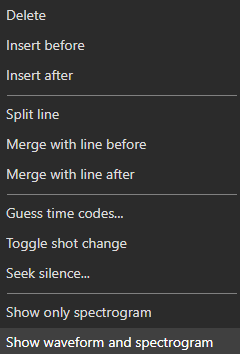
Right-click on the waveform for a menu whose first part depends on what is under the pointer. The items appear in this order:
With a new selection (a range marked with click+drag):
- Insert new selection - insert a subtitle covering the range
- Paste clipboard text to new selection - insert the range with the clipboard text as its text
- Speech to text for new selection… - transcribe the range (only with a video loaded)
Elsewhere (the set shown depends on whether the click is on empty waveform, on a subtitle, or on the selected subtitle):
- Insert subtitle at video position and focus text box
- Paste from clipboard - paste lines from the clipboard at the waveform position (Ctrl+V); shown on empty waveform when the clipboard has text
- Insert subtitle file at video position… - insert a whole subtitle file anchored at the right-clicked position
- Delete subtitle at video position, Delete
- Insert before / Insert after
- Copy subtitle (Ctrl+C) / Copy (text only)
- Split line / Split line at waveform head
- Merge with line before / Merge with line after
Always available:
- Filter by layer (ASSA only)
- Guess time codes…
- Toggle shot change, or Toggle chapter at video position (see chapters)
- Seek silence…
- Extract audio…, or clone the voice heard in the selected subtitle into a TTS engine (Clone voice to)
- Speech to text selected lines… - shown when a subtitle is under the pointer
- Show original subtitle - with an original subtitle loaded, draws its cues as a translucent overlay on the waveform
- Show only waveform / Show only spectrogram / Show waveform and spectrogram - when a spectrogram has been generated
Copy subtitle and Paste from clipboard are the waveform’s Ctrl+C / Ctrl+V; Copy (text only) and Paste clipboard text to new selection ship without a default key and can be assigned in Options → Shortcuts (waveform category).