Merge Continuation Lines
Merge subtitles where one sentence has been split across two or more consecutive lines, with a preview of every merge before anything is changed.
- Menu: Tools → Merge continuation lines…
- Shortcut: Configurable (no default)
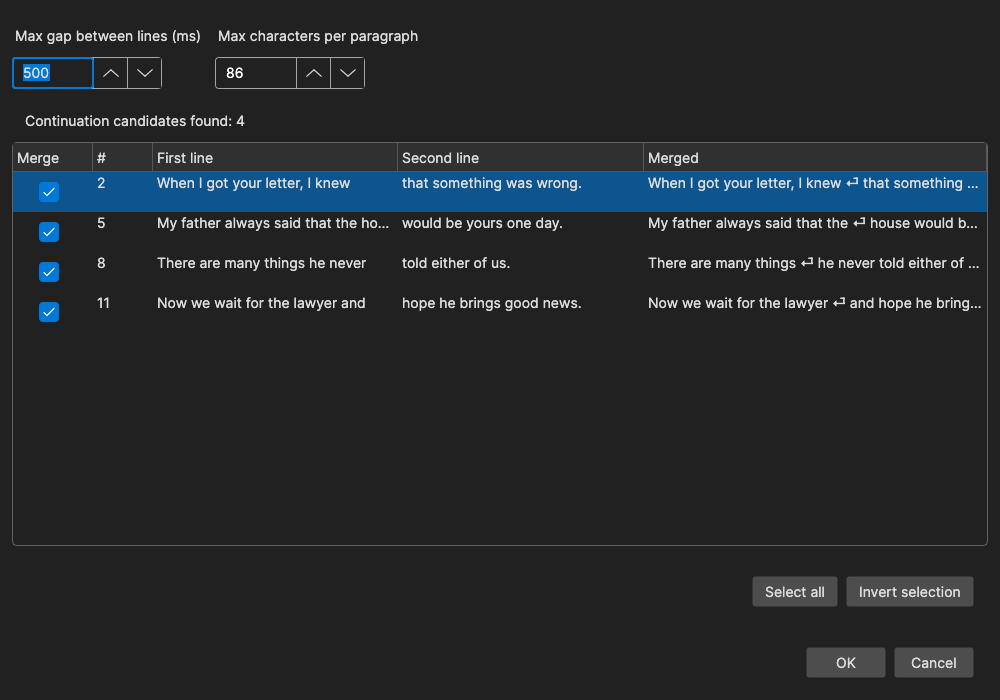
Unlike Merge Short Lines, which merges by length, this tool looks at punctuation: a line that does not end a sentence is joined with the line after it. This is useful for subtitles made by speech recognition or for scripts that will be read by Text to Speech, where a sentence spoken as one unit sounds more natural.
How to Use
- Open Tools → Merge continuation lines…
- Adjust Max gap between lines (ms) and Max characters per paragraph - the list of candidates updates as you change them.
- Uncheck any merge in the Merge column you do not want. Select all and Invert selection change all the check boxes at once.
- Click OK to apply the checked merges.
The status line shows how many candidates were found (“Continuation candidates found: 12”) or “No continuation candidates found”. The merge can be undone with Edit → Undo.
What Counts as a Continuation
Two consecutive lines are offered for merging when all of these hold:
- The first line does not end a sentence - it does not end with
.,!,?or a sentence-ending mark of the subtitle’s language (detected automatically), also when a closing quote follows the mark. A line ending with an ellipsis (...or…) counts as unfinished and is merged. Formatting tags are ignored when checking. - The gap from the end of the first line to the start of the next is less than Max gap between lines (ms).
- The two texts together (without formatting tags) are shorter than Max characters per paragraph.
- Neither line is a dialog line starting with a dash (
-,‐,–,—) - those are two speakers, not one sentence. - Neither side is a music line - the first line ending with
♪/♫, or the next one starting with it.
An empty first line also qualifies. When several lines in a row qualify, they are all merged into one subtitle.
The Merge
The merged subtitle starts at the first line’s start time and ends at the last line’s end time. The texts are joined with a space and re-broken with auto-break for the subtitle’s language. The Merged column shows exactly the text that will be written.
Options
| Option | Description | Default |
|---|---|---|
| Max gap between lines (ms) | Lines further apart than this are never merged (0-10000) | 500 |
| Max characters per paragraph | Upper limit for the merged text (20-1000) | Max line length × max number of lines from Options → Settings |
The values are remembered for the next time the tool is opened from the Tools menu.
Other Places
- Text to Speech - before generating, Subtitle Edit offers to merge continuation lines (using a 500 ms gap and 500 characters), so each sentence is spoken in one go. Turn the prompt off with Text to speech: prompt to merge continuation lines in Options → Settings → Tools.
- Batch Convert - Merge continuation lines is one of the batch functions, with its own max gap and max characters.
Keyboard Shortcuts
| Key | Action |
|---|---|
| Escape | Close without changes |
| F1 | Show help (default key, changeable) |