List Errors
List every line that breaks a rule - reading speed, duration, line length, overlaps and gaps - with one summary card per error type, and export the list to the clipboard, a text file, Excel or a web page.
- Menu: Tools → List errors…
- Shortcut: Ctrl+F8 (Cmd+F8 on macOS)
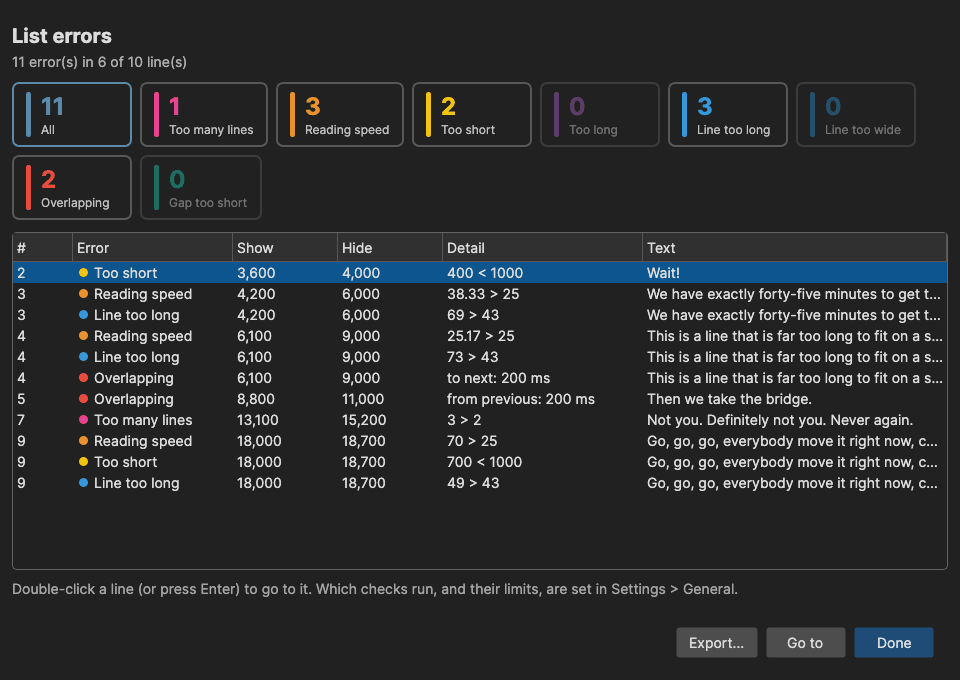
The checks are the same ones that color cells in the subtitle grid: which checks run is set by the Syntax coloring switches in Settings, and their limits come from the active rules profile in Settings → Rules.
How to Use
- Open Tools → List errors…
- The header gives the verdict: N error(s) in X of Y line(s), or No errors found.
- Click a summary card to show only that error type; All shows everything again
- Select a row and click Go to (or double-click it, or press Enter) to jump to that line in the grid
A line with several errors appears once per error. The table has the columns #, Error (with the type’s color dot), Show, Hide, Detail and Text; Home and End jump to the first and last row.
Error Types
| Card | Detail column | Setting |
|---|---|---|
| Too many lines | 3 > 2 |
Color text if more than X lines / Max number of lines |
| Reading speed | 27.3 > 25 |
Color characters/sec if too high / Max chars/sec |
| Too short | 600 < 1000 (ms) |
Color duration if too short / Min duration |
| Too long | 9000 > 8000 (ms) |
Color duration if too long / Max duration |
| Line too long | 48 > 43, one row per line |
Color text if too long / Single line max length |
| Line too wide | 1140 > 1040 (pixels) |
Color text if too wide / its pixel width |
| Overlapping | from previous: 120 ms or to next: ... |
Color time code overlap |
| Gap too short | to next: 40 < 83 ms |
Color if gap is too short / Min gap |
Subtitles read from EBU STL or teletext are also checked against the teletext page width, regardless of the “too long” setting.
Export
Export… (enabled while the table has rows) offers four targets:
- Copy to clipboard - tab separated, so it pastes as columns into Excel or Sheets and as a readable block anywhere else. A Copied to clipboard note appears next to the buttons for a few seconds
- Text file (.txt)…
- Excel file (.xlsx)…
- Web page (.html)… - the same summary cards and colors as the window, as a standalone page
Every target exports the rows exactly as shown, so an active card filter is part of what is exported. The text and web page exports also carry the summary line and the subtitle file name. The suggested file name is the subtitle’s name with -errors appended; after saving, the usual file-saved prompt offers to open the folder.
In Batch Convert
Batch convert has its own List errors in the menu of the Convert split button. After a conversion it lists the errors of all converted files with an extra File name column and the same summary cards; its Export… writes a CSV file (file name, line number, text, error).
Tips
- F8 and Shift+F8 (GoTo next error / GoTo previous error) walk through the error lines directly in the grid without opening this window
- Reading speed, duration and gap errors are often fixed in one go by Fix Common Errors, Apply Duration Limits and Apply Minimum Gap; line length by Split/Break Long Lines
- For Netflix delivery rules use Check and Fix Netflix Errors instead
Keyboard Shortcuts
| Key | Action |
|---|---|
| Enter / double-click | Go to the selected line |
| Home / End | First / last row |
| Escape | Close |
| F1 | Show help (default key, changeable) |