Settings
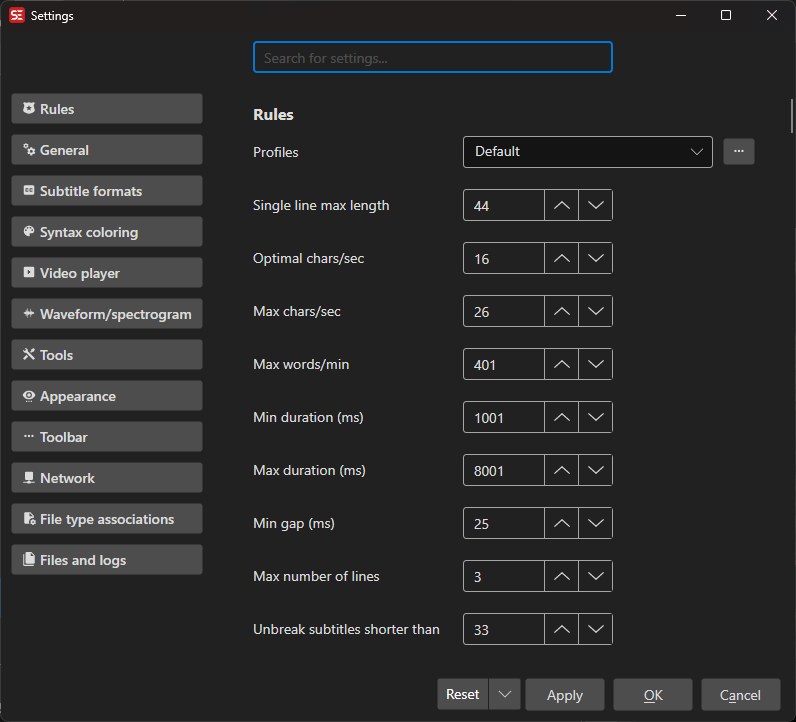
Configure application preferences, rules and profiles, appearance, video player, waveform, and more.
- Menu: Options → Settings…
- Shortcut: Configurable
How to Use
- Open Options → Settings…
- Pick a section from the icons on the left, or type in the Search for settings… box at the top to jump to a setting by name
- Alt+Left / Alt+Right (Cmd+[ / Cmd+] on macOS) go back and forward through the sections you have visited, like in a web browser. The history is forgotten when Settings closes
- Adjust settings as needed
- Click OK to save
The window is split into sections; the list below follows the order they appear in. Some sections and options only show up on the platform they apply to.
Rules
The subtitle rules that drive error checking, the grid’s warning colors, and tools such as Fix common errors.
- Profiles — Rules are stored per profile, so you can switch between e.g. Netflix, Amazon Prime, Arte, broadcast and default. Built-in profiles include TikTok/YouTube-shorts (9:16) (24 chars, 2 lines) and TikTok/YouTube-shorts (1-3 words) (one short line per cue). Profiles can be exported and imported
- Single line max length, Optimal chars/sec, Max chars/sec, Max words/min
- Min duration (ms), Max duration (ms)
- Min gap (ms) — The “…” button opens a calculator: pick a frame rate and a number of frames and it works out the milliseconds. It opens on the current video’s frame rate and the frame count already configured. Shown in millisecond mode only; in frame mode the value is entered in frames
- Max number of lines, Unbreak subtitles shorter than
- Dialog style, Continuation style — Including a custom continuation style editor
- Cps/line-length — Which characters count towards CPS and line length
General
- Default new subtitle duration (ms) - The duration a newly inserted subtitle gets, e.g. when inserting at the video position
- Time up/down increment (ms) - The step of the start/end/duration up-down boxes in millisecond mode
- Move selected lines shortcut step (ms) and Move start/end shortcut step (ms) - How far the move shortcuts shift lines or their start/end
- Move lines: shorten previous/next line instead of overlapping it
- Prompt before delete, Lock time codes, Remember window position and size
- Show full file path in title bar — Show the subtitle file’s full path in the main window title instead of only its name. Off by default
- Show recent files (for reopen) — Turn off to stop recording recent files; this also hides the Reopen menus and clears the lists
- Time code mode — How times are shown and typed: Time (hh:mm:ss,zzz) with milliseconds, Frames (hh:mm:ss:ff), or Frame numbers - the absolute frame number at the current frame rate (e.g. 15230), also for durations and the video position, so a sync offset is just “video frame - start frame”. Both frame modes snap edited times to frames. The mode is also shown in the status bar - click it (or use the “Toggle time code mode” shortcut) to cycle through the three.
- Limit number of lines in subtitle text box
- Open last recent file on start
- Auto-convert encoding to UTF-8 on open, Force CR+LF on save (text subtitle files) (also used by Batch convert), Auto-trim white-space
- Warn on save when lines exceed the format’s limits (e.g. SCC 32 chars/line)
- Remove blank lines when opening a subtitle — Off by default
- Copy text via xclip/wl-copy (keeps accented characters) — Linux only
- Default encoding
- Subtitle grid Enter-key / single-click / double-click action — What each gesture does to the video position and focus
- Subtitle grid, center when selecting prev/next row
- Save as behavior, Save as: append language code, Default save location (with a custom folder)
- Auto-save — Save the open file while editing
- Auto-backup — Automatic backups every Auto-backup interval (minutes), with a restore dialog, and Auto-backup retention (days) for how long they are kept
- Auto-backup settings — Keeps dated copies of
Settings.json(settings and shortcuts). Settings backup interval (days) sets how often: the check runs when Subtitle Edit starts, and0means every start. A backup is skipped when nothing but the recent files lists has changed since the newest backup. Settings backups to keep sets how many copies are kept (default 30). Restore them from File → Restore auto-backup → Settings
Subtitle Formats
- Default format and default save-as format
- Favorite subtitle formats and favorite languages — These float to the top of the pickers
- WebVTT: use X-TIMESTAMP-MAP — Offset time codes on load
- ASSA: set resolution (PlayResX/PlayResY) from the video when a video is opened, and ASSA: ask before changing the resolution to match the video (otherwise resample automatically)
Syntax Coloring
- Color duration if too short, Color duration if too long
- Color text if too long, Color text if too wide (pixels) — the latter with its own settings for how the width is measured, Color text if more than X lines
- Color characters/sec if too high, Color words/min if too high
- Color time code overlap
- Color if gap is too short
- Error background color
Video Player
- Video player — Which player to use: libmpv - OpenGL, libmpv - Native Window ID rendering (not macOS), libmpv - Software rendering (slow), libVLC - Native Window ID rendering (Windows and Linux), FFmpeg, and libmpv - Metal (experimental, needs restart) (macOS only)
- Video controls (order and visibility of the controls under the video, see Video Player), Hide video controls in full-screen, Auto-open video file when opening subtitle
- Show style dialog when opening a second subtitle file, Remember second subtitle file
- Deinterlace video — Off, Auto (interlaced frames only) or Always (mpv)
- Subtitle preview properties — Font name, size and bold, primary/outline/shadow colors, border style and outline/shadow width for the subtitle drawn on the video
- Download mpv / Download VLC / Download FFmpeg libraries — Grouped at the bottom; fetch the library a player needs when it is not installed
Waveform / Spectrogram
- Waveform draw style, Auto-generate waveform when opening a video, Generate spectrogram, spectrogram mode and Waveform/spectrogram combined, waveform height %
- Show toolbar and Toolbar items — Which timing buttons the waveform toolbar shows, and in which order
- Waveform single-click / double-click action
- Extract audio format, sample rate and bitrate — What the audio Subtitle Edit extracts for the waveform looks like
- Use only front center channel for 5.1 audio (FFmpeg) — Extract only the dialog channel of 5.1 audio for a cleaner waveform
- Select subtitle on right click, Allow overlap (when moving/resizing), Set video position when moving start/end
- Snap to shot changes (hold Shift to override) and Snap to frames
- Snap distance when dragging (pixels) — how close a dragged cue has to come to a shot change before it snaps; in pixels, so it feels the same at every zoom
- Snap to nearest shot change: max start / end distance (seconds), and the tighter max end distance when start and end share a cut — how far the Snap selected lines to nearest shot change shortcut looks for a cut. Where a snapped cue lands is set by the beautify profile’s in/out cues gap (gear icon next to the snap toggle)
- Guess start time from waveform: place start earlier by (ms) / Guess end time from waveform: place end later by (ms) — padding added to the speech boundary the Guess start/end time from waveform shortcuts detect, for when the guess feels too tight against the audio. A nearby shot change still wins over the padded position
- Shot changes auto-generate
- Focus on mouse over, Focus text box after insert
- Invert mouse-wheel, Mouse-wheel sets video position, Mouse-wheel video position step
- Center video position also while paused, Select current subtitle also while paused, Draw grid lines
- Remember zoom (horizontal and vertical) — Off by default
- Use experimental fast renderer
- Show # + Duration and Show Chars/sec — The number/duration footer and chars/sec line drawn on each cue in the waveform
- Waveform text font size, Waveform text font bold and the full color set — text, waveform, subtitle background, background, selected subtitle background, selected, cursor/head, shot change, left/right border, fancy high color. Color themes can be imported and exported
- Auto-transcribe new waveform selection via speech-to-text
- Download ffmpeg and a disk space readout for the extracted audio
Tools
- Allow single-letter shortcuts in text box
- Allow shortcuts on text-navigation keys (Ctrl+Left/Right, Home/End) in text box - Off by default, so the keys keep moving the caret even when a shortcut is bound to them
- Go-to-line-number also sets video position
- Adjust all times, remember line selection choice
- Merge lines: keep end time (allow overlap with next subtitle), and the variant that limits it to ASSA files
- Merge lines: auto-break merged text - On by default; turn it off to keep the merged lines’ own line breaks when merging from menus, the waveform or Merge selected lines (the explicit “unbreak” and “keep breaks” shortcuts are not affected)
- Auto-break — Break early for end of sentence, comma or dash; break by pixel width; prefer bottom heavy and its bottom heavy percentage; use do-not-break-after list (with an editor for the list); split odd lines action
- Spell check engine, and treat words ending in ‘in’’ as ‘ing’ (English only), Spell check: remember “Use always” list
- OCR: use word split list, OCR: try to guess unknown words
- Speech to text: prompt for language/engine first time only
- Multiple replace: show context menu buttons
- Grid: focus text box after insert new subtitle
- Undo/redo: go to changed line (and video position)
- Text to speech: prompt to merge continuation lines
- Text to speech: prompt to skip sound/music lines, Text to speech: prompt to detect speaker names in the text
- Fix common errors: skip step 1 (choose fixes), Fix common errors: fix short display times may move start time
- Music symbol and music symbols to replace
Appearance
- Theme, icon theme, match icon color to dark theme foreground color, UI scale (%), Font scale (%)
- Text selection opacity (%) — How strong the selection highlight in text boxes is. 100 (default) is the theme’s solid highlight with white text; lower values make it see-through and keep the text in its own color
- Dark theme foreground / background color, focused button background color
- UI font, and a separate font for the subtitle text box and grid, with Font size in subtitle grid and Font size in subtitle text box
- Grid — Show subtitle text as single line (with the separator to use), text fit, show formatted text, live spell check, Center text in subtitle grid (centers the text column, as Subtitle Edit 4 could), compact mode, alternating row colors (light and dark), grid lines, bookmark color
- Spell check highlight color - The color of the unknown word highlighted in the spell check and OCR unknown-word windows (red by default; pick a lighter color for the dark theme)
- Subtitle text box — Bold text, color tags, live spell check, centered text, and which buttons are shown (auto-break, unbreak, italic, color, remove formatting, AI assistant), the up/down start/end/duration controls and their labels
- Show button hints — Turns the tooltips on and off
- Show ASSA layer box, show horizontal line above toolbar, show Plugins menu
Toolbar
Toggle the icon tiles to choose which buttons appear on the main toolbar: new, open, open video, save, save as, find, replace, multiple replace, spell check, fix common errors, remove text for hearing impaired, visual sync, point sync, beautify time codes, burn-in, auto-translate, speech to text, settings, layout, source view, help, and the format-specific icons (style manager, properties, attachments, ASSA draw) that only appear for ASSA/SSA/WebVTT files. Selected tiles show a check mark. Separate checkboxes control the encoding and frame rate selectors.
Network
Proxy settings for every download and online engine: address, username, password, domain, bypass proxy for, and Use system credentials.
Updates
- Check for updates when the app starts — Hidden for store-managed installs (e.g. Flatpak), which update through the store
- Notify about — Stable versions only, or Stable and beta versions
File Type Associations
Windows only. Tick the subtitle file types Subtitle Edit should open by default.
Files and Logs
Links to the error log, the tools log and the settings file (each enabled only when the file exists), plus write tools log to turn the tools log on.
Reset, Import and Export
The Reset button at the bottom opens Reset settings, where you tick what to reset: Reset all settings, or only Reset rules, Reset shortcuts, Reset recent files, Reset auto-translate, Reset appearance, Reset waveform, Reset syntax coloring or Reset window position and size. The arrow next to Reset has Import… and Export… to move settings between computers (all settings, or chosen parts such as rules, appearance, waveform, syntax coloring, shortcuts and auto-translate). Apply saves the changes without closing the window.
Keyboard Shortcuts
| Key | Action |
|---|---|
| Escape | Close settings |
| F1 | Show help (default key, changeable) |