 Subtitle Edit
Speech to Text
Subtitle Edit can automatically transcribe audio to text using Whisper-based and other modern speech recognition engines.
- Menu: Video → Speech to text…
Supported Engines
| Engine | Platform | Notes |
|---|---|---|
| Whisper CPP | Windows, Linux, macOS | Local CPU engine. On Windows the cuBLAS (NVIDIA CUDA) and Vulkan GPU backends can also be selected from the Whisper CPP backend dropdown. |
| Purfview Faster Whisper XXL | Windows, Linux | Fast local engine, often used with NVIDIA CUDA |
| Whisper CTranslate2 | Windows, Linux (x64), macOS (Apple Silicon) | CPU / NVIDIA CUDA depending on installation; CUDA requires CUDA 12.x |
| Whisper Const-me | Windows | DirectX-based engine |
| WhisperX | Windows (x64), Linux (x64), macOS (Apple Silicon) | Faster-Whisper with wav2vec2 word-level alignment, packaged as a standalone build (no Python install needed). Progress and the decoded lines are shown live while it runs |
| Whisper OpenAI | All | Python-based OpenAI Whisper workflow |
| OpenAI Compatible Server | All | Connect to any OpenAI-compatible speech-to-text endpoint |
| OpenRouter | All | Online. One API key routes to Whisper, gpt-4o-transcribe, Groq and Google Chirp |
| Alibaba Qwen3-ASR | All | Online Qwen3-ASR via Alibaba Model Studio (DashScope) |
| Google Cloud Speech-to-Text | All | Online Google Cloud Speech-to-Text v2 (Chirp models) with word-level timings. Needs a service account key file (JSON) - the v2 API does not accept API keys |
| Qwen3 ASR CPP | Windows, Linux, macOS | Local Qwen3 ASR engine with downloadable GGUF models |
| Crisp ASR | Windows, Linux, macOS | Single engine with selectable backends: Parakeet, Canary, Cohere, Fire Red, Fun-ASR Nano, GigaAM, GLM, Granite, Index-Echo, Qwen3, Mega, MOSS Diarize, Omni, Kyutai, SenseVoice, ARK, Voxtral |
Engines and models are downloaded automatically on first use.
SE5 Engine Notes
- Whisper CPP is shown as a single entry; the CPU / cuBLAS / Vulkan backends are selected from a secondary dropdown when Whisper CPP is selected.
- Qwen3 ASR CPP includes 0.6B and 1.7B model options, plus a forced-aligner model used for timing workflows.
- Crisp ASR is exposed as one engine that wraps multiple backends (Parakeet, Canary, Cohere, Fire Red, Fun-ASR Nano, GigaAM, GLM, Granite, Index-Echo, Qwen3, Mega, MOSS Diarize, Omni, Kyutai, SenseVoice, ARK, Voxtral). Pick the backend from the Crisp ASR backend dropdown - see Crisp ASR backends for what each one is good at.
- A Forced aligner option is shown for Crisp ASR backends and exposes the built-in aligner, Canary CTC, Qwen3, and the wav2vec2 zoo (12 language-specific CTC aligners that run on top of any Crisp ASR backend).
- Detect speakers (Crisp ASR backends, except MOSS Diarize which labels speakers itself) starts each line with the speaker, like
(speaker 0), using NVIDIA’s Sortformer diarization (up to 8 speakers). The Nemotron-3-Diarization (Sortformer) model (107 MB) is downloaded on first use, and Crisp ASR v0.8.37 or newer is needed. Works best with backends that split lines where the speaker changes, like Parakeet and Cohere. - Purfview Faster Whisper XXL has a Multilingual (detect per segment) language entry below Auto detect: the language is detected for every segment instead of once for the whole file, which helps with audio that switches between spoken languages.
- Automatic language detection: the Whisper engines (Whisper CPP, Purfview Faster Whisper XXL, CTranslate2, WhisperX, Const-me and OpenAI) and every Crisp ASR backend have an Auto detect entry at the top of the language list - except the Russian-only GigaAM and MOSS Diarize, which keep their fixed languages.
- Google Cloud Speech-to-Text is Google’s v2 API, which does not take API keys. In the Google Cloud console, create a project with billing, enable the Speech-to-Text API, create a service account with the Cloud Speech Client and Storage Admin roles, add a JSON key to it and pick that file as the Key file. If your organisation does not allow service account keys, leave the key file empty, run
gcloud auth application-default loginand fill in the Project ID. The other fields are Region (usoreufor chirp_3, or a specific region for other models), Model (chirp_3,chirp_2,long,latest_long…), a Language hint (leave it empty for automatic detection with the Chirp models), the Cloud Storage bucket name long audio is uploaded to (one named<project>-subtitle-edit-sttis created on first use, and uploads are deleted after each run), Dynamic batching (on by default - about a fifth of the price, but Google gives no latency guarantee) and a timeout. - Each engine can have separate advanced command-line parameters.
Crisp ASR backends
Crisp ASR is one engine wrapping many backends. Set Engine to Crisp ASR, then pick the backend from the Crisp ASR backend dropdown - the model list updates to that backend’s models.
The languages column counts what the backend dropdown offers (an auto entry is not counted as a language).
Output is what you actually get back. Native timings means the backend times its own lines and can use the built-in aligner; needs aligner means the text arrives untimed and a forced aligner (Canary CTC, Qwen3, or a wav2vec2 aligner) places it in time. Anything else a backend adds - speaker labels, punctuation and casing - is called out there too.
| Backend | Languages | Output | Model size range | Good for |
|---|---|---|---|---|
| Parakeet | 13 (European + zh, ja, ko) | Native timings | 75 MB - 2.14 GB | The fast default. NVIDIA Parakeet TDT and RNN-T in 0.6B (v2 and v3) and 1.1B, plus the hybrid TDT+CTC models: parakeet-tdt_ctc-110m (the smallest Crisp ASR model of all) and parakeet-tdt_ctc-1.1b in q4_k, q8_0 and unquantized - same decoding and native timestamps as parakeet-tdt-1.1b, with a CTC head available to the runtime. Has a Japanese fine-tune |
| Canary | 25 (European) | Native timings | 705 MB - 1.97 GB | NVIDIA Canary 1B v2. Broad European coverage with its own timings; also usable as a CTC forced aligner for other backends |
| Cohere | 14 | Native timings | 1.51 - 4.14 GB | Cohere Transcribe. Separate Arabic and Japanese fine-tunes. VAD is on by default (see the VAD section below) |
| GigaAM | 1 (Russian) | Native timings; punctuation + casing on e2e only |
151 - 452 MB | Russian only, and very small. Use an e2e revision - those emit punctuation and capitalisation, the plain ctc / rnnt heads return bare lowercase text |
| MOSS Diarize | 2 (en, zh) | Native timings + speaker labels | 1.41 - 1.82 GB | Labels who is speaking. This is the backend preselected by the text-to-speech speaker-separation workflow |
| Qwen3 | 30 | Needs aligner | 631 MB - 4.7 GB | Strong all-rounder in 0.6B and 1.7B, with an anime / visual-novel Japanese fine-tune. Also supplies the Qwen3 forced-aligner model |
| Omni | 149 | Needs aligner | 1.08 - 3.26 GB | By far the widest language coverage - the place to start for a language no other backend lists. Languages use NLLB-style codes (eng_Latn, cmn_Hans) |
| Fire Red | 49 | Needs aligner | 1 - 2.4 GB | FireRedASR2. Chinese-first, and the only backend covering Chinese regional languages: Cantonese, Shanghainese, Minnan, Gan, Hakka and Xiang |
| GLM | 17 | Needs aligner | 1.3 - 4.5 GB | GLM-ASR Nano, Chinese-first with a wide second tier of languages |
| SenseVoice | 5 (zh, yue, en, ja, ko) | Needs aligner | 136 - 469 MB | Tiny and quick for CJK audio - useful on machines where the larger backends are too slow |
| Fun-ASR Nano | 5 (en, zh, yue, ja, ko) | Needs aligner | 0.90 - 1.98 GB | CJK-focused Fun-ASR |
| Index-Echo | 3 target languages (Chinese → en, ja, es) | Native timings | 2.7 - 5.1 GB (model + decoder pair) | Speech translation: Chinese audio in, English, Japanese or Spanish subtitles out. The language dropdown picks the target language. Needs Crisp ASR v0.8.41 or newer |
| Mega | 2 (en, zh) | Needs aligner | 1.3 - 4.4 GB | Mega-ASR 1.7B. VAD is on by default (see the VAD section below) |
| Granite | 6 (en, fr, de, es, pt, ja) | Needs aligner | 1.54 - 5.58 GB | IBM Granite Speech 4.1 2B. The plus models are the newer revision; mini and f16enc trade encoder precision for size |
| ARK | 19 (European + zh, ja, ko) | Needs aligner | 3.52 - 7.51 GB | A 3B model - the heaviest backend here, so only worth it when the smaller ones fall short |
| Kyutai | 2 (en, fr) | Needs aligner | 0.67 - 5.01 GB | Kyutai STT in 1B and 2.6B |
| Voxtral | 8 | Needs aligner | 2.65 - 9.36 GB | Mistral Voxtral Mini 3B. The backend has no built-in aligner entry at all, so a CTC aligner is always used |
Picking a quantization
Most backends list the same model several times with a quantization suffix. The suffix only changes file size, memory use and speed - the model is the same:
q4_k- smallest and fastest, with the most accuracy lost. A good first downloadq5_0/q5_1/q6_k- middle ground where offeredq8_0- close to full precision at roughly half the size. The best default when disk space allows- no suffix /
f16/unquantized- full precision, largest and slowest, and rarely worth it overq8_0
A model name with a language in it (-ja, -arabic) is a fine-tune for that language and usually beats the general model on it - see below.
Language-specific models
Some backends offer models fine-tuned for one language, which usually beat the general model on that language.
These models live under the Crisp ASR engine, not under the standalone Qwen3 ASR CPP engine. To reach them, set Engine to Crisp ASR, then pick the backend from the Crisp ASR backend dropdown - the model list updates to that backend’s models. For Japanese:
| Backend | Model | Notes |
|---|---|---|
| Crisp ASR Qwen3 | qwen3-asr-1.7b-ja-anime-q8_0.gguf (or -q4_k.gguf) |
Fine-tuned on anime / visual novel speech - the best starting point for anime audio |
| Crisp ASR Cohere | cohere-asr-ja-q8_0.gguf (also q4_k / q6_k / f16) |
Japanese fine-tune covering general and anime domains |
| Crisp ASR Parakeet | parakeet-tdt-0.6b-ja-q8_0.gguf (also q4_k / unquantized) |
Fast Japanese model |
| Whisper CPP, Purfview Faster Whisper XXL, Whisper CTranslate2, WhisperX | anime.ja |
anime-whisper, a kotoba-whisper fine-tune for anime / visual novel dialogue - a Whisper model, so it is under the Whisper engines rather than Crisp ASR |
The general qwen3-asr-1.7b and Whisper large-v3-turbo models are also strong on Japanese if you prefer a single model for mixed content.
How to Use
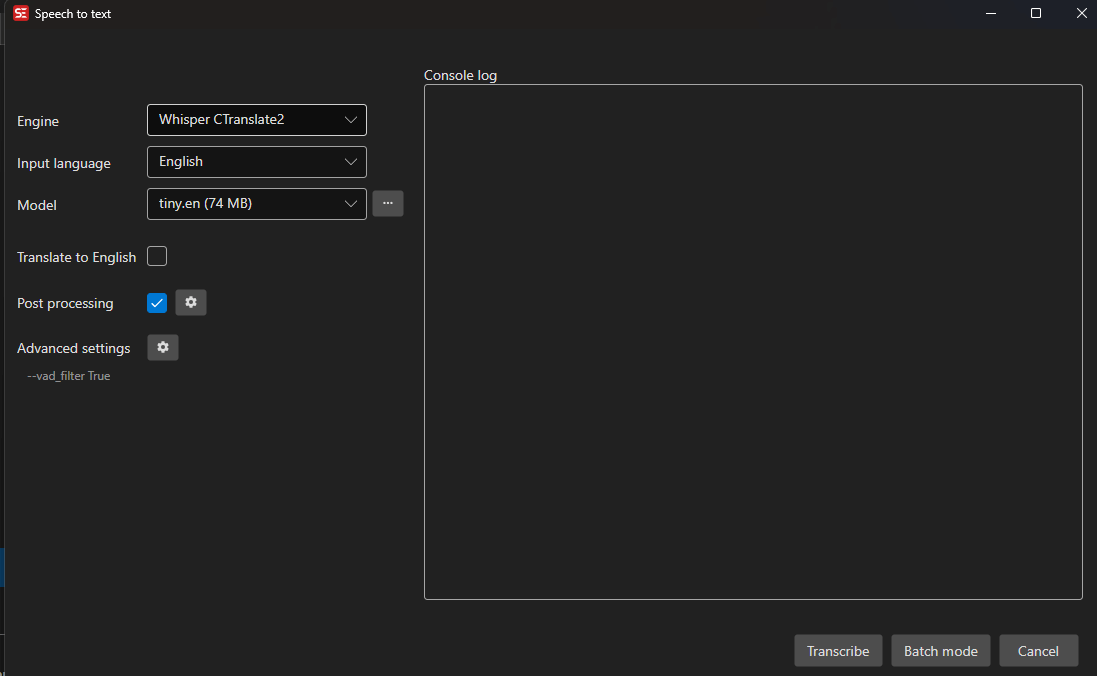
- Open a video file in Subtitle Edit
- Go to Video → Speech to text…
- Select an Engine from the dropdown. Next to it are buttons for the engine website, engine download (when it is not installed yet) and engine settings (backend and update status, for installed local engines). A Backend dropdown appears below for Whisper CPP and Crisp ASR
- Select a Model (larger models usually improve accuracy but take more time and disk space)
- Select the Language of the audio, or use auto-language when the selected engine supports it
- Optionally enable:
- Translate to English — Translate non-English audio to English
- Post-processing — Adjust timings, fix casing, merge lines, add periods, etc. (the settings button next to it opens the options)
- Click Transcribe
Models
Each engine has its own set of models. Common model sizes:
- tiny — Fastest, least accurate
- base — Good balance for quick work
- small — Better accuracy
- medium — High accuracy
- large / large-v2 / large-v3 — Best accuracy, slowest
Models ending in .en are English-only and perform better for English audio. Models with another language suffix are fine-tunes for that language: the Swedish .sv and Norwegian .nb models, and anime.ja - anime-whisper, a Japanese fine-tune for anime and visual novel dialogue, offered by Whisper CPP, Purfview Faster Whisper XXL, Whisper CTranslate2 and WhisperX.
Batch Mode
Transcribe multiple video files at once:
- Click Batch mode
- Add video files
- Click Transcribe
- Results are saved as
.srtfiles next to the video files
Add language code to file name names the output video.en.srt instead of video.srt.
Advanced Settings
Click the Advanced button to configure custom command-line arguments for the Whisper engine:
- Use VAD (voice activity detection) for better timing
- Highlight spoken words in the transcript
- Adjust temperature or other model parameters
Advanced settings are stored per engine, so you can keep separate parameters for Whisper CPP, Qwen3 ASR, Crisp ASR, and other engines.
Voice activity detection with Crisp ASR Cohere and Mega
For the Cohere and Mega backends, Subtitle Edit adds --vad and the bundled Silero VAD model to the command line by default. Crisp ASR turns VAD on for these models by itself on longer audio, so passing the bundled model mainly keeps Crisp ASR from downloading its own copy in the middle of a transcription.
VAD usually gives tighter timings, but on some material it drops quiet speech and clips the first word of a line. Crisp ASR has no --no-vad switch, so VAD is turned off by asking for fixed chunking instead: add --chunk-seconds 30 (or -ck 30) to the advanced parameters, and Subtitle Edit leaves --vad out of the command line entirely. Expect the trade-off that comes with it - with VAD off, long stretches of silence or music can produce invented lines.
To keep VAD and only change how it behaves, put --vad in the advanced parameters yourself (the Enable VAD button fills in the flag and the model path). An explicit --vad wins over --chunk-seconds, so the two can be combined.
If a Crisp ASR run with VAD comes back with no lines at all - Silero can reject a short clip as non-speech - Subtitle Edit retries once with VAD suppressed before reporting an empty result.
Isolate speech (Crisp ASR)
With a Crisp ASR engine selected, Isolate speech (slow) splits the speech from music and sound effects before the audio is transcribed. The engine - and its voice activity detection - then only hears the dialogue.
Use it for audio with loud or constant music: trailers, music videos, action scenes, anime. On such audio it recovers lines that are otherwise dropped, stops line starts from being clipped, and keeps a subtitle from stretching across a musical passage. On plain dialogue it changes little and is not worth the wait.
- The first use downloads a source separation model (Mel-Band RoFormer, 457 MB) into the Crisp ASR models folder.
- It is slow: about as long as the audio itself on a GPU (Metal, CUDA, Vulkan), and many times longer on CPU only.
- There is no progress percentage while the speech is being isolated - only the elapsed time.
- If the separation fails, the original audio is transcribed instead and the console log says so.
Post-Processing Settings
Click the Post-processing button to configure:
- Adjust timings (using waveform peak data)
- Fix short durations
- Fix casing
- Add periods
- Merge short lines
- Split long lines
- Remove non-speech lines (lines that only describe sound, like “[Music]”)
- Remove repeated lines (lines that repeat the previous line word for word)
- Show quality report after transcription (see below)
- Change underline to color (useful for highlight spoken words)
Transcription Quality Report
With Show quality report after transcription ticked (the default), a report window opens after a transcription that has something to flag - nothing opens for a clean result. It checks the finished subtitle against your general timing settings, so it agrees with what the main grid colors as errors:
- Too short - display time below the minimum, or reading speed above the maximum
- Too long - display time above the maximum, or a long span with almost no text (the typical hallucination: two or three words stretched over 10-30 seconds)
- Overlap - a line that ends after the next one starts
- Non-speech - lines that only describe sound, like
[Music]or(laughs) - Repeated - the same text as the previous line (an engine loop)
Summary cards at the top filter the table by category; each row shows the line number, time codes, a detail (duration, cps or overlap) and the text. Lines the post-processor already dropped - when Remove non-speech lines or Remove repeated lines is on - are listed as removed, so you can tell what was fixed from what is still there. Export… copies the report to the clipboard or saves it as text, an Excel file or a web page. Do not show again turns the report off; it is the same setting as the post-processing checkbox.
Console Log
The console log at the bottom shows real-time output from the Whisper process, useful for debugging issues.
Tips
- For NVIDIA GPU users, use the Whisper CPP cuBLAS backend or Purfview Faster Whisper XXL for fastest transcription
- If you get “CUDA out of memory” errors, try a smaller model
- The
--standardparameter is automatically added for Purfview Faster Whisper XXL - Right-click the window for View tools log file and, for downloadable engines, a re-download item
- If an engine executable has gone missing (typically quarantined by antivirus software), Subtitle Edit detects it when transcription starts, names the missing file, and offers to re-download the engine
- If a new engine has no model installed yet, let Subtitle Edit download both the engine and the selected model before starting transcription